

Custom maps
This article explains how to set the basemap style, including:
- Use official map styles
- Create and use custom maps
- Set the display content of the map
Standard Style Theme Example
1、Use the official map style
You can use our provided map styles to set the base map, the optional styles are shown as below:
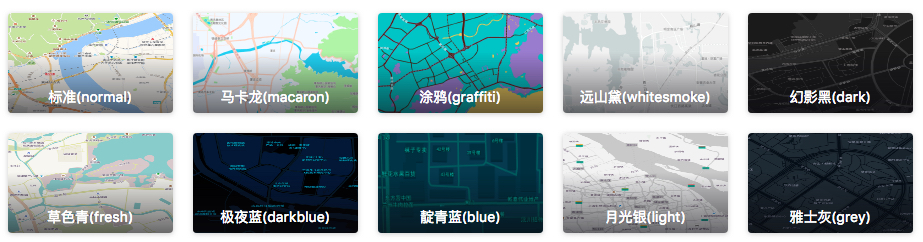
There are two ways to set the map style:
1.1 Set it during map initialization:
var map = new AMap.Map("container", {
  mapStyle: "amap://styles/whitesmoke", //Set the display style of the map
});
1.2 After the map is created, use the setMapStyle() method of the Map object to modify:
var map = new AMap.Map("container", {
  zoom: 10, //Set the zoom level of the map
});
map.setMapStyle("amap://styles/whitesmoke");
Official Map Style Parameter Value Description:
2、Using custom maps
First, register as a developer on the Amap Platform. Then, after creating, editing, and publishing on the custom map platform, obtain the map style ID. (More details)
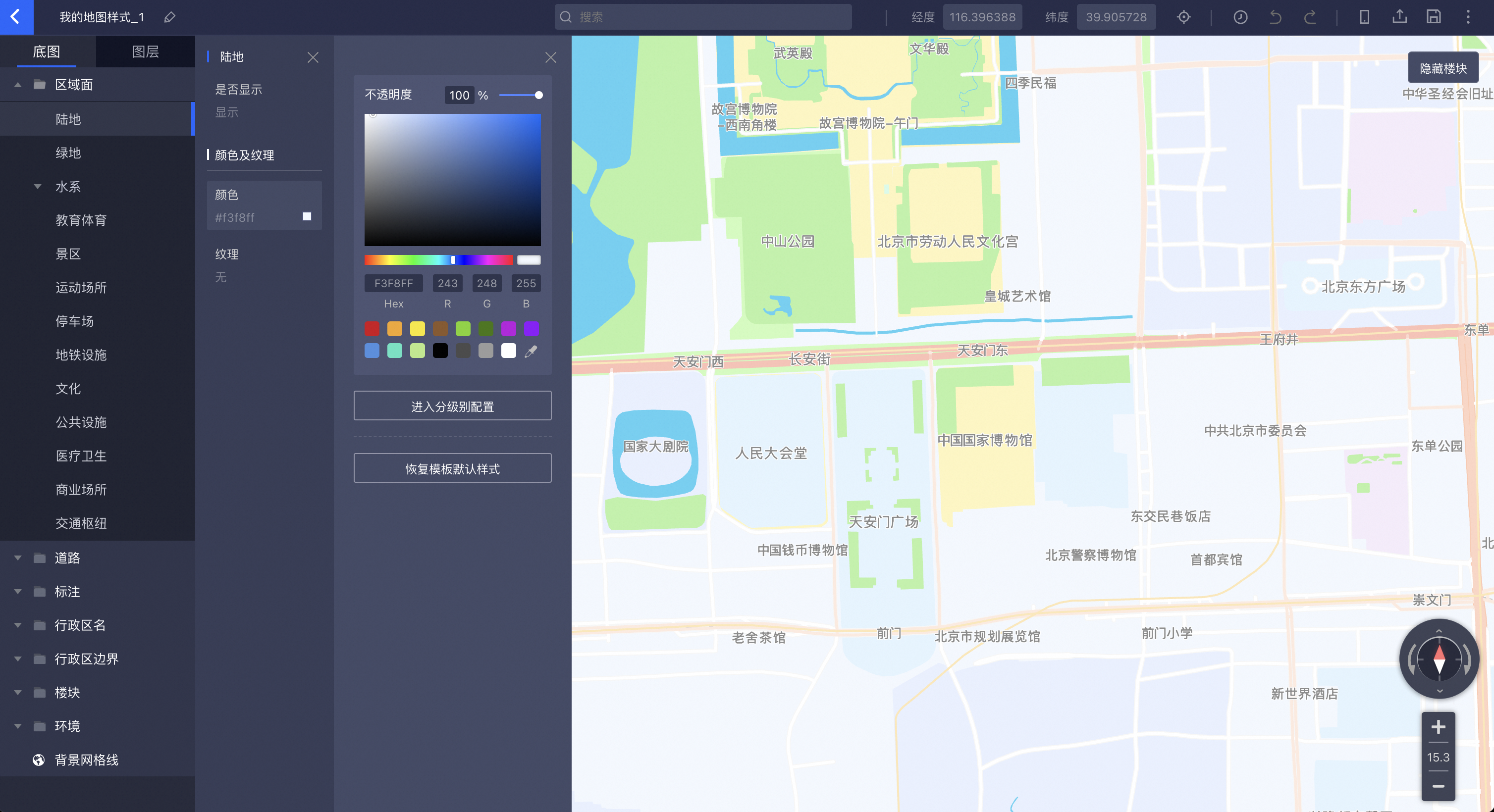
There are two ways to set a custom map:
2.1 When initializing the map, set a custom map:
var map = new AMap.Map('container',{
    mapStyle: 'amap://styles/Map style ID', //Set the display style of the map
});
2.2 After the map is created, use the setMapStyle() method of the Map object to change the map style:
var map = new AMap.Map('container',{
    zoom: 10, //Set the zoom level of the map
});
map.setMapStyle('amap://styles/Map style ID');
3、Set the display content of the map
Set Partial Basemap Elements Display via setFeatures() Method:
map.setFeatures("road");  // Single Category Element Display
map.setFeatures(['road','point']); // Multiple Category Elements Display
Currently, the following four map elements are supported for selective display: