

Multilingual Map
This article describes how to create multilingual maps using JS API, including:
- Configure an English map and set the display language of the bottom-left logo
- Configure the internationalization capability of the scale control (language and metric/imperial units)
English Map Display Effect
1、Implementation Steps
1.1 Map Display
Please ensure your Key has been granted multilingual map permissions. During map initialization, configure the languageCode parameter to display the multilingual map interface. Below is an example of an English map:
const map = new AMap.Map("container", {
  viewMode: "3D", //Default to using 2D mode
  zoom: 11, //Map level
  languageCode:"en", //Set language default: "zh" (Simplified Chinese), optional: "en" (English)
});
In addition to supporting English maps, the JS API also provides multilingual map display. For specific language types and configurations, please refer to the parameter list below.
1.2 Configure the display language of the bottom-left logo
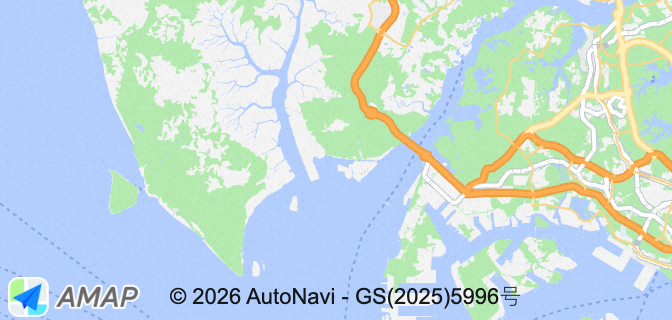
When creating a map, you can control the language version of the bottom-left logo via logoLanguage.
const map = new AMap.Map("container", {
  viewMode: "3D", //Default to using 2D mode
  zoom: 11, //Map level
  languageCode:"en", //Set language
  logoLanguage: 'en', //Set logo language default: "zh" (Simplified Chinese), optional: "en" (English)
});
2、Scale Control Internationalization
This section introduces how to configure internationalization for the scale control (AMap.Scale), ensuring that the scale's units and display meet expectations under different languages and usage habits, including:
- Multilingual Text Switching
- Metric/Imperial Unit Type Switching
- Configure High Contrast Stroke (Improve readability under complex base maps)
If you haven't used JS API controls, you can go to the Control Basics Tutorial
2.1 Create Map
const map = new AMap.Map("container", {
  zoom: 10, // Initialize map zoom level
  center: [103.804246, 1.400204],
  showOversea: true,
  logoLanguage: "en",
  languageCode: "en",
});2.2 Multilingual Text Switching
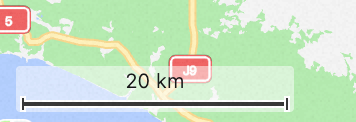
- Initialization Configuration: When creating the scale control (AMap.Scale), specify the text language via the languageCode parameter. Example using English:
map.plugin(["AMap.Scale"], function () {
  scaleControl = new AMap.Scale({
    languageCode: "en", //Configure the scale control to English
  });
  map.addControl(scaleControl);
});- Runtime switching: The scale language setting can be dynamically updated via the setLanguageCode() method:
scaleControl.setLanguageCode('en');// Switch to EnglishYou can use getLanguageCode() to get the current language code of the scale control
scaleControl.getLanguageCode(); // Get current language codeBesides supporting English display, the scale control also provides multilingual display. Please refer to the parameter list below for specific language types and configurations.
2.3 Metric/Imperial Unit Switching
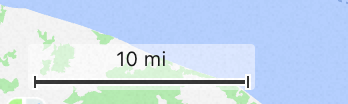
- Initial Configuration: Specify the unit type via the unit parameter when creating the scale control (AMap.Scale)
map.plugin(["AMap.Scale"], function () {
  scaleControl = new AMap.Scale({
    unit: 'imperial', //Configure the display unit for the scale control. Default: "metric" (metric units). Optional: "imperial" (imperial units)
  });
  map.addControl(scaleControl);
});- Runtime Switching: Dynamically update the scale unit type setting via the setUnit() method:
scaleControl.setUnit('imperial'); // Switch to Imperial UnitsYou can use getUnit() to obtain the current scale unit type
scaleControl.getUnit(); // Get Current Unit Type2.4 Configure High Contrast Border
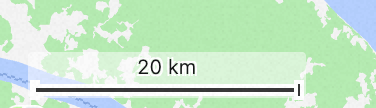
- Initialization Configuration: When creating the scale control (AMap.Scale), specify whether to add a border via the highContrast parameter
map.plugin(["AMap.Scale"], function () {
  scaleControl = new AMap.Scale({
    highContrast: true, //Default: false, no stroke
  });
  map.addControl(scaleControl);
});- Runtime switching: Use the setHighContrast() method to dynamically update whether stroke is added to the scale:
scaleControl.setHighContrast(true); // Add strokeUse getHighContrast() to get whether stroke is currently added to the scale
scaleControl.getHighContrast(); // Get whether stroke is currently added