
Real-Time and Simulated Navigation
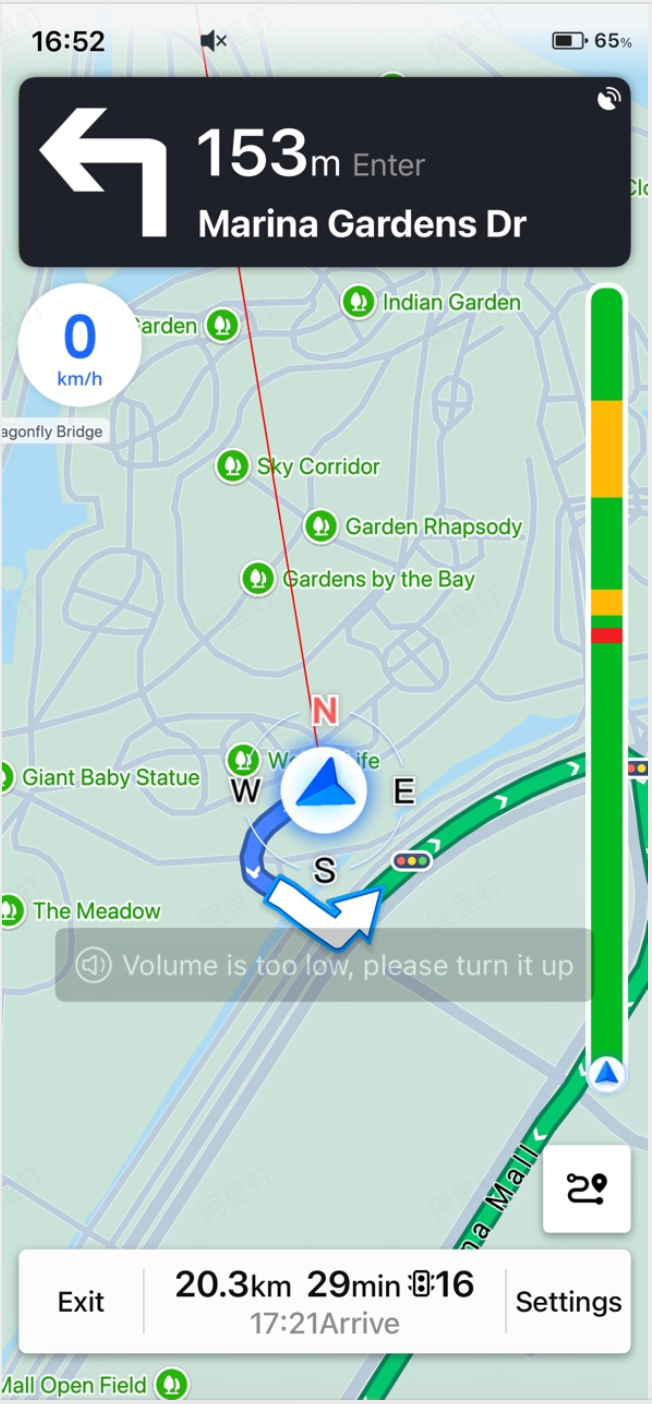
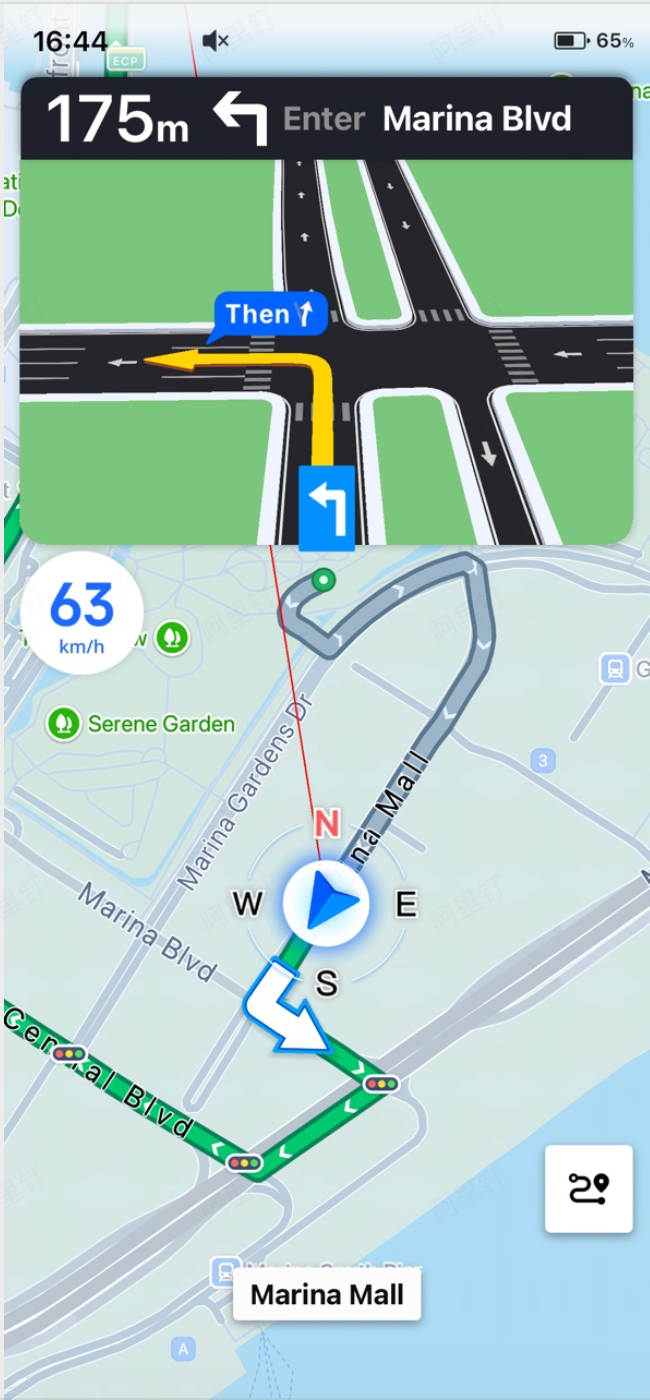
Real-time navigation uses continuous positioning data to drive the navigation experience during an actual trip. After a route is successfully calculated, you can begin real-time navigation. The SDK provides a default navigation interface, AMapNaviDriveView, as shown in the images below.
Usage
Follow these steps to implement real-time navigation.
Step 1: Create an AMapNaviDriveView
- (void)initDriveView {
    if (self.driveView == nil) {
        self.driveView = [[AMapNaviDriveView alloc] initWithFrame:self.view.bounds];
        self.driveView.autoresizingMask = UIViewAutoresizingFlexibleWidth|UIViewAutoresizingFlexibleHeight;
        [self.driveView setDelegate:self];

        [self.view addSubview:self.driveView];
    }
}
Step 2: Create an AMapNaviDriveManager
After creating the AMapNaviDriveManager, add the AMapNaviDriveView as a data representative so it can receive real-time navigation data.
- (void)initDriveManager {
    [[AMapNaviDriveManager sharedInstance] setDelegate:self];

    // Add the driveView as a data representative to receive navigation guidance data
    [[AMapNaviDriveManager sharedInstance] addDataRepresentative:self.driveView];
}
Step 3: Calculate a Route
For more information, see:
Step 4: Start Real-Time Navigation
In the route calculation success callback, start real-time navigation.
- (void)driveManager:(AMapNaviDriveManager *)driveManager onCalculateRouteSuccessWithType:(AMapNaviRoutePlanType)type {
    NSLog(@"onCalculateRouteSuccess");

    // Start GPS navigation after route calculation succeeds
    [[AMapNaviDriveManager sharedInstance] startGPSNavi];
}
Step 5: Destroy the `AMapNaviDriveManager` Singleton When Exiting the Page
- (void)dealloc {
    [[AMapNaviDriveManager sharedInstance] stopNavi];
    [[AMapNaviDriveManager sharedInstance] removeDataRepresentative:self.driveView];
    [[AMapNaviDriveManager sharedInstance] setDelegate:nil];

    BOOL success = [AMapNaviDriveManager destroyInstance];
    NSLog(@"Singleton destroyed successfully: %d", success);
}
Simulated Navigation
Simulated navigation is intended for indoor testing only. It helps you become familiar with the navigation features, such as previewing traffic conditions and camera information along a planned route.
Important: Do not use simulated navigation for actual navigation.
The implementation steps for simulated navigation are nearly identical to those for [real-time navigation](/api/ios-navi-sdk/guide/navigation-map/gps-navi#t1). The only difference is that, in the route calculation success callback, you call the startEmulatorNavi method instead of startGPSNavi.
- (void)driveManager:(AMapNaviDriveManager *)driveManager onCalculateRouteSuccessWithType:(AMapNaviRoutePlanType)type {
    NSLog(@"onCalculateRouteSuccess");

    // Start simulated navigation after route calculation succeeds
    [[AMapNaviDriveManager sharedInstance] startEmulatorNavi];
}