
Custom Route Lines
The AMAPNavi SDK allows you to customize the visual elements of the navigation interface, including map overlays and UI controls, to match your app's style and business requirements. This guide focuses on customizing traffic routes using AMapNaviDriveView. For other customization options, see:
AMapNaviDriveView consists of two layers:
- Overlay layer: The map-based layer that displays route-related elements such as the vehicle icon, start/end points, traffic routes, turn arrows, speed cameras, vector lines, and traffic lights.
- Widget layer: The UI control layer that includes elements like junction views, light bar graphs, overview buttons, and settings buttons.
Show or Hide the Route
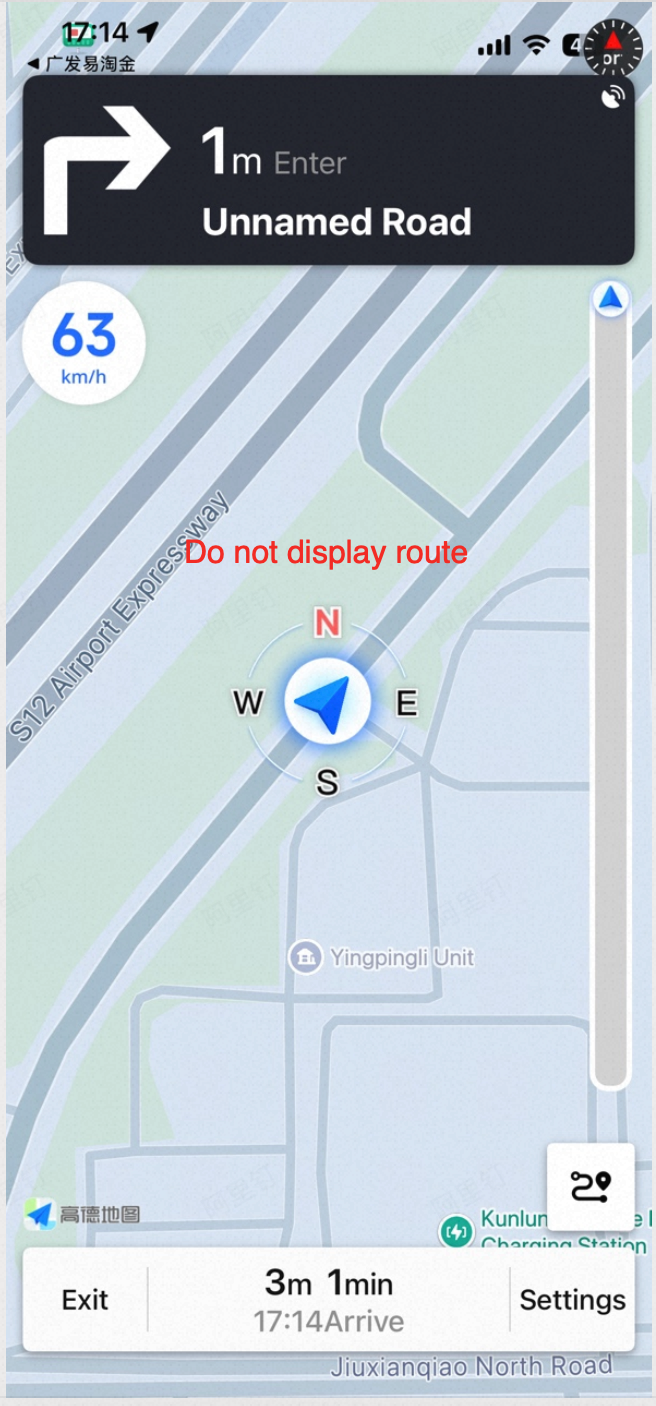
By default, the traffic route is always displayed. However, in certain scenarios, such as after reaching the destination, you may want to hide the route. Use the following property to control route visibility.
Note: Hiding the route also hides related route elements, including cameras (showCamera), traffic lights (showTrafficLights), turn arrows (showTurnArrow), vector lines (showVectorline), and start/end points. For example, if traffic lights are visible and you hide the route, the traffic lights are also hidden. When you show the route again, the traffic lights reappear. However, if traffic lights were already hidden, they remain hidden regardless of the route's visibility.
/// Whether to show the route. Default is YES.
/// Note: Related route elements (cameras, traffic lights, turn arrows, vector lines, start/end points) are also controlled.
/// since 6.2.0
@property (nonatomic, assign) BOOL showRoute;
Set Route Width
The traffic route consists of solid and dashed line segments. Dashed lines typically appear for walking or ferry sections, as shown below:
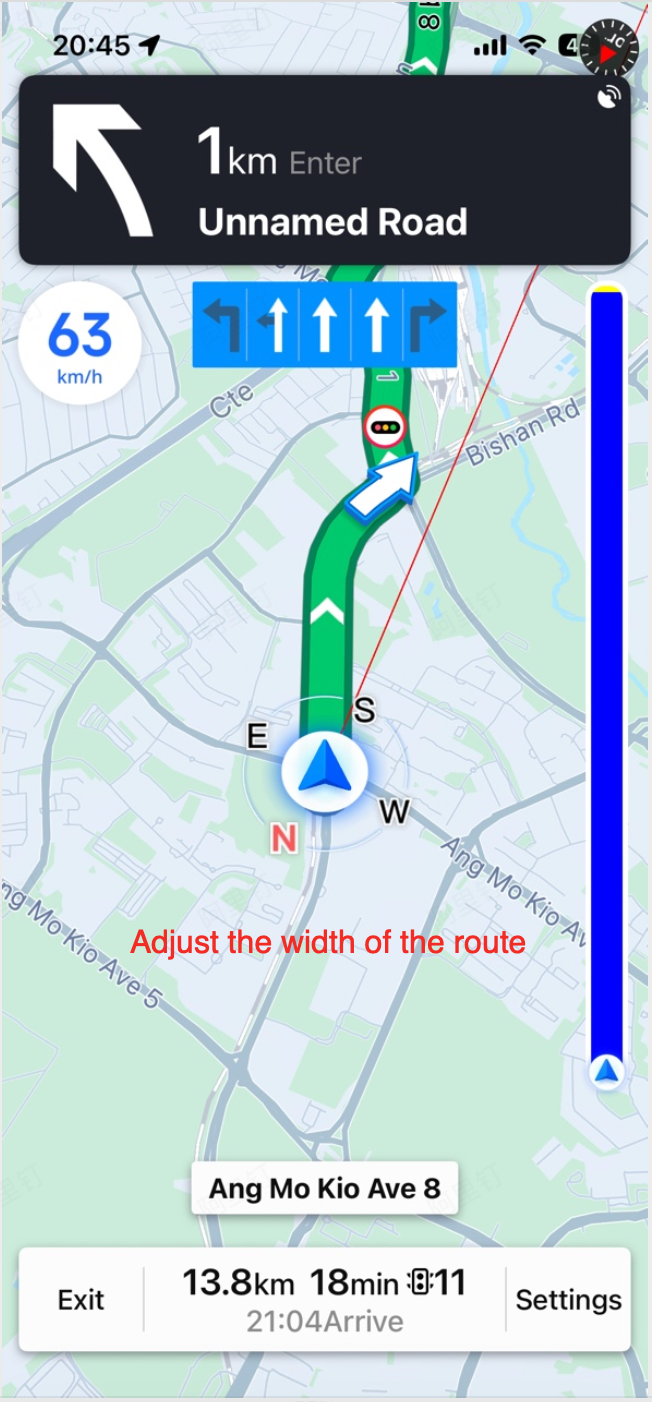
Use the following properties to customize the route width. Set a value of 0 to restore the default width.
/// Width of the route polyline. Set to 0 to restore the default width.
@property (nonatomic, assign) CGFloat lineWidth;

/// Width of the dashed portion of the route polyline. Set to 0 to restore the default width.
@property (nonatomic, assign) CGFloat dashedLineWidth;
Customize Traffic Condition Textures
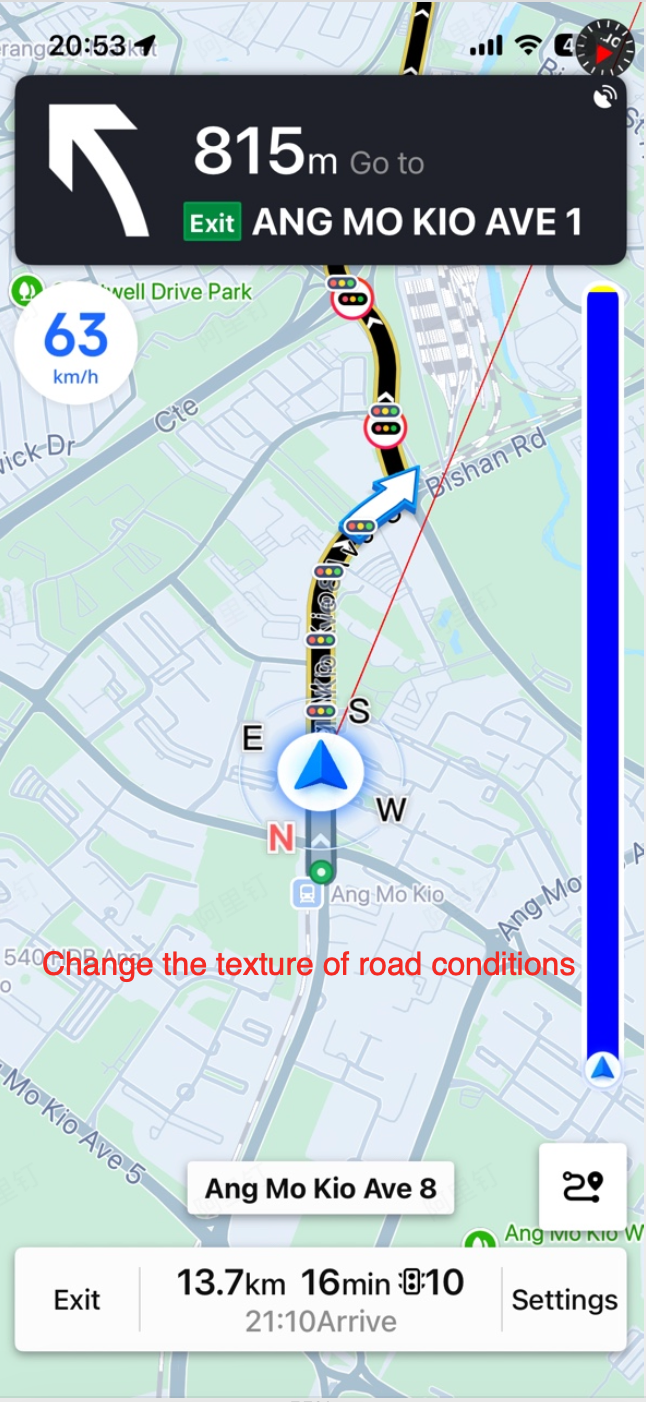
When traffic conditions are enabled, the route is rendered using different textures for each traffic status (unknown, smooth, slow, congested, and severely congested). You can set custom texture images for each status using the following property.
Requirements for texture images: The image must have equal width and height, and the width must be a power of 2.
Example: @{@(AMapNaviRouteStatusSlow): [UIImage slowTrafficImage], @(AMapNaviRouteStatusSeriousJam): [UIImage seriousJamImage]}.
Set an empty dictionary (@{}) to restore the default textures.
@property (nonatomic, copy) NSDictionary<NSNumber *, UIImage *> *statusTextures;Usage Example
[self.driveView setStatusTextures:@{@(AMapNaviRouteStatusUnknow): [UIImage imageNamed:@"arrowTexture0"],
                                    @(AMapNaviRouteStatusSmooth): [UIImage imageNamed:@"arrowTexture1"],
                                    @(AMapNaviRouteStatusSlow): [UIImage imageNamed:@"arrowTexture2"],
                                    @(AMapNaviRouteStatusJam): [UIImage imageNamed:@"arrowTexture3"],
                                    @(AMapNaviRouteStatusSeriousJam): [UIImage imageNamed:@"arrowTexture4"]}];
driveView.statusTextures = [NSNumber(value: AMapNaviRouteStatus.unknow.rawValue): UIImage(named: "arrowTexture0")!,
NSNumber(value: AMapNaviRouteStatus.smooth.rawValue): UIImage(named: "arrowTexture1")!,
NSNumber(value: AMapNaviRouteStatus.slow.rawValue): UIImage(named: "arrowTexture2")!,
NSNumber(value: AMapNaviRouteStatus.jam.rawValue): UIImage(named: "arrowTexture3")!,
NSNumber(value: AMapNaviRouteStatus.seriousJam.rawValue): UIImage(named: "arrowTexture4")!]Customize Dashed Line Color
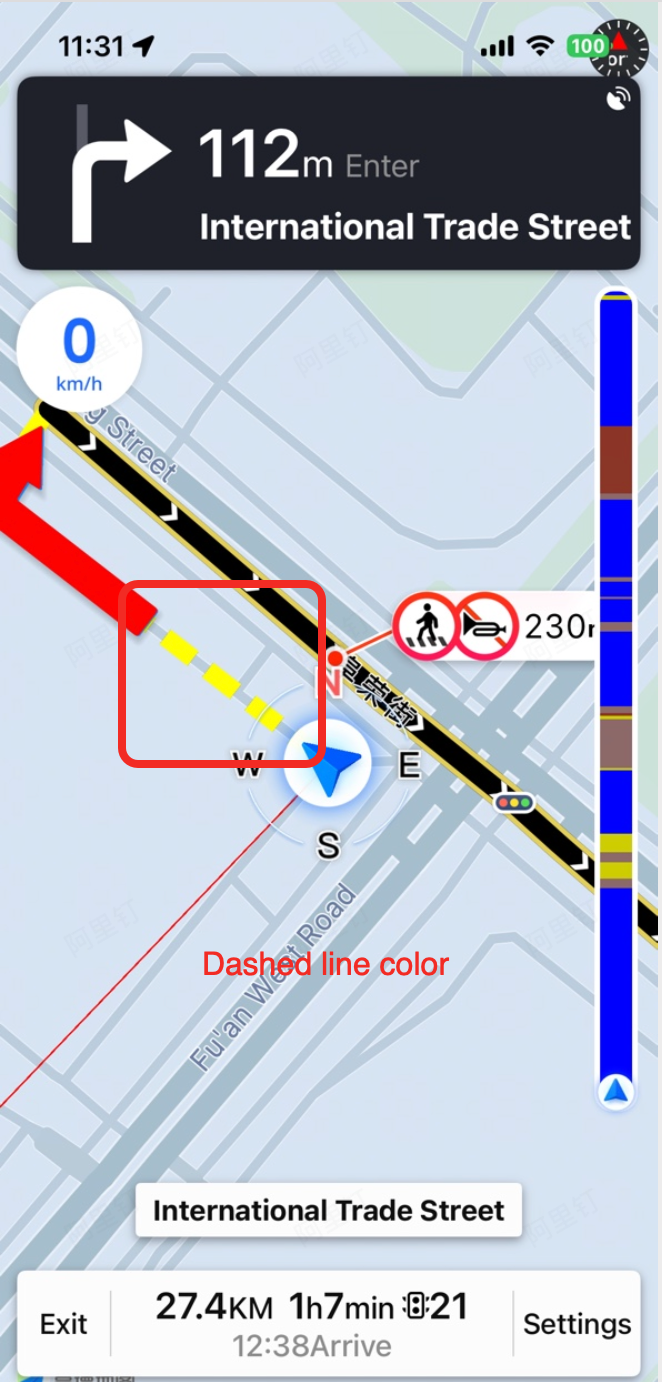
Starting from version 6.2.0, you can set the color of the dashed line segments in the route.
/// Color of the dashed portion of the route. since 6.2.0
@property (nonatomic, strong) UIColor *dashedLineColor;
Gray Out the Driven Route
To improve visual distinction, you can gray out the portion of the route that has already been driven. Use the following property to enable or disable this effect.
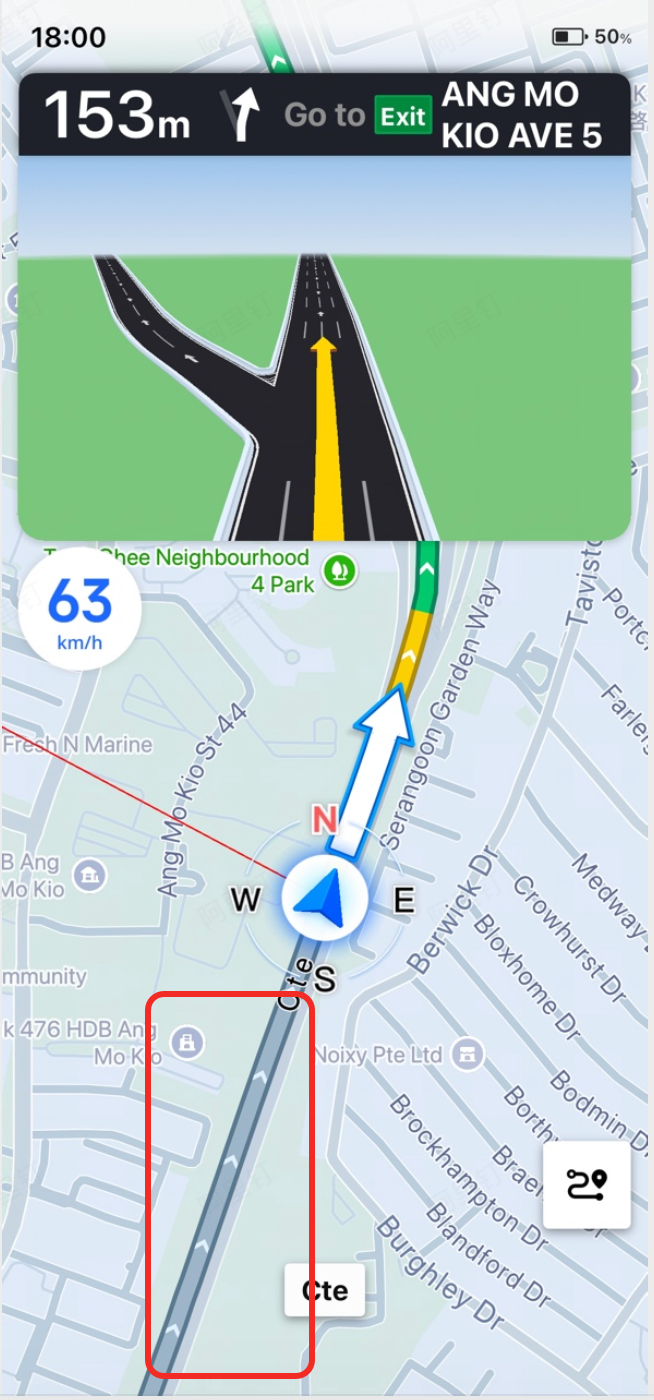
/// Whether to gray out the driven portion of the route. Default is NO. since 6.2.0
@property (nonatomic, assign) BOOL showGreyAfterPass;
You can also customize the grayed-out appearance. For solid line segments, you can set a custom texture. For dashed line segments, you can set a custom color.
/// Color of the dashed portion of the route after being driven. since 6.2.0
@property (nonatomic, strong) UIColor *dashedLineGreyColor;

/// Texture image for the driven portion of the route. Set to nil to restore the default texture.
/// Requirements: The image must have equal width and height, and the width must be a power of 2. since 6.2.0
@property (nonatomic, copy, nullable) UIImage *greyTexture;