
App Store Submission
The Base SDK V1.2.0 (and later versions) introduces IDFA, which may cause your app to be rejected during App Store review. Please read the following information carefully.
Why IDFA Is Introduced
IDFA enables more accurate user identification, helping us better track issues you encounter while using the SDK and ensuring SDK stability. If your app integrates advertising services, we recommend using the online version of the SDK.
If your app does not integrate any advertising services but still needs to track ad-driven installs, you can continue using the online version of the SDK. Please read on for details.
Selecting IDFA Options During App Store Review
When submitting your app for App Store review, you will need to select the appropriate IDFA options, as shown in the image below:
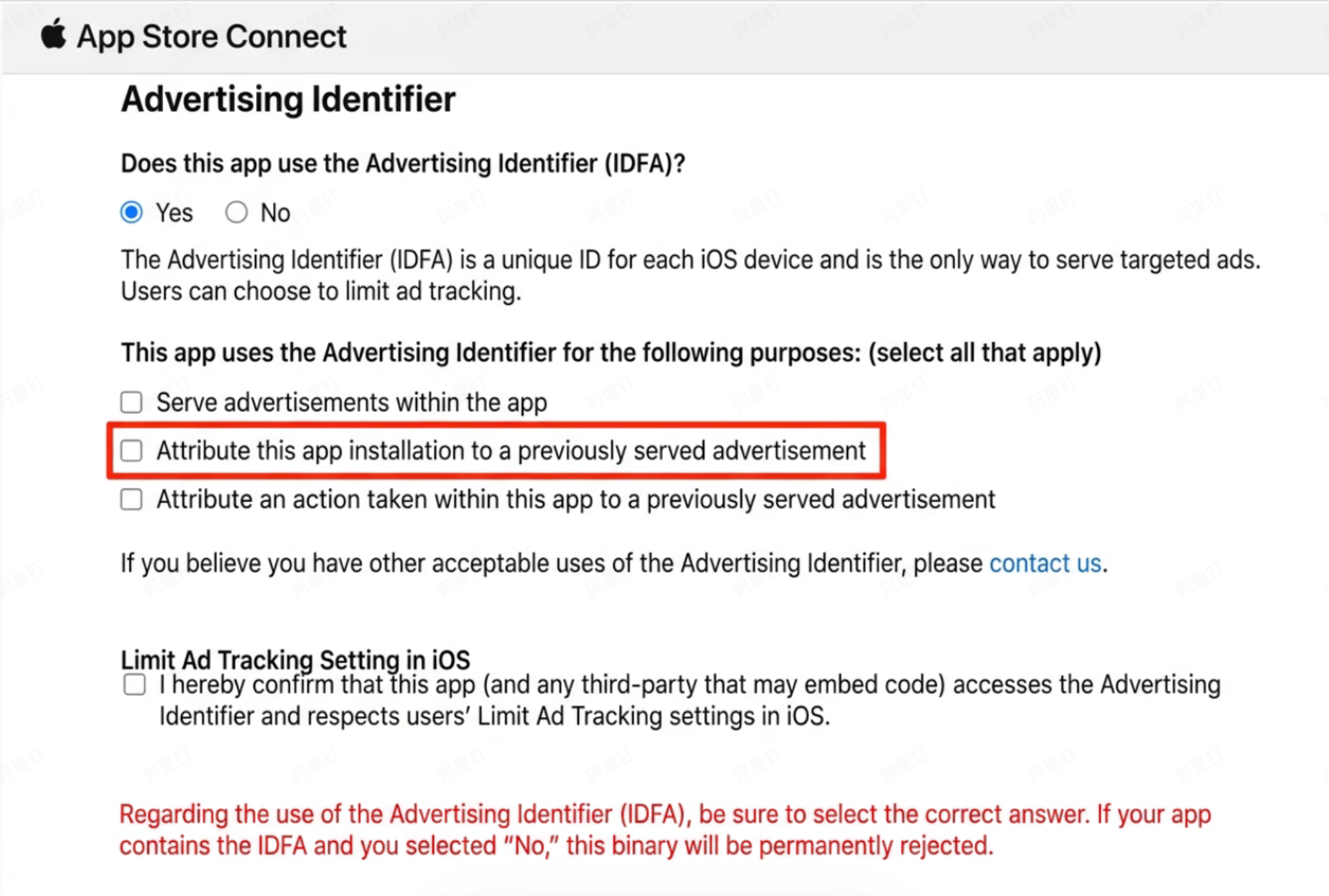
What the Four Options Mean
1. Serve advertisements within the app
Select this option if your app displays advertisements.
2. Attribute this app installation to a previously served specific advertisement
Select this option if you use a third-party tool to track ad-driven installs and other events, but your app does not display advertisements.
3. Attribute an action taken within this app to a previously served specific advertisement
Select this option if you use a third-party tool to track ad-driven installs and subsequent user actions.
4. The "Limit Ad Tracking" setting in iOS
Select this option to confirm the purpose of using IDFA in your app. This option is required whenever you access IDFA.
Resolving App Store Rejection
1. If your app only integrates advertisements and does not track ad-driven installs, select options 1 and 4.
2. If your app does not display advertisements but still accesses IDFA, we recommend selecting options 2 and 4.
Download the IDFA-Free Base SDK
If you prefer not to collect IDFA, you can download the IDFA-free version.
Alternatively, you can use CocoaPods:
1. Edit your Podfile:
platform :ios, '8.0'
target 'YourProjectTarget' do
    pod 'AMapNavi-NO-IDFA'  # IDFA-free Navigation SDK
end
2. Run the following command:
$ pod install