
Display Mode and Tracking Mode
UI customization allows you to modify the map elements and UI controls in AMapNaviDriveView, AMapNaviWalkView, and AMapNaviRideView. This enables you to create a unique navigation interface that matches your business requirements and app style. The following examples use AMapNaviDriveView.
Display Mode
The navigation interface supports three display modes:
* Car Position Locked: The map view moves as the user's location changes. Since the vehicle icon also moves, the two movements cancel each other out, making the vehicle icon appear locked at a fixed position on the screen.
* Overview: The map center and zoom level are adjusted to display the entire route within the visible area.
* Normal: The map view remains stationary while only the vehicle icon moves.
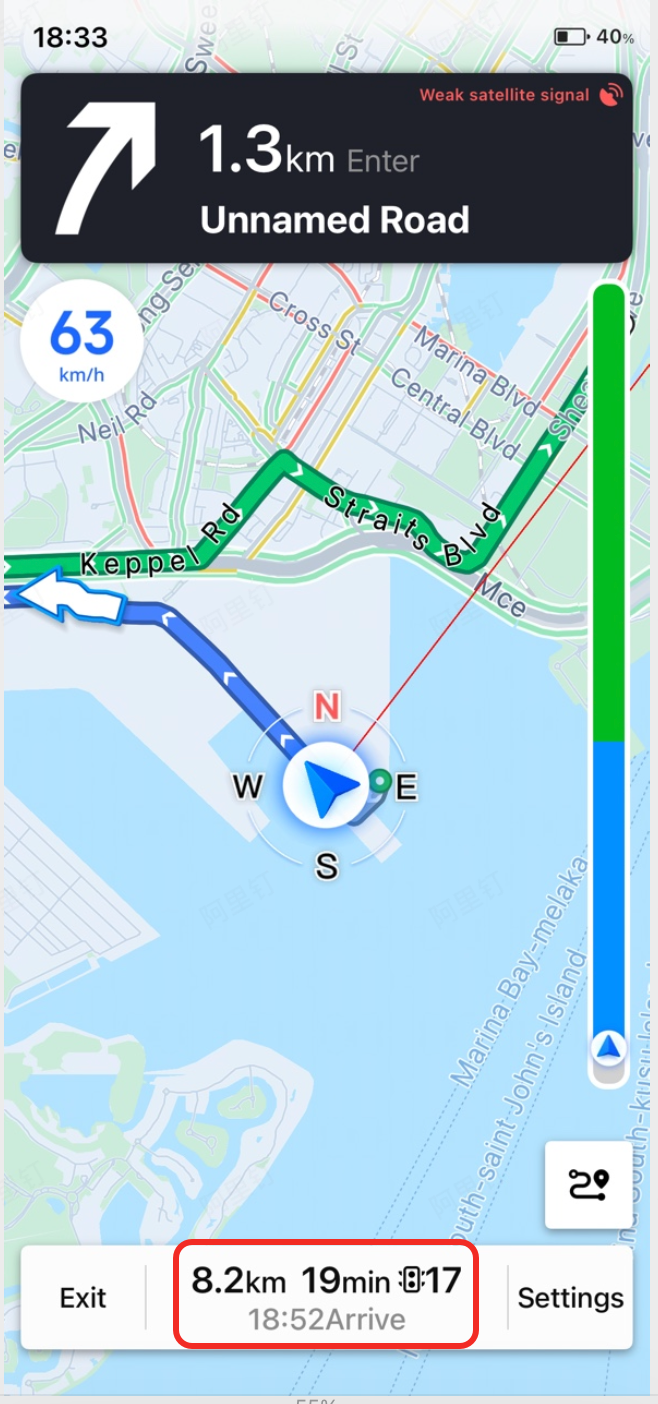
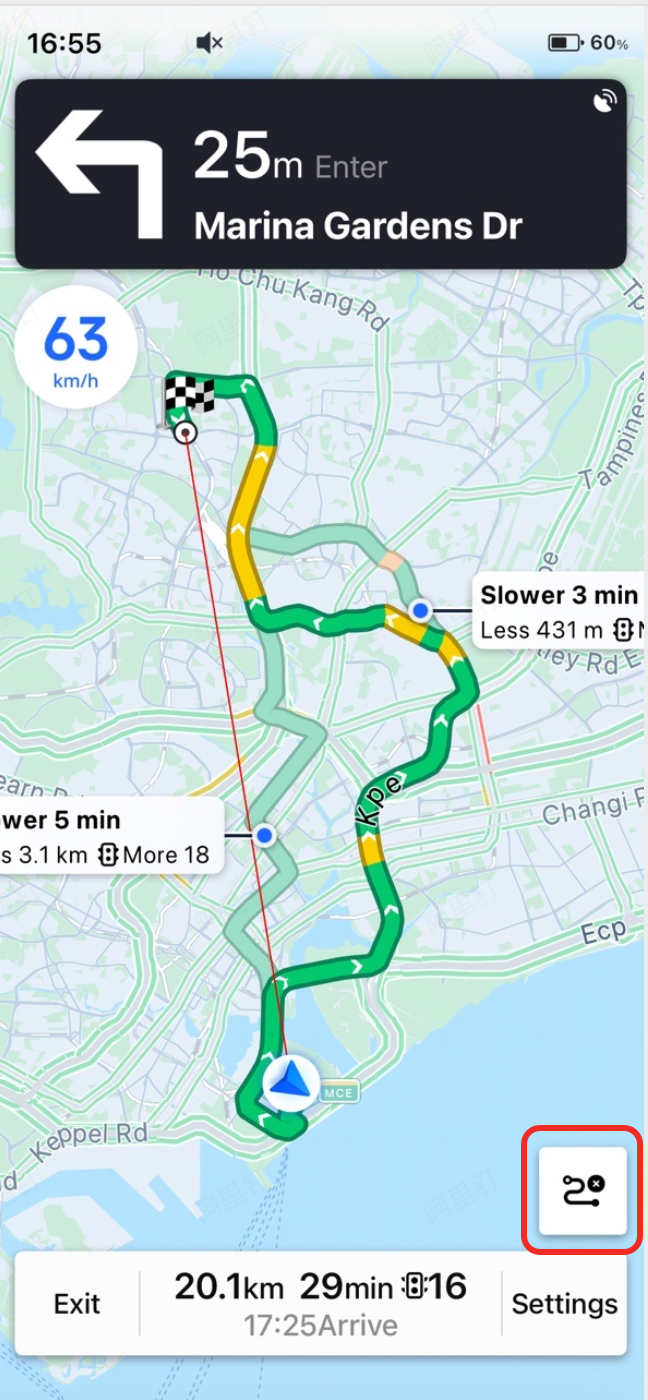
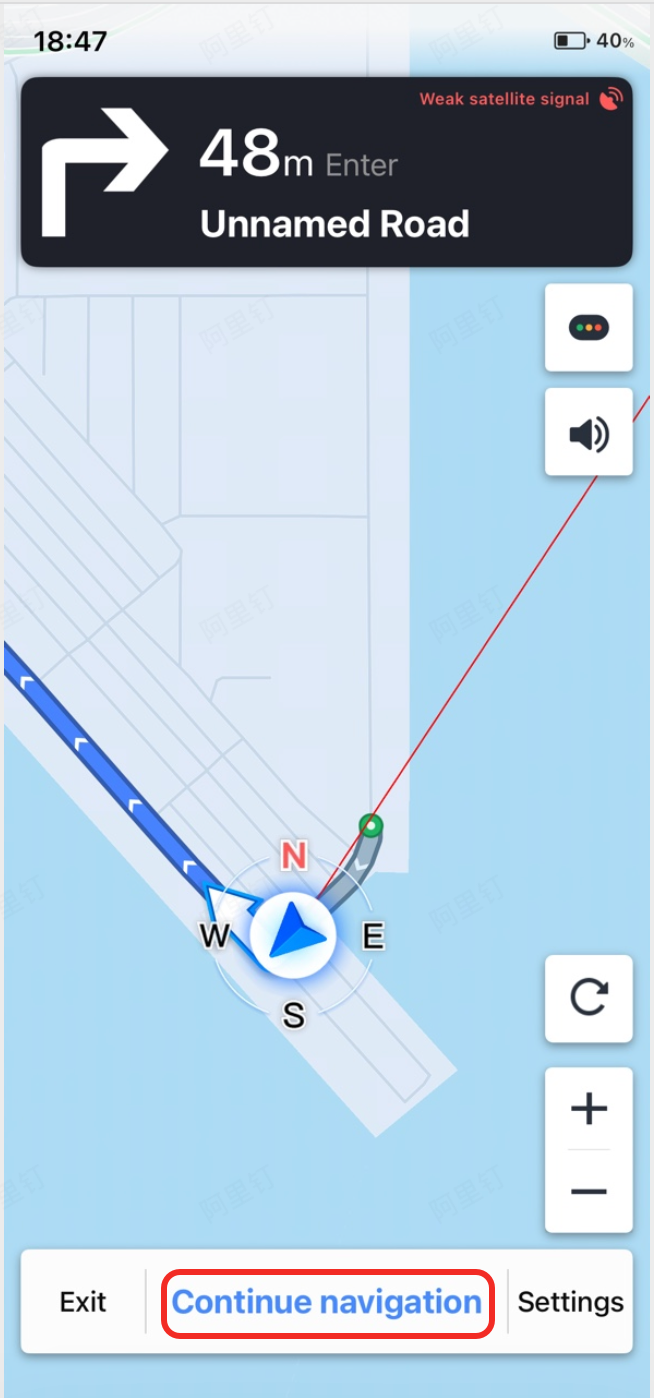
Setting the Display Mode
Use the following interface to set the display mode. This can be updated dynamically during navigation.
/// Display mode for the driving navigation view
typedef NS_ENUM(NSInteger, AMapNaviDriveViewShowMode)
{
    AMapNaviDriveViewShowModeCarPositionLocked = 1, ///< Car position locked
    AMapNaviDriveViewShowModeOverview = 2,          ///< Overview
    AMapNaviDriveViewShowModeNormal = 3,            ///< Normal
};

/// Navigation interface display mode. Default: AMapNaviDriveViewShowModeCarPositionLocked
@property (nonatomic, assign) AMapNaviDriveViewShowMode showMode;
In addition to developers setting showMode programmatically, the SDK also updates this property in response to user actions, such as tapping the "Overview" button. When the showMode value changes, the <AMapNaviDriveViewDelegate> protocol provides the following callback:
/**
 * @brief Callback when the navigation interface display mode changes
 * @param driveView The driving navigation view
 * @param showMode The new display mode
 */
- (void)driveView:(AMapNaviDriveView *)driveView didChangeShowMode:(AMapNaviDriveViewShowMode)showMode;
Tracking Mode
The navigation interface supports two tracking modes:
* Heading Up: The map rotates so that the direction of travel always points upward.
* North Up: The map is oriented with north always pointing upward.
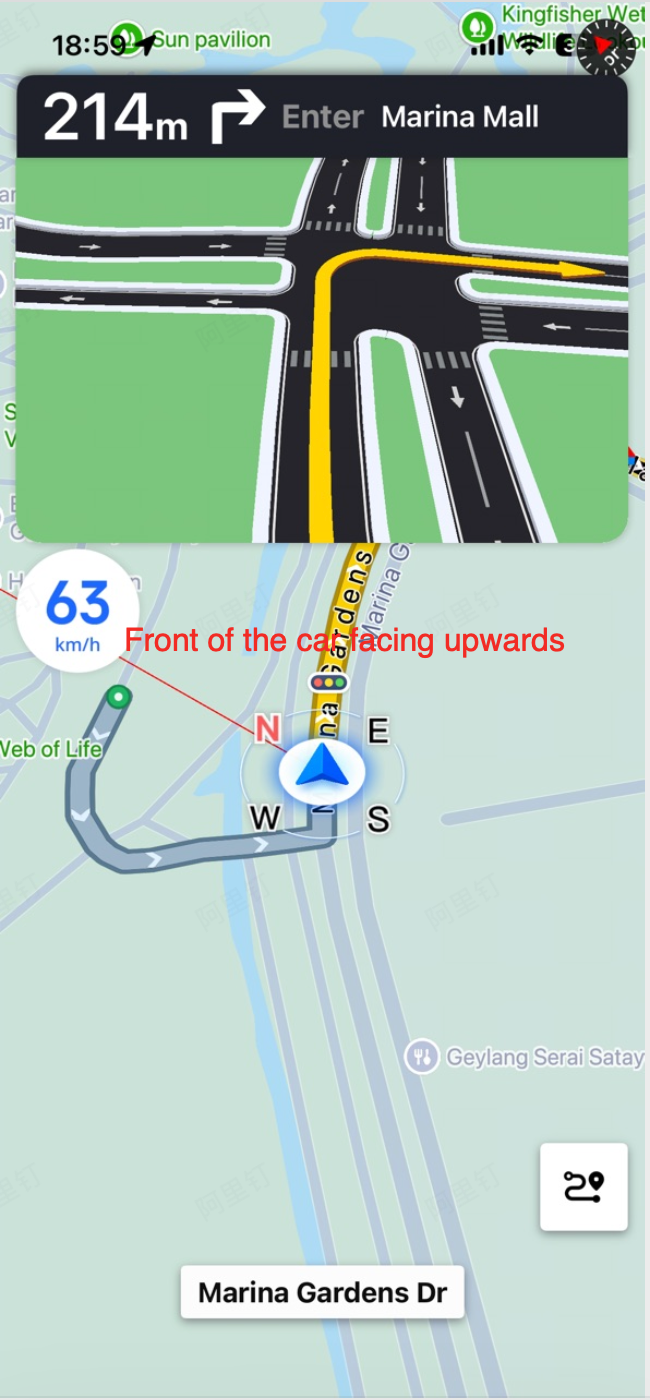
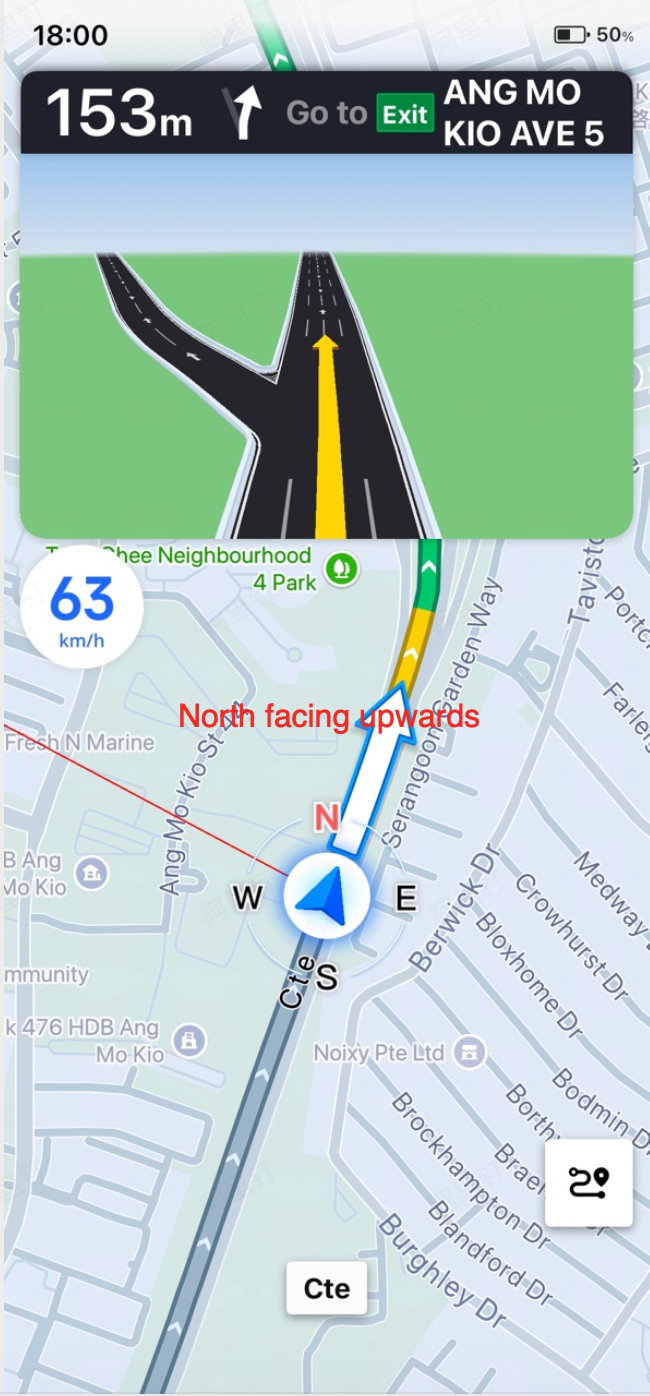
Setting the Tracking Mode
Use the following interface to set the tracking mode. This can be updated dynamically during navigation.
/// Navigation interface tracking mode. Default: AMapNaviViewTrackingModeMapNorth
@property (nonatomic, assign) AMapNaviViewTrackingMode trackingMode;
When the trackingMode value changes, the <AMapNaviDriveViewDelegate> protocol provides the following callback:
/**
 * @brief Callback when the driving navigation view tracking mode changes. since 6.2.0
 * @param driveView The driving navigation view
 * @param trackMode The new tracking mode
 */
- (void)driveView:(AMapNaviDriveView *)driveView didChangeTrackingMode:(AMapNaviViewTrackingMode)trackMode;