
Walking Routing
This guide describes how to plan a walking route by specifying a start point, end point, and walking route data. The route is displayed on the map using a WalkRouteOverlay, which draws the walking route layer including the start point, end point, and turn points. You can also customize the icons for the start point, end point, and turn points.
Note: Starting from Map SDK V4.1.3, the overlay classes under the com.amap.api.maps.overlay package are no longer included in the SDK. They have been open-sourced in the official demo.
Step 1: Initialize the RouteSearch Object
Create a RouteSearch instance.
routeSearch = new RouteSearch(this);Step 2: Set the Data Callback Listener
Register the OnRouteSearchListener callback.
routeSearch.setRouteSearchListener(this);Step 3: Set the Search Parameters
Use the WalkRouteQuery(RouteSearch.FromAndTo fromAndTo, int mode) constructor to set the search criteria.
- fromAndTo: The start and end points of the route.
- mode: The route calculation mode. The SDK provides two modes:
- RouteSearch.WALK_DEFAULT
- RouteSearch.WALK_MULTI_PATH
// Initialize the query object. fromAndTo contains the start and end point information,
// and walkMode specifies the walking route planning mode.
WalkRouteQuery query = new WalkRouteQuery(fromAndTo, walkMode);
Step 4: Send the Request
Call the calculateWalkRouteAsyn(WalkRouteQuery query) method of the RouteSearch class to start the walking route calculation.
routeSearch.calculateWalkRouteAsyn(query); // Start route calculationStep 5: Receive the Result
Implement the onWalkRouteSearched(WalkRouteResult walkRouteResult, int rCode) callback from the RouteSearch.OnRouteSearchListener interface to handle the walking route planning result. The returned information includes:
- Route segment distance
- Estimated walking time
- Coordinate points of the walking route
- Road names along the walking route
- Main navigation instructions
The following image shows an example of the display effect:
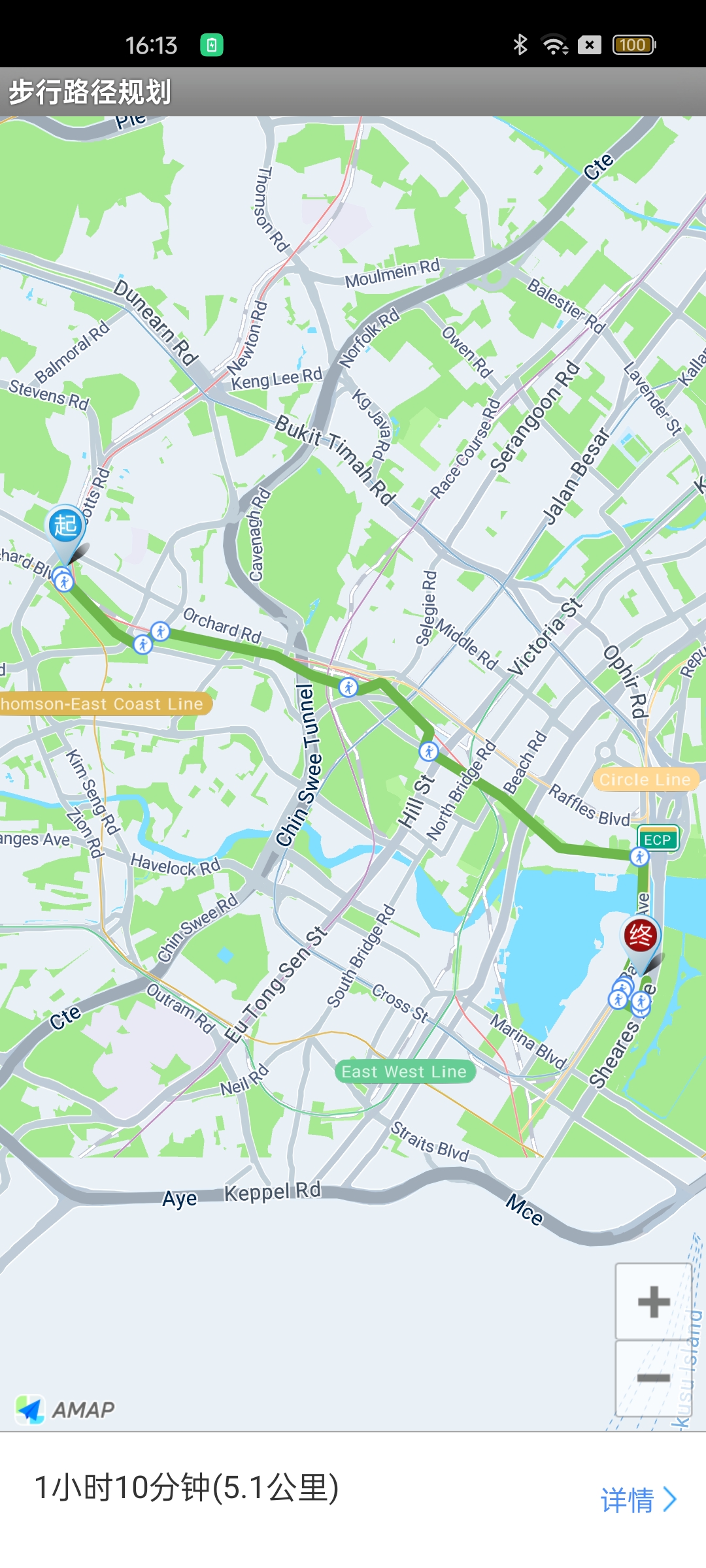
Notes:
1. In the callback, you can parse the result to obtain the walking route.
2. result.getPaths() returns a list of WalkPath objects. For detailed information about the walking path, refer to the WalkPath class.
3. The response code rCode indicates success or failure:
- 1000: Success
- Other values: Failure (see the Error Code Reference in the Developer Guide for details)
public void onWalkRouteSearched(WalkRouteResult result, int rCode) {
    // Parse the result to obtain the route calculation data.
    // Refer to the official demo for implementation details.
}
Notes
- To use the above features, you need to download the Map SDK and import the search function JAR package.
- Starting from Map SDK V4.1.3, the SDK no longer provides the overlay under the com.amap.api.maps.overlay