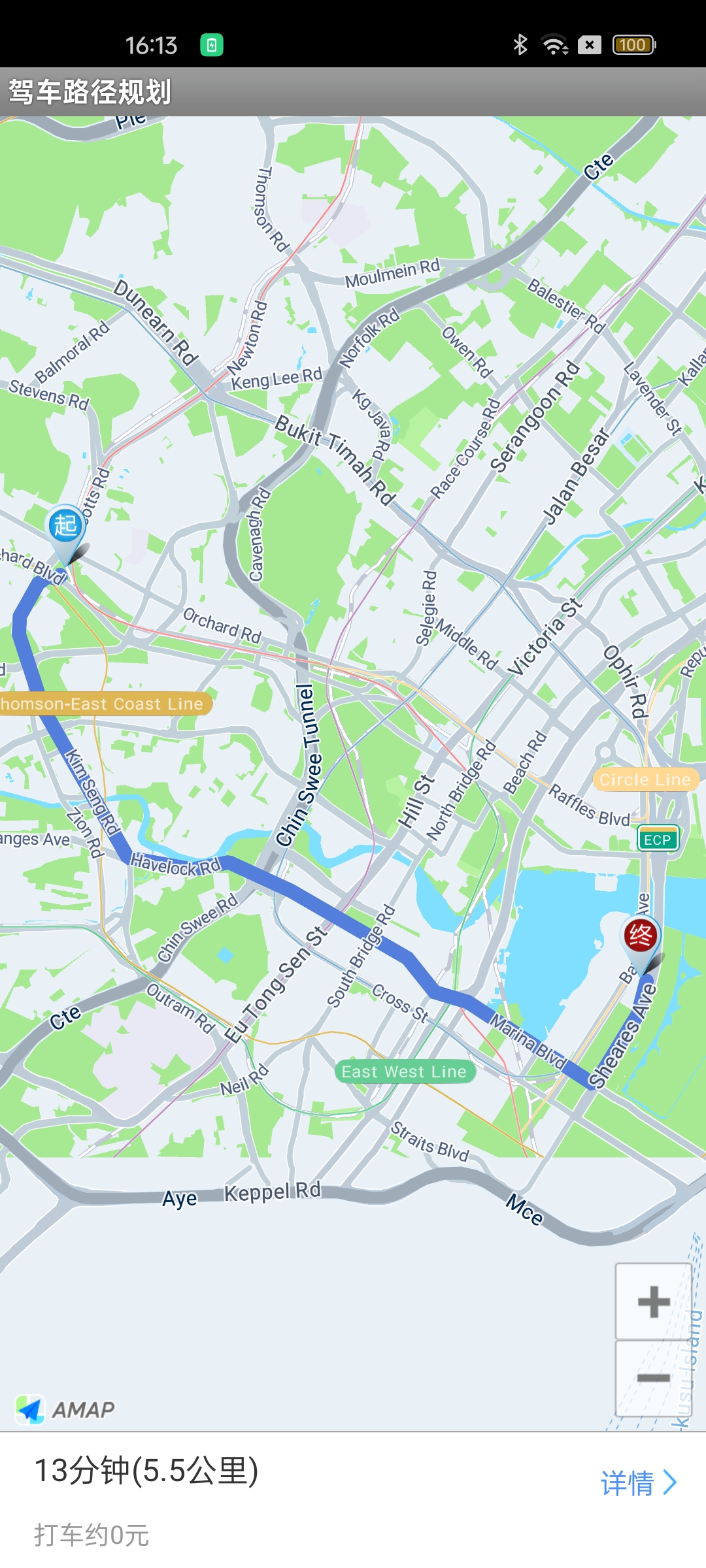
The driving route planning feature calculates a route between an origin and a destination, and uses DrivingRouteOverlay to draw the route layer on the map, including the start point, end point, and turn points. You can also customize the icons for the start point, end point, and turn points.
Note: Starting with Map SDK V4.1.3, the overlays under the com.amap.api.maps.overlay package are no longer included in the SDK. They have been open-sourced in the official demo.
Step 1: Initialize the RouteSearch Object
Create a RouteSearch instance.
routeSearch = new RouteSearch(this);
Step 2: Set the Search Callback Listener
Register a listener to receive route search results.
routeSearch.setRouteSearchListener(this);
Step 3: Configure the Search Parameters
Use the DriveRouteQuery(RouteSearch.FromAndTo fromAndTo, int mode, List<LatLonPoint> passedByPoints, List<List<LatLonPoint>> avoidpolygons, String avoidRoad) constructor to set the search criteria. The parameters are described below:
Name | Meaning | Rule Description |
fromAndTo | Origin and destination of the route | A FromAndTo object |
mode | Route planning strategy | 0: Speed first. See the Driving Strategy Reference for details. |
passedByPoints | Waypoints | A list of LatLonPoint objects. Supports up to 6 waypoints. |
avoidpolygons | Avoidance areas | A list of polygon lists. Supports up to 32 avoidance areas, each with a maximum of 16 vertices. For example, a quadrilateral has 4 coordinate points, and a pentagon has 5. |
avoidRoad | Avoidance road | A single road name. If both avoidpolygons and avoidRoad are set, only avoidRoad takes effect. |
// fromAndTo contains the origin and destination. drivingMode specifies the driving mode.
// The third parameter is waypoints (up to 6), the fourth is avoidance areas (up to 32), and the fifth is avoidance road.
DriveRouteQuery query = new DriveRouteQuery(fromAndTo, drivingMode, null, null, "");
Step 4: Send the Request
Call the calculateDriveRouteAsyn() method to start the asynchronous route calculation.
routeSearch.calculateDriveRouteAsyn(query);
Step 5: Receive the Results
Implement the onDriveRouteSearched(DriveRouteResult result, int rCode) callback from the RouteSearch.OnRouteSearchListener interface to handle the driving route results. The returned information includes the route distance, toll fees (for vehicles with 7 seats or fewer), and traffic conditions.
Notes:
* Parse the result object in the callback to obtain the driving route.
* result.getPaths() returns a list of DrivePath objects. Refer to the DrivePath class for detailed route information.
* The response code rCode indicates success or failure. 1000 means success; any other value indicates failure. See the Error Code Reference for details.
public void onDriveRouteSearched(DriveRouteResult result, int rCode) {
    // Parse the result to get route information. See the official demo for details.
}
Driving Strategy Reference
The following table lists the available driving strategies.
Strategy ID | Constant Field | Description |
0 | DRIVING_SINGLE_DEFAULT | Speed first. Ignores real-time traffic and returns the fastest route, which may not be the shortest. |
1 | DRIVING_SINGLE_SAVE_MONEY | Cost first. Avoids toll roads and returns the route with the least travel time. |
2 | DRIVING_SINGLE_SHORTEST | Distance first. Ignores traffic and returns the shortest route, which may pass through small roads or residential areas. |
3 | DRIVING_SINGLE_NO_EXPRESSWAYS | Speed first. Avoids expressways (e.g., Jingtong Expressway). We recommend using strategy 13 instead. |
4 | DRIVING_SINGLE_AVOID_CONGESTION | Avoids congestion. May result in a longer detour and travel time. |
5 | DRIVING_MULTI_STRATEGY_FASTEST_SAVE_MONEY_SHORTEST | Multi-strategy. Uses speed first, cost first, and distance first simultaneously. Returns 1 to 3 route results depending on traffic conditions. |
6 | DRIVING_SINGLE_NO_HIGHWAY | Speed first. Avoids highways but may include other toll roads. |
7 | DRIVING_SINGLE_NO_HIGHWAY_SAVE_MONEY | Cost first. Avoids highways and all toll roads. |
8 | DRIVING_SINGLE_SAVE_MONEY_AVOID_CONGESTION | Avoids congestion and tolls. May include highways and avoids congested routes, but may result in a longer detour and travel time. |
9 | DRIVING_SINGLE_NO_HIGHWAY_SAVE_MONEY_AVOID_CONGESTION | Avoids congestion and tolls. Does not use highways. |
10 | DRIVING_MULTI_STRATEGY_FASTEST_SHORTEST_AVOID_CONGESTION | Avoids congestion, shortens distance, and minimizes time. This is the same as the default strategy in the AMAP app. |
11 | DRIVING_MULTI_STRATEGY_FASTEST_SHORTEST | Returns three results: fastest, shortest, and congestion avoidance. We recommend using strategy 10 instead. |
12 | DRIVING_MULTI_CHOICE_AVOID_CONGESTION | Considers traffic and avoids congestion. This is the same as the "Avoid Congestion" strategy in the AMAP app. |
13 | DRIVING_MULTI_CHOICE_NO_HIGHWAY | Avoids highways. This is the same as the "Avoid Highways" strategy in the AMAP app. |
14 | DRIVING_MULTI_CHOICE_SAVE_MONEY | Plans a route with lower or no tolls. This is the same as the "Avoid Tolls" strategy in the AMAP app. |
15 | DRIVING_MULTI_CHOICE_AVOID_CONGESTION_NO_HIGHWAY | Avoids congestion and highways. This is the same as the "Avoid Congestion & Avoid Highways" strategy in the AMAP app. |
16 | DRIVING_MULTI_CHOICE_SAVE_MONEY_NO_HIGHWAY | Avoids highways and tolls. This is the same as the "Avoid Tolls & Avoid Highways" strategy in the AMAP app. |
17 | DRIVING_MULTI_CHOICE_AVOID_CONGESTION_SAVE_MONEY | Avoids congestion and tolls. This is the same as the "Avoid Congestion & Avoid Tolls" strategy in the AMAP app. |
18 | DRIVING_MULTI_CHOICE_AVOID_CONGESTION_NO_HIGHWAY_SAVE_MONEY | Avoids congestion, tolls, and highways. This is the same as the "Avoid Congestion & Avoid Tolls & Avoid Highways" strategy in the AMAP app. |
19 | DRIVING_MULTI_CHOICE_HIGHWAY | Prefers highways. This is the same as the "Highway First" strategy in the AMAP app. |
20 | DRIVING_MULTI_CHOICE_HIGHWAY_AVOID_CONGESTION | Prefers highways and avoids congestion. This is the same as the "Avoid Congestion & Highway First" strategy in the AMAP app. |
Notes
To use the above features, you need to download the Map SDK and import the search function JAR package.
Starting from Map SDK V4.1.3, the SDK no longer provides the overlay under the com.amap.api.maps.overlay package. It has been open-sourced in the official Demo.
