
Offline Maps
The AMAP 3D Map SDK supports offline map functionality. (The 2D Map SDK does not support offline maps.)
Offline maps allow you to view map information without a network connection. When offline map data is available on the device, the SDK loads the offline map data first.
Offline Map UI Component (Recommended)
Starting with 3D Map SDK v5.7.0, an offline map UI component is available. This component provides city download, pause, update, delete, and keyword-based city search functionality. It is a subset of the offline map features found in the AMAP mobile app. The UI style is consistent with the AMAP app, while remaining simple and minimal to integrate seamlessly with your application. The following steps show how to implement offline maps with a single call.
Add Permissions
<!-- Include network and SD card read/write permissions -->
<uses-permission android:name="android.permission.INTERNET" />
<uses-permission android:name="android.permission.ACCESS_NETWORK_STATE" />
Register the Activity
The Activity is implemented within the SDK. You only need to configure com.amap.api.maps.offlinemap.OfflineMapActivity in your project's AndroidManifest.xml.
<activity android:name="com.amap.api.maps.offlinemap.OfflineMapActivity"
          android:screenOrientation="portrait" />
Launch the Offline Map Component
// Start the offline map component from your Activity
startActivity(new Intent(this.getApplicationContext(),
                    com.amap.api.maps.offlinemap.OfflineMapActivity.class));
UI Preview
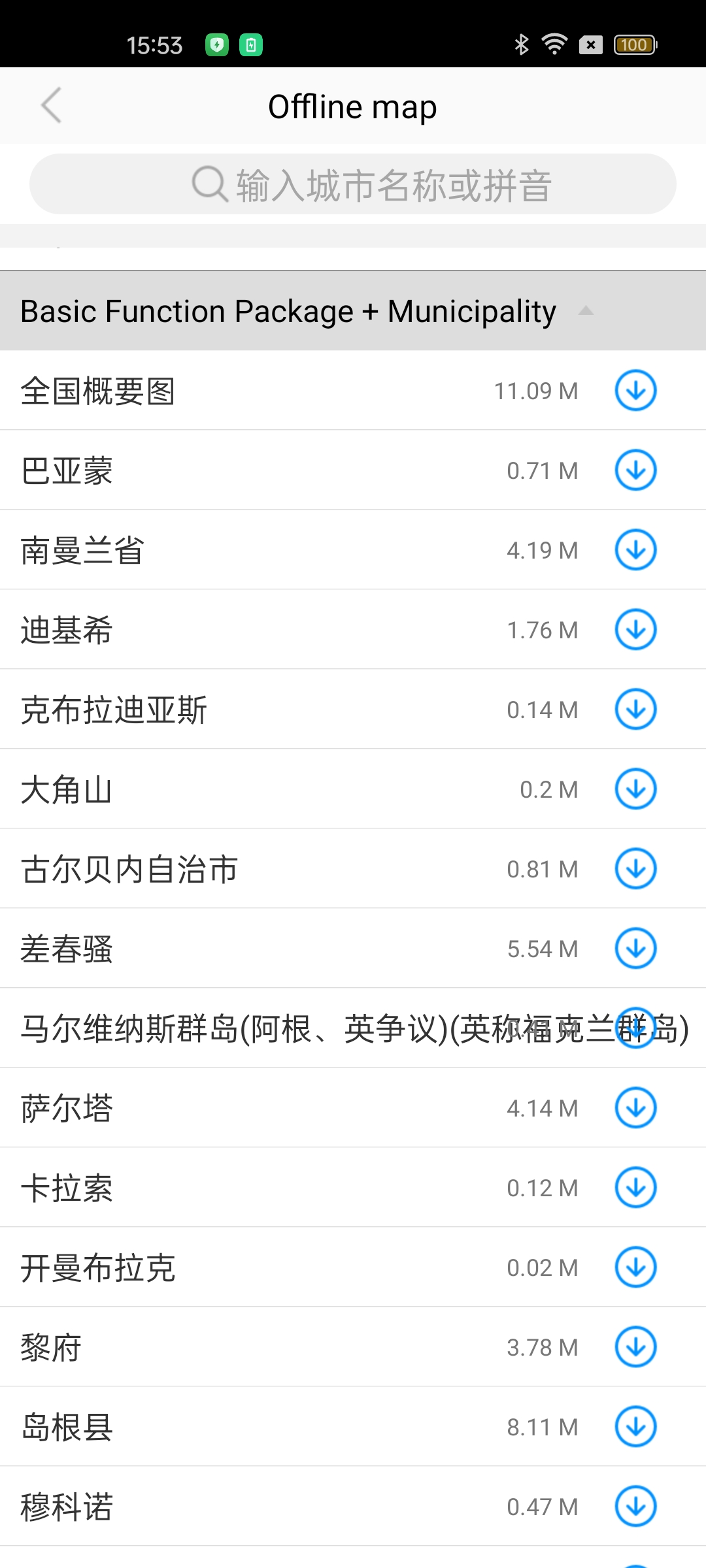
Custom Offline Map UI
Start a Download
You can download offline map data for a city using either the city code or the city name. The following example demonstrates both methods.
// Create an OfflineMapManager object
OfflineMapManager amapManager = new OfflineMapManager(this, this);

// Download by city code
amapManager.downloadByCityCode(String citycode);

// Download by city name
amapManager.downloadByCityName(String cityname);
Pause a Download
Pause the current download.
amapManager.pause();Stop All Downloads
Stop all currently executing downloads, including those in the download queue.
amapManager.stop();Change the Offline Map Storage Directory
By default, offline maps are downloaded to the amap directory on the device's SD card. You can customize this path.
Important: When setting the path using MapsInitializer.sdcardDir, you must do so before the AMap object is initialized. Otherwise, the setting will be ignored.
// Set a custom map storage directory for the application
MapsInitializer.sdcardDir = "custom_directory";
Get the Offline Map List
The following table describes the available methods for retrieving offline map lists.
Check for Updates
Use the following code to check if offline map data has been updated. This operation also updates the local offline map configuration file to the latest version, allowing users to download the latest offline map data based on the updated configuration.
// Check for updates using the city name
amapManager.updateOfflineCityByName(city);
Delete an Offline Map
When performing a remove operation, you must wait for the OfflineLoadedListener callback before proceeding. Otherwise, the operation will be ignored, even if the OfflineMapDownloadListener callback has been triggered.
// Delete the offline map package for a specific city
amapManager.remove(city);