
Set Up in Android Studio
This guide explains how to set up your Android Studio project to use the Map SDK. You can integrate the SDK by copying files directly or by using Gradle.
Create a New Android Project
Create a new Android project with an Empty Activity template. For detailed instructions, see [Getting Started > Create a Project].
Integrate the SDK by Copying Files
1. Add the JAR File
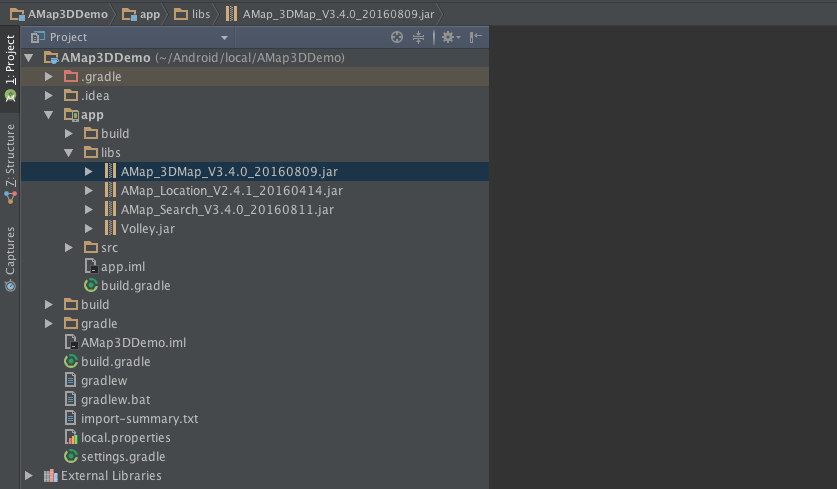
Copy the downloaded Map SDK JAR file to your project's libs directory. If an older version of the JAR file exists, delete it first.
The following image shows the libs directory in the official demo project:
2. Add the SO Library
Note: This step is only required for the 3D Map SDK. The 2D Map SDK does not need SO libraries.
Keep the project view set to Project. Choose one of the following methods to import the SO files.
Method 1: Default Configuration
No changes to build.gradle are needed.
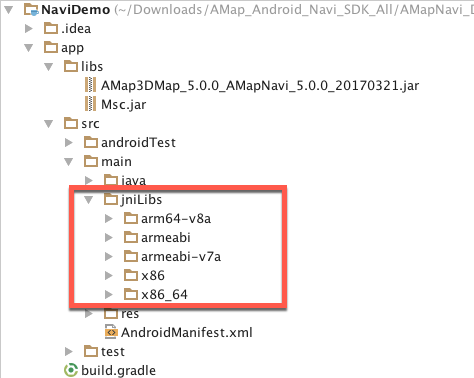
1. In the main directory, create a folder named jniLibs (skip this step if it already exists).
2. Copy the armeabi folder from the downloaded files into the jniLibs directory. If the folder already exists, simply copy the downloaded SO files into it.
Method 2: Custom Configuration
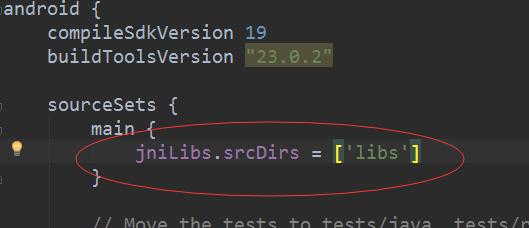
1. Copy the armeabi folder from the downloaded files into the libs directory. If the folder already exists, copy the downloaded SO files into it.
2. Open the build.gradle file for your module.
3. Locate the sourceSets block and add the following configuration:
Integrate the SDK Using Gradle
1. Configure the Repository
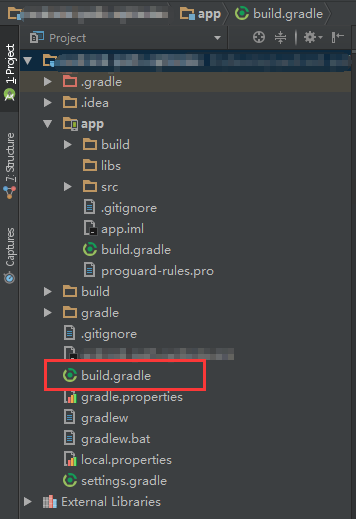
In your project-level build.gradle file, add the Maven Central or JCenter repository address. Android Studio typically adds mavenCentral() automatically for all modules. If it is already present, no further action is needed.
The project-level build.gradle file is located at the root of your project:
Add the following configuration:
allprojects {
    repositories {
        mavenCentral()
    }
}
2. Add the SDK Dependency
In your module-level build.gradle file, add the dependency for the SDK you need. The following table lists the available SDKs and their corresponding dependency declarations.
The module-level build.gradle file is located within your app module:
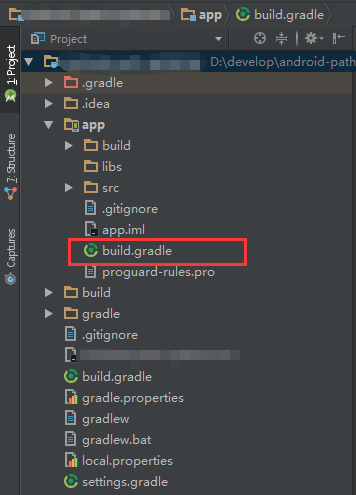
The following example shows the configuration for a 3D Map demo project that includes the 3D Map, Location, and Search SDKs:
android {
    defaultConfig {
        ndk {
            // Specify the supported SO library architectures.
            // You can select one or more platforms as needed.
            abiFilters  "armeabi-v7a", "arm64-v8a"
        }
    }
}

dependencies {
    implementation fileTree(dir: 'libs', include: ['*.jar'])
    // The 3D Map SDK includes location and search functionality.
    // No separate dependencies are required for those features.
    implementation 'com.amap.api:3dmap-location-search:latest.integration'
}
Using the latest version is recommended. To use a specific version, specify the version number directly:
dependencies {
    implementation fileTree(dir: 'libs', include: ['*.jar'])
    implementation 'com.amap.api:3dmap-location-search:10.1.200_loc6.4.9_sea9.7.4'
}
Important Notes
1. SO Library Architecture Support:
* The 3D Map SDK and Navigation SDK (versions 5.0.0 and later) support multiple SO library architectures: armeabi, armeabi-v7a, arm64-v8a, x86, and x86_64.
* Starting from version 10.x, only armeabi-v7a and arm64-v8a are supported.
* When upgrading from an older version, remove the old SO libraries before adding the new ones.
2. Navigation SDK Dependency:
* The Navigation SDK (version 5.0.0 and later) includes the 3D Map SDK. Do not add both map3d and navi dependencies simultaneously.
3. Build Failures:
* If a build fails with an error like com.amap.api:XXX:X.X.X not found, verify the spelling and version number. If the JCenter repository is unreachable, try switching to the Maven Central repository.
4. File Conflicts:
* After integrating the SDK using Gradle, do not place the corresponding JAR or SO files in the libs folder. Doing so will cause conflicts.