
Map Styling
Introduction
Starting with Android 3D Map SDK v5.2.0, the AMAP SDK supports custom map styles that let you change the base map colors and appearance using visual templates. This feature enables visual editing and control over which map elements are displayed.
Create a Style File
Create a Map Style
After obtaining a developer account on the AMAP Platform, you can create a map style by following these steps:
1. Go to the Developer Console.
2. Navigate to the Map Customization Platform.
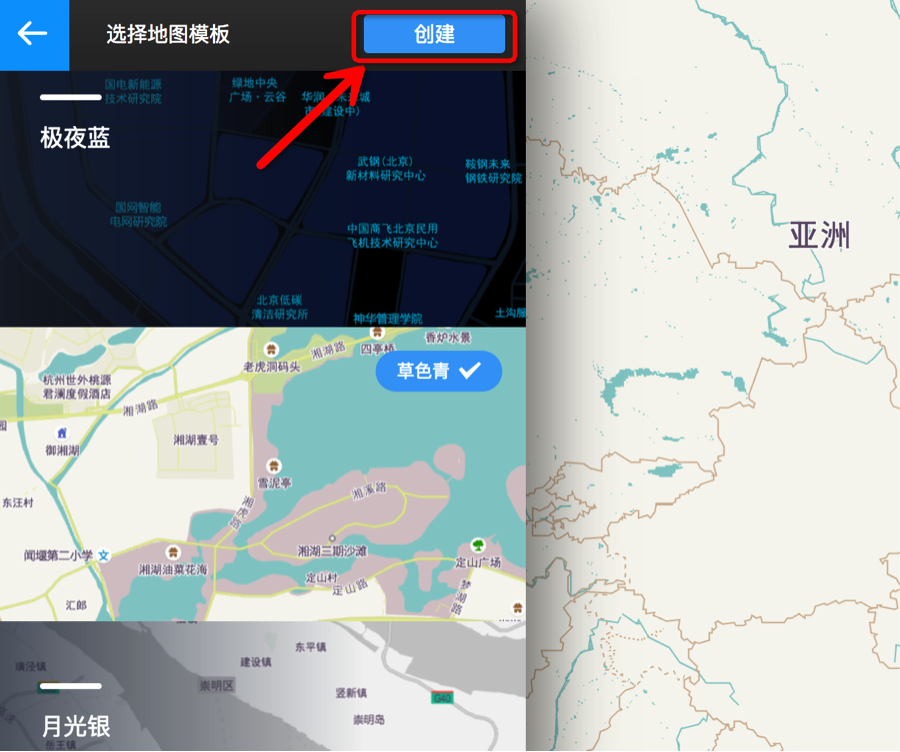
3. Click Create Map Style.
4. Select a template to start with.
Edit a Map Style
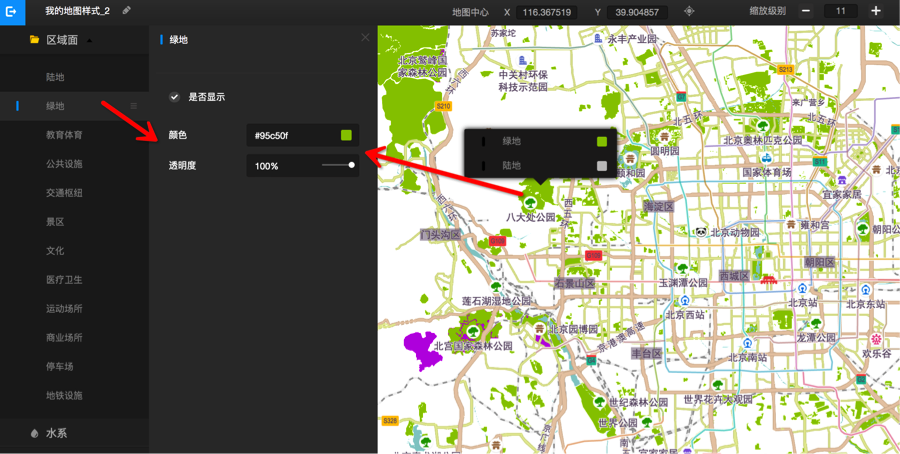
On the style editing page, you can edit style properties in two ways:
- Select an element from the list on the left side of the page.
- Click a feature directly on the map, then choose the element from the pop-up list.
Publish and Download the Style File
After editing is complete:
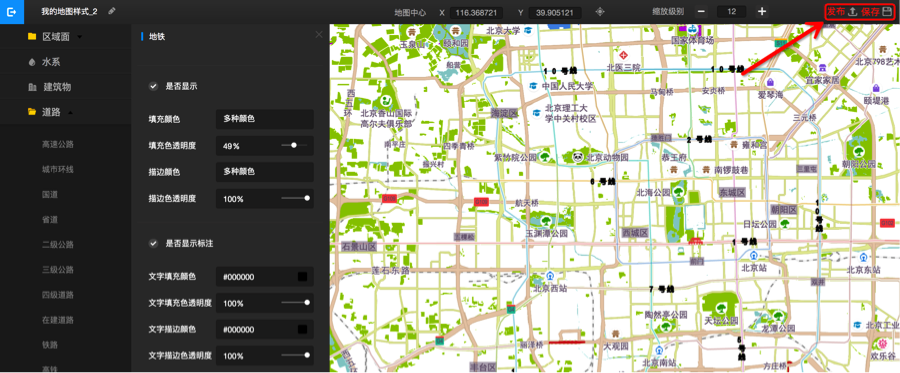
1. Click Save in the upper-right corner.
2. Click Publish.
3. After publishing, select Usage Method.
4. Choose the Android platform.
5. Click Download Offline File.

Set the Style File
Note: Starting with Map SDK v6.6.0, the custom map style usage method has been significantly updated. See the documentation below for details.
Set an Offline Style File
1. In the console, go to My Map Styles and download the style file that matches your current Map SDK version.

2. The downloaded ZIP file has the following internal directory structure. Each file corresponds to a method in CustomMapStyleOptions:
Note: You can place the style files in any directory, for example /mnt/sdcard/amap.
// This method is available in the AMap class
aMap.setCustomMapStyle(
    new com.amap.api.maps.model.CustomMapStyleOptions()
        .setEnable(true)
        .setStyleDataPath("/mnt/sdcard/amap/style.data")
        .setStyleExtraPath("/mnt/sdcard/amap/style_extra.data")
        .setStyleTexturePath("/mnt/sdcard/amap/textures.zip")
);
Important: The texture feature requires [enabling the relevant permissions](/home/package?active=mapstyle).
Set an Online Style File (Requires Permission)
If downloading style files is too cumbersome, you can use the online method instead. This feature requires [enabling permissions](/home/package?active=mapstyle).
1. After publishing a new style on the customization platform, you receive a style ID. Use the SDK's setCustomMapStyleID method to apply it. To update the style, simply publish the changes and reload the map.
2. If both online and offline styles are set, the SDK attempts to fetch the online style first. If the fetch fails, it falls back to the offline style.
3. Example code:
// This method is available in the AMap class
aMap.setCustomMapStyle(
    new com.amap.api.maps.model.CustomMapStyleOptions()
        .setEnable(true)
        .setStyleId("your_style_id") // Obtain from Console > Custom Styles
);
Note: Textures are not supported for online fetching. If you use setStyleId, you must also set the texture using setStyleTexturePath for it to take effect.