
Current Location
The location blue dot indicates the user's current position on the map. Starting from Android 3D Map SDK version 5.0.0, the location blue dot feature no longer requires the Android Location SDK. For versions prior to 5.0.0, both the Map SDK and the Location SDK must be included in your project.
The following image shows the expected result:
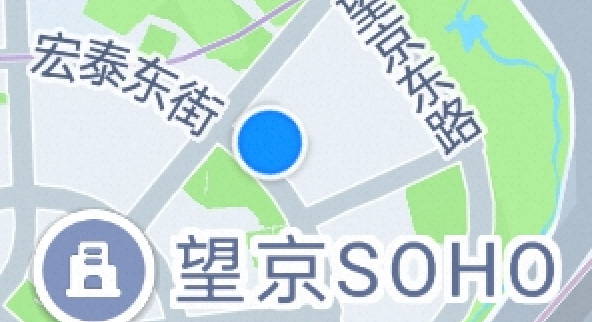
Implementation (SDK 5.0.0 and Later)
Step 1: Initialize the AMap Object
For details on initializing the AMap object, see Display a Map.
Step 2: Configure the Location Blue Dot
The following code demonstrates how to set up the location blue dot:
MyLocationStyle myLocationStyle;
myLocationStyle = new MyLocationStyle(); // Initialize the location blue dot style class
myLocationStyle.myLocationType(MyLocationStyle.LOCATION_TYPE_LOCATION_ROTATE); // Continuous location updates, moves the viewport to the map center, rotates the blue dot according to device orientation, and follows device movement (1 update per second). This is the default mode if myLocationType is not set.
myLocationStyle.interval(2000); // Set the interval for continuous location mode (in milliseconds). Only effective in continuous mode, not single-location mode.
aMap.setMyLocationStyle(myLocationStyle); // Apply the location blue dot style
// aMap.getUiSettings().setMyLocationButtonEnabled(true); // Optionally show the default location button
aMap.setMyLocationEnabled(true); // Set to true to display the location blue dot and enable location; false to hide it and stop location. Default is false.
Location Blue Dot Modes
The location blue dot supports eight modes:
myLocationStyle.myLocationType(MyLocationStyle.LOCATION_TYPE_SHOW); // Single location update only.
myLocationStyle.myLocationType(MyLocationStyle.LOCATION_TYPE_LOCATE); // Single location update, moves the viewport to the map center.
myLocationStyle.myLocationType(MyLocationStyle.LOCATION_TYPE_FOLLOW); // Continuous location updates, moves the viewport to the map center, and the blue dot follows device movement (1 update per second).
myLocationStyle.myLocationType(MyLocationStyle.LOCATION_TYPE_MAP_ROTATE); // Continuous location updates, moves the viewport to the map center, rotates the map according to device orientation, and the blue dot follows device movement (1 update per second).
myLocationStyle.myLocationType(MyLocationStyle.LOCATION_TYPE_LOCATION_ROTATE); // Continuous location updates, moves the viewport to the map center, rotates the blue dot according to device orientation, and follows device movement (1 update per second). This is the default mode.
// The following three modes are available from version 5.1.0
myLocationStyle.myLocationType(MyLocationStyle.LOCATION_TYPE_LOCATION_ROTATE_NO_CENTER); // Continuous location updates, the blue dot does not move to the map center, rotates according to device orientation, and follows device movement.
myLocationStyle.myLocationType(MyLocationStyle.LOCATION_TYPE_FOLLOW_NO_CENTER); // Continuous location updates, the blue dot does not move to the map center, and follows device movement.
myLocationStyle.myLocationType(MyLocationStyle.LOCATION_TYPE_MAP_ROTATE_NO_CENTER); // Continuous location updates, the blue dot does not move to the map center, rotates the map according to device orientation, and follows device movement.
Show or Hide the Location Blue Dot
Control the visibility of the location blue dot:
// Supported from version 5.1.0
MyLocationStyle showMyLocation(boolean visible) // Set whether to display the location blue dot. Use this when you want location functionality without the visual blue dot. When set to false, the blue dot is hidden, but location callbacks continue.
Customize the Location Blue Dot Icon
Customize the icon for the location blue dot:
MyLocationStyle myLocationIcon(BitmapDescriptor myLocationIcon); // Set the icon for the location blue dot. Requires a BitmapDescriptor object as a parameter.Customize the Anchor Point
The anchor point defines the relationship between a pixel on the icon and the geographic coordinate of the blue dot. For example, to align the bottom-left pixel of the icon with the blue dot's latitude/longitude, pass (0.0, 1.0). The top-left corner of the icon is the pixel origin.
MyLocationStyle anchor(float u, float v); // Set the anchor point for the location blue dot icon.Customize the Accuracy Circle
Customize the color of the accuracy circle:
MyLocationStyle strokeColor(int color); // Set the border color of the accuracy circle.
MyLocationStyle radiusFillColor(int color); // Set the fill color of the accuracy circle.
Customize the border width of the accuracy circle:
MyLocationStyle strokeWidth(float width); // Set the border width of the accuracy circle.Customize the Location Interval
The location interval is only effective in continuous location modes. The following modes support continuous location:
MyLocationStyle.LOCATION_TYPE_FOLLOW; // Continuous location updates, moves the viewport to the map center, and the blue dot follows device movement (default: 1 update per second).
MyLocationStyle.LOCATION_TYPE_MAP_ROTATE; // Continuous location updates, moves the viewport to the map center, rotates the map according to device orientation, and the blue dot follows device movement (default: 1 update per second).
MyLocationStyle.LOCATION_TYPE_LOCATION_ROTATE; // Continuous location updates, moves the viewport to the map center, rotates the blue dot according to device orientation, and follows device movement (default: 1 update per second). This is the default mode.
Set the location interval:
MyLocationStyle interval(long interval); // Set the location interval in milliseconds. Default: 1000 ms. Values less than 1000 are treated as 1000. This method only affects continuous location modes.Retrieve Latitude and Longitude
Implement the AMap.OnMyLocationChangeListener interface to receive location updates:
public void onMyLocationChange(android.location.Location location) {
    // Retrieve latitude, longitude, and address information from the location object.
    // For address details, it is recommended to call the reverse geocoding API.
}
Implementation (SDK Versions Prior to 5.0.0)
Step 1: Initialize the Map
Initialize the aMap object and configure location settings:
// Set the location source listener
aMap.setLocationSource(this);
// Set to true to display the location layer and enable location triggering;
// false to hide the location layer and disable location triggering. Default is false.
aMap.setMyLocationEnabled(true);
// Set the location mode: locate, follow, or rotate the map based on device orientation
aMap.setMyLocationType(AMap.LOCATION_TYPE_LOCATE);
Step 2: Initialize Location
Use aMap.setLocationSource(this) to set the location source. This interface includes two callbacks: activate(OnLocationChangedListener) and deactivate().
In activate(), initialize and start location updates. In deactivate(), stop location updates.
OnLocationChangedListener mListener;
AMapLocationClient mlocationClient;
AMapLocationClientOption mLocationOption;

/**
 * Activate location
 */
@Override
public void activate(OnLocationChangedListener listener) {
    mListener = listener;
    if (mlocationClient == null) {
        // Initialize the location client
        mlocationClient = new AMapLocationClient(this);
        // Initialize the location options
        mLocationOption = new AMapLocationClientOption();
        // Set the location callback listener
        mlocationClient.setLocationListener(this);
        // Set the location mode to high accuracy
        mLocationOption.setLocationMode(AMapLocationMode.Hight_Accuracy);
        // Apply the location options
        mlocationClient.setLocationOption(mLocationOption);
        // This method sends a location request at a fixed interval.
        // To reduce battery and network usage, set an appropriate interval (minimum: 2000ms).
        // Call stopLocation() to cancel location requests when no longer needed.
        // Call onDestroy() at the appropriate lifecycle stage after location ends.
        // For single location requests, stopLocation() is not required,
        // as the SDK handles removal internally.
        mlocationClient.startLocation(); // Start location
    }
}

/**
 * Deactivate location
 */
@Override
public void deactivate() {
    mListener = null;
    if (mlocationClient != null) {
        mlocationClient.stopLocation();
        mlocationClient.onDestroy();
    }
    mlocationClient = null;
}
Step 3: Display the Blue Dot in the Location Callback
In the location callback method onLocationChanged(AMapLocation amapLocation), call mListener.onLocationChanged(amapLocation) to display the system blue dot on the map.
/**
 * Callback function triggered after a successful location update
 */
@Override
public void onLocationChanged(AMapLocation amapLocation) {
    if (mListener != null && amapLocation != null) {
        if (amapLocation != null
                && amapLocation.getErrorCode() == 0) {
            mListener.onLocationChanged(amapLocation); // Display the system blue dot
        } else {
            String errText = "Location failed, " + amapLocation.getErrorCode()
                           + ": " + amapLocation.getErrorInfo();
            Log.e("AmapErr", errText);
        }
    }
}
Note: Destroy the location object in the system's onDestroy() method.
@Override
protected void onDestroy() {
    super.onDestroy();
    mapView.onDestroy();
    if(null != mlocationClient){
        mlocationClient.onDestroy();
    }
}