
Markers
Markers identify specific locations on a map, such as user positions, vehicle locations, store addresses, or any other point of interest.
The Map SDK provides two main components for markers: the marker itself and the information window (InfoWindow) that appears above it. The SDK also supports a variety of touch events for both markers and InfoWindows, including click, long press, and drag events.
Markers and InfoWindows come with default styles but also support full customization. This guide covers basic usage. For detailed information, refer to the official API reference:
- Marker
Add a Default Marker
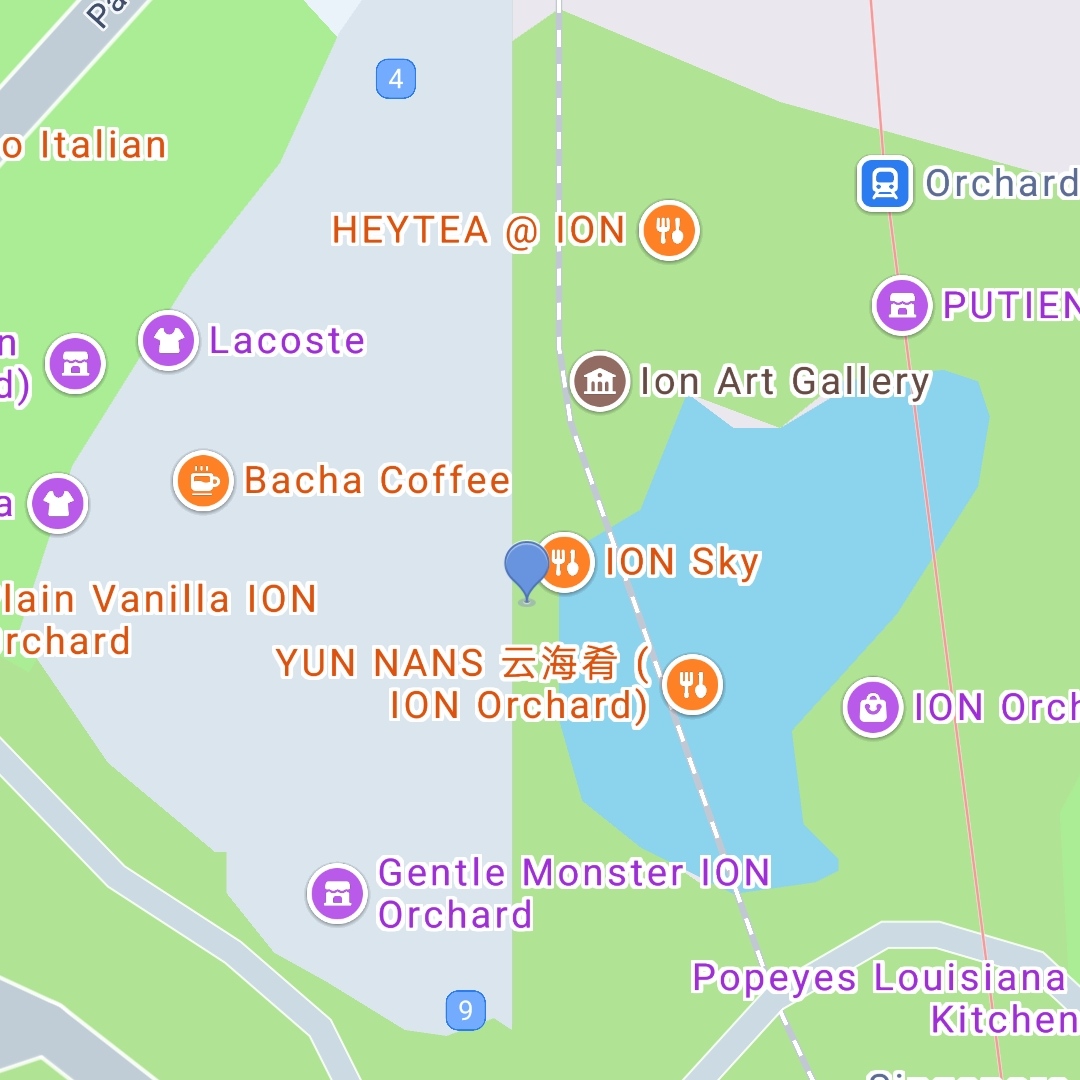
The following code adds a default marker to the map:
LatLng latLng = new LatLng(1.3040, 103.8318);
final Marker marker = aMap.addMarker(new MarkerOptions().position(latLng).title("Singapore River").snippet("DefaultMarker"));
The result looks like this:
Marker Properties
Add a Custom Marker
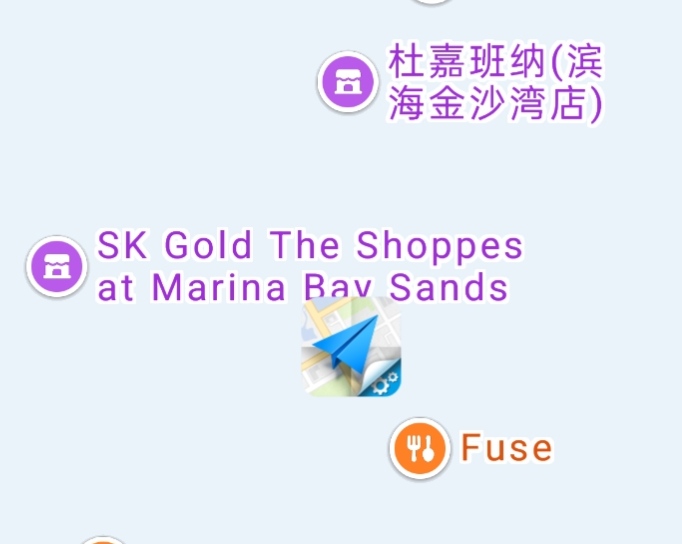
You can customize the marker icon and other properties using MarkerOptions. The following example demonstrates how to set a custom icon:
MarkerOptions markerOption = new MarkerOptions();
markerOption.position(Constants.SINGAPORE_MERLION);
markerOption.title("Singapore").snippet("Singapore:1.2868, 103.8545");

markerOption.draggable(true); // Set Marker to be draggable
markerOption.icon(BitmapDescriptorFactory.fromBitmap(BitmapFactory
    .decodeResource(getResources(), R.drawable.location_marker)));
// Set the Marker to be displayed flat on the ground,
// you can use two fingers to pull down the map to see the effect
markerOption.setFlat(true); // Set marker to flat on map effect
The result looks like this:
Add an Animated Marker
Starting from Map SDK V4.0.0, you can apply animations to markers. The following example rotates a marker by 180 degrees:
Animation animation = new RotateAnimation(marker.getRotateAngle(),marker.getRotateAngle()+180,0,0,0);
long duration = 1000L;
animation.setDuration(duration);
animation.setInterpolator(new LinearInterpolator());

marker.setAnimation(animation);
marker.startAnimation();
Handle Marker Events
Marker Click Event
Implement the AMap.OnMarkerClickListener interface to handle marker click events:
// Define a Marker click event listener
AMap.OnMarkerClickListener markerClickListener = new AMap.OnMarkerClickListener() {
    // Callback interface when the marker object is clicked
    // Return true if the interface has responded to the event, otherwise return false
    @Override
    public boolean onMarkerClick(Marker marker) {
        return false;
    }
};
// Bind the Marker click event
mAMap.setOnMarkerClickListener(markerClickListener);
Marker Drag Event
Implement the AMap.OnMarkerDragListener interface to handle marker drag events:
// Define a Marker drag event listener
AMap.OnMarkerDragListener markerDragListener = new AMap.OnMarkerDragListener() {

    // Called when the marker starts being dragged. The position of the marker
    // can be retrieved via getPosition().
    // This position may differ from the marker's position before dragging.
    // marker: The marker object being dragged.
    @Override
    public void onMarkerDragStart(Marker arg0) {
        // TODO Auto-generated method stub

    }

    // Called when the marker drag is complete. The position of the marker
    // can be retrieved via getPosition().
    // This position may differ from the marker's position before dragging.
    // marker: The marker object being dragged.
    @Override
    public void onMarkerDragEnd(Marker arg0) {
        // TODO Auto-generated method stub

    }

    // Called during the marker dragging process. The position of the marker
    // can be retrieved via getPosition().
    // This position may differ from the marker's position before dragging.
    // marker: The marker object being dragged.
    @Override
    public void onMarkerDrag(Marker arg0) {
        // TODO Auto-generated method stub

    }
};
// Bind the marker drag event
aMap.setOnMarkerDragListener(markerDragListener);
Add an InfoWindow
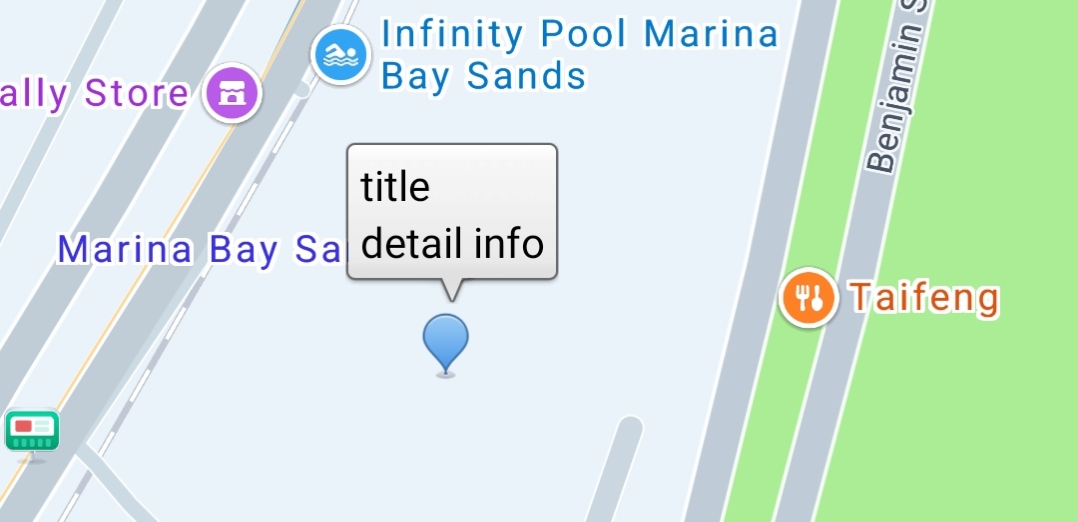
An InfoWindow is part of a marker. By default, it displays the marker's title and snippet properties. You can customize its style and content.
Add a Default InfoWindow
The SDK provides a default InfoWindow style. Use showInfoWindow() and hideInfoWindow() to control its visibility. When you change the marker's title or snippet properties, call showInfoWindow() again to update the displayed content.
Add a Custom InfoWindow
Implement InfoWindowAdapter
InfoWindowAdapter is an interface with two methods to implement:
public interface InfoWindowAdapter {
        View getInfoWindow(Marker marker);
        View getInfoContents(Marker marker);
}
View getInfoWindow(Marker marker)
When this method returns a non-null value, the SDK uses the returned View instead of the default InfoWindow style. By default, the marker's title and snippet are displayed in the InfoWindow.
Important: If you modify the marker's title or snippet after implementing this method, calling showInfoWindow() will not automatically update the InfoWindow content. You must handle all content updates yourself. When showInfoWindow() is called, the SDK invokes both getInfoWindow() and getInfoContents(). Update the InfoWindow content within these methods.
Note: If the returned View does not have a background image set, the SDK adds a default background.
View getInfoContents(Marker marker)
This method works similarly to getInfoWindow(), with one key difference: it cannot modify the overall background or border of the InfoWindow. The SDK always adds a default border around the custom content.
Customize InfoWindow Style and Content
First, call the following method on the AMap object:
setInfoWindowAdapter(InfoWindowAdapter); // In the AMap classThen, implement the interface methods to customize the InfoWindow content and style:
/**
 * Callback for monitoring the infocontents event of a custom InfoWindow
 */
public View getInfoContents(Marker marker) {
    return null;
    // This method is not used in the example.
}
View infoWindow = null;

/**
 * Callback for monitoring the infowindow event of a custom InfoWindow
 */
public View getInfoWindow(Marker marker) {
    if(infoWindow == null) {
        infoWindow = LayoutInflater.from(this).inflate(
                R.layout.custom_info_window, null);
    }
    render(marker, infoWindow);
    return infoWindow;
    // Load the custom_info_window.xml layout file as the style of the InfoWindow
    // This layout can be found in the layout folder of the official Demo
}

/**
 * Customize the InfoWindow
 */
public void render(Marker marker, View view) {
    // To modify the content in the custom InfoWindow, find the view and update it accordingly
}
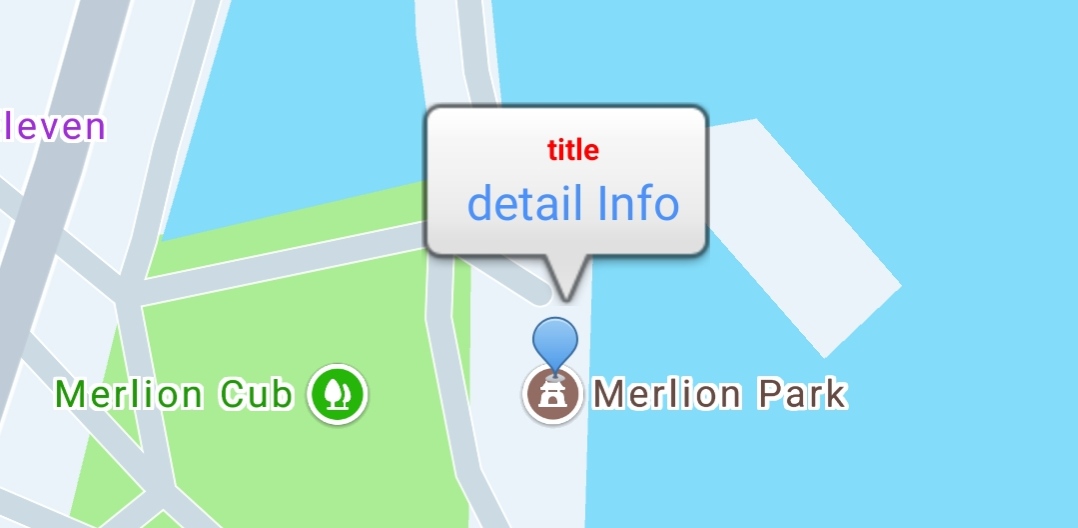
The customized InfoWindow looks like this:
Handle InfoWindow Events
InfoWindow Click Event
Implement the AMap.OnInfoWindowClickListener interface to handle InfoWindow click events:
OnInfoWindowClickListener listener = new OnInfoWindowClickListener() {

    @Override
    public void onInfoWindowClick(Marker arg0) {

        arg0.setTitle("infowindow clicked");
    }
};
// Bind the InfoWindow click event
aMap.setOnInfoWindowClickListener(listener);