
Place Search
The AMAP SDK provides millions of Points of Interest (POIs). On a map, a POI can represent a building, a shop, a tourist attraction, and more. POI search enables features such as finding restaurants, attractions, or restrooms. The Map SDK offers several interfaces for retrieving POI data, which are described in the following sections.
Note: Starting from Map SDK V4.1.3, the SDK no longer provides the overlay classes in the com.amap.api.maps.overlay package. These have been open-sourced in the official demo.
Search POIs by Keyword
Keyword search is used to find POIs related to a specific name within a city. For example, searching for "KFC" in Beijing.
Note: When a keyword is searched without specifying a city (defaulting to a nationwide search), and the results span multiple cities, only a suggested city is returned. You should select a city based on your app's requirements.
Follow these steps to implement a keyword search:
1. Implement the `OnPoiSearchListener` interface.
2. Construct a `PoiSearch.Query` object using `PoiSearch.Query(String query, String ctgr, String city)` to set the search criteria.
query = new PoiSearch.Query(keyWord, "", cityCode);
// keyWord: The search string.
// The second parameter: The POI search type. Either this or keyWord is required.
//   When using a POI search type, it is recommended to use the type code (see table below) rather than text.
// cityCode: The search area. This can be a city code or a city name.
//   Pass an empty string to search nationwide.
query.setPageSize(10);  // Set the maximum number of POI items returned per page.
query.setPageNum(currentPage); // Set the page number for the query.
Download the POI Category Code Table
3. Construct a `PoiSearch` object and set the listener.
poiSearch = new PoiSearch(this, query);
poiSearch.setOnPoiSearchListener(this);
4. Call the searchPOIAsyn() method on the `PoiSearch` object to send the request.
poiSearch.searchPOIAsyn();5. Parse the returned result in the `onPoiSearched` callback and display the POIs as markers on the map.
6. Notes:
1. Parse the result object in the callback to retrieve POI information.
2. result.getPois() returns a list of PoiItem objects. For detailed information, refer to the PoiItem class.
3. If the desired POI is not found in the current city, use result.getSearchSuggestionCitys() to get a list of suggested cities for the search.
4. If the keyword appears to be a misspelling, use result.getSearchSuggestionKeywords() to get suggested search terms.
5. The response code indicates success or failure. 1000 indicates success; any other value indicates failure. For details, see the Error Code Reference in the Developer Guide.
public void onPoiSearched(PoiResult result, int rCode) {
     // Parse the result to get POI information.
}
Search POIs Around a Location
This method is used to search for POIs near a specific location. You can filter by POI category, such as restaurants or residential areas. For example, finding restrooms near Tiananmen Square.
The only difference from a keyword search is that you must set a circular search boundary using the setBound method of PoiSearch.
poiSearch.setBound(new SearchBound(new LatLonPoint(locationMarker.getPosition().latitude,
            locationMarker.getPosition().longitude), 1000)); // Set the center point and radius (in meters) for the search.
Search POIs Within a Polygon
Unlike a circular area search, a polygon search allows you to define an irregular area. This is useful for queries like finding parking lots within the Zhongguancun area.
List<LatLonPoint> points = new ArrayList<LatLonPoint>();
points.add(new LatLonPoint(39.941711, 116.382248));
points.add(new LatLonPoint(39.884882, 116.359566));
points.add(new LatLonPoint(39.878120, 116.437630));
points.add(new LatLonPoint(39.941711, 116.382248));

poiSearch.setBound(new SearchBound(points)); // Set the polygon boundary.
Search POI by ID
If you have obtained an AMAP POI ID through a keyword, location, or polygon search, you can use this ID to retrieve the complete details of that POI.
Follow these steps to implement an ID search:
1. Implement the `OnPoiSearchListener` interface.
2. Construct a `PoiSearch` object and set the listener. For an ID search, set the query parameter to `null`.
poiSearch = new PoiSearch(this, null);
poiSearch.setOnPoiSearchListener(this);
3. Call the `searchPOIIdAsyn(java.lang.String poiID)` method on the `PoiSearch` object to send the request.
poiSearch.searchPOIIdAsyn(ID); // Asynchronous search.4. Parse the returned result in the `onPoiItemSearched` callback. As this retrieves a single, specific POI, the callback directly provides the `PoiItem` object.
@Override
public void onPoiItemSearched(PoiItem item, int rCode) {
        // Get the PoiItem for detailed POI information.
}
Get Input Suggestions
Input suggestions provide predictive text based on what the user has typed, presenting the most likely search terms to improve the user experience. For example, typing "Fangheng" might suggest "Fangheng International Center Block A" and "Fangheng Shopping Center".
For instance, when a user types "Gaode", a list below the input field shows suggestions containing the keyword, as illustrated below:
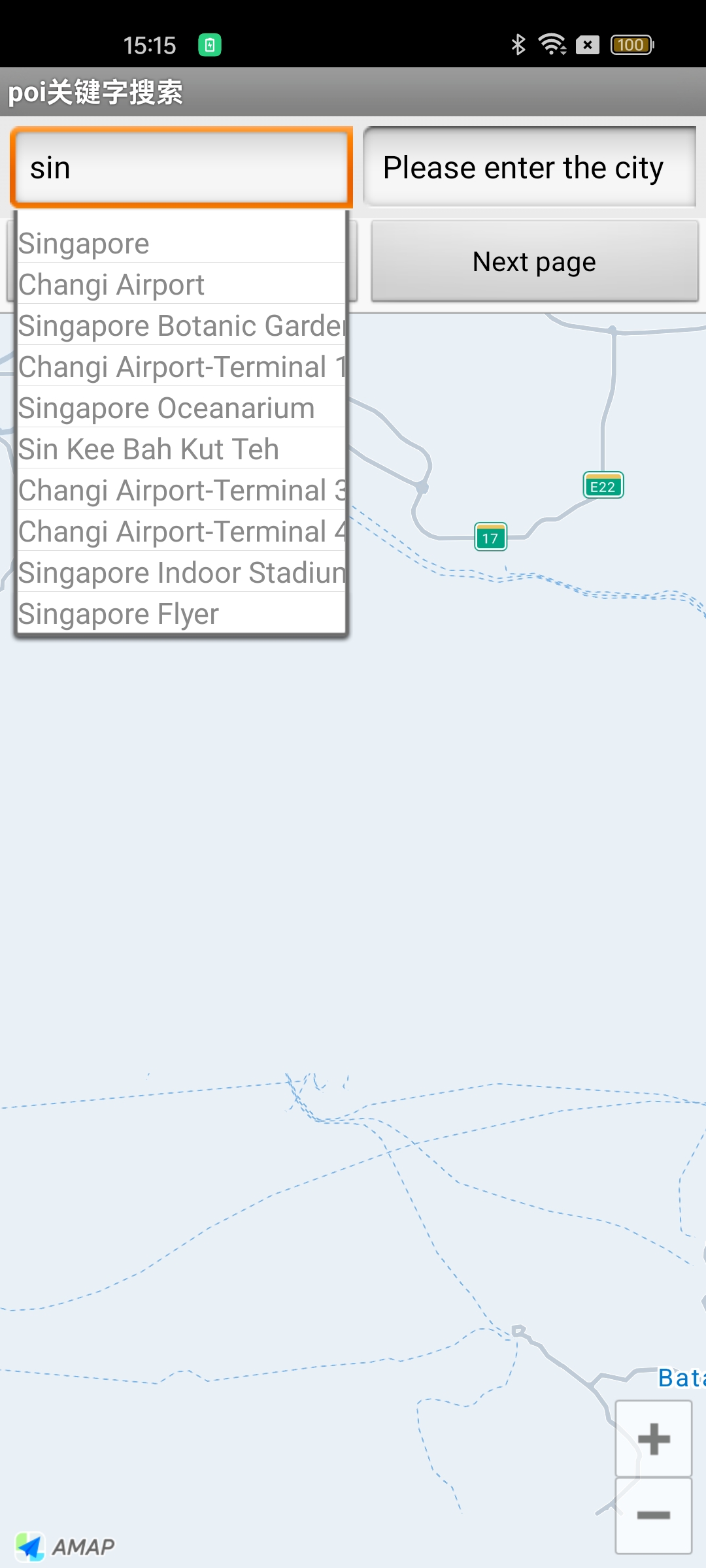
Follow these steps to implement input suggestions:
1. Implement the `InputtipsListener` interface.
2. Construct an `InputtipsQuery` object using `InputtipsQuery(java.lang.String keyword, java.lang.String city)` to set the search criteria.
// Pass null or "" for the second parameter to search nationwide; otherwise, search within the specified city.
InputtipsQuery inputquery = new InputtipsQuery(newText, city);
inputquery.setCityLimit(true); // Limit the search to the current city.
3. Construct an `Inputtips` object and set the listener.
Inputtips inputTips = new Inputtips(InputtipsActivity.this, inputquery);
inputTips.setInputtipsListener(this);
4. Call the `requestInputtipsAsyn()` method on the `Inputtips` object to send the request.
inputTips.requestInputtipsAsyn();5. Parse the returned result in the `onGetInputtips` callback to retrieve the suggestion information.
6. Notes:
1. Parse the tipList in the callback to get the suggestion information.
2. The tipList array contains Tip objects. The Tip class includes fields such as PoiID, Adcode, District, and Name.
Important:
* a. Suggestions may contain identical keywords from different regions. Use tipList.get(i).getDistrict() to get the region, or append the region to the keyword in the query.
* b. If Tip.getPoiID() returns empty and Tip.getPoint() also returns empty, the suggestion is not a real POI. In this case, region and coordinates are empty. You can use this suggestion text for a keyword-based POI search.
* c. If Tip.getPoiID() returns a non-empty value but Tip.getPoint() returns empty, the suggestion is a bus line name. Use this ID for a bus line query.
* d. If both Tip.getPoiID() and Tip.getPoint() return non-empty values, the suggestion is a real POI and can be displayed directly on the map.
3. The response code indicates success or failure. 1000 indicates success; any other value indicates failure. For details, see the Error Code Reference in the Developer Guide.
@Override
public void onGetInputtips(final List<Tip> tipList, int rCode) {
        // Parse the tipList to get suggestion information.
    }
Important Notes
1. To use the features described above, you must download the Map SDK and import the search functionality JAR file.
2. Starting from Map SDK V4.1.3, the SDK no longer provides the overlay classes in the com.amap.api.maps.overlay package. These have been open-sourced in the official demo.