

Driving Routing
This feature uses the Map SDK's search functionality. To use it, import the search library (AMapSearchKit.framework) into your project. For more information, see the SDK download page.
Driving route planning is commonly used to estimate driving costs and plan routes in advance.
Before You Begin
Before you start, make sure you have completed the following steps:
1. Import the required header files.
2. Configure your API key.
Step 1: Import Header Files
Import the AMapFoundationKit.h and AMapSearchKit.h header files.
#import <AMapFoundationKit/AMapFoundationKit.h>
#import <AMapSearchKit/AMapSearchKit.h>
Step 2: Configure Your API Key
You must add your API key to use the search functionality.
For Search Library (AMapSearchKit.framework) v4.x:
You need to import the base SDK (AMapFoundationKit.framework). See the SDK download page for more information.
[AMapServices sharedServices].apiKey = @"Your API Key";For Search Library v3.x or earlier:
We recommend updating to the latest version as soon as possible.
[AMapSearchServices sharedServices].apiKey = @"Your API Key";Create a Route Plan
Follow these steps to create a driving route plan.
Step 1: Define the Search API Object
Define the main search object, AMapSearchAPI, and adopt the AMapSearchDelegate protocol.
Step 2: Initialize the Search API Object
Initialize the AMapSearchAPI object and set its delegate.
self.search = [[AMapSearchAPI alloc] init];
self.search.delegate = self;
Step 3: Set Route Planning Parameters
The request parameter class is AMapDrivingRouteSearchRequest. The following table describes its key properties.
self.startAnnotation.coordinate = self.startCoordinate;
self.destinationAnnotation.coordinate = self.destinationCoordinate;

AMapDrivingRouteSearchRequest *navi = [[AMapDrivingRouteSearchRequest alloc] init];

navi.requireExtension = YES;
navi.strategy = 5;

/* Starting point. */
navi.origin = [AMapGeoPoint locationWithLatitude:self.startCoordinate.latitude
                                       longitude:self.startCoordinate.longitude];
/* Destination. */
navi.destination = [AMapGeoPoint locationWithLatitude:self.destinationCoordinate.latitude
                                            longitude:self.destinationCoordinate.longitude];
Step 4: Initiate the Route Search
[self.search AMapDrivingRouteSearch:navi];Step 5: Handle the Response
When the search is successful, the onRouteSearchDone callback is triggered. In this callback, parse the AMapRouteSearchResponse object to get the route data and display it on the map.
Notes:
1. Parse the response object in the callback to get the driving route.
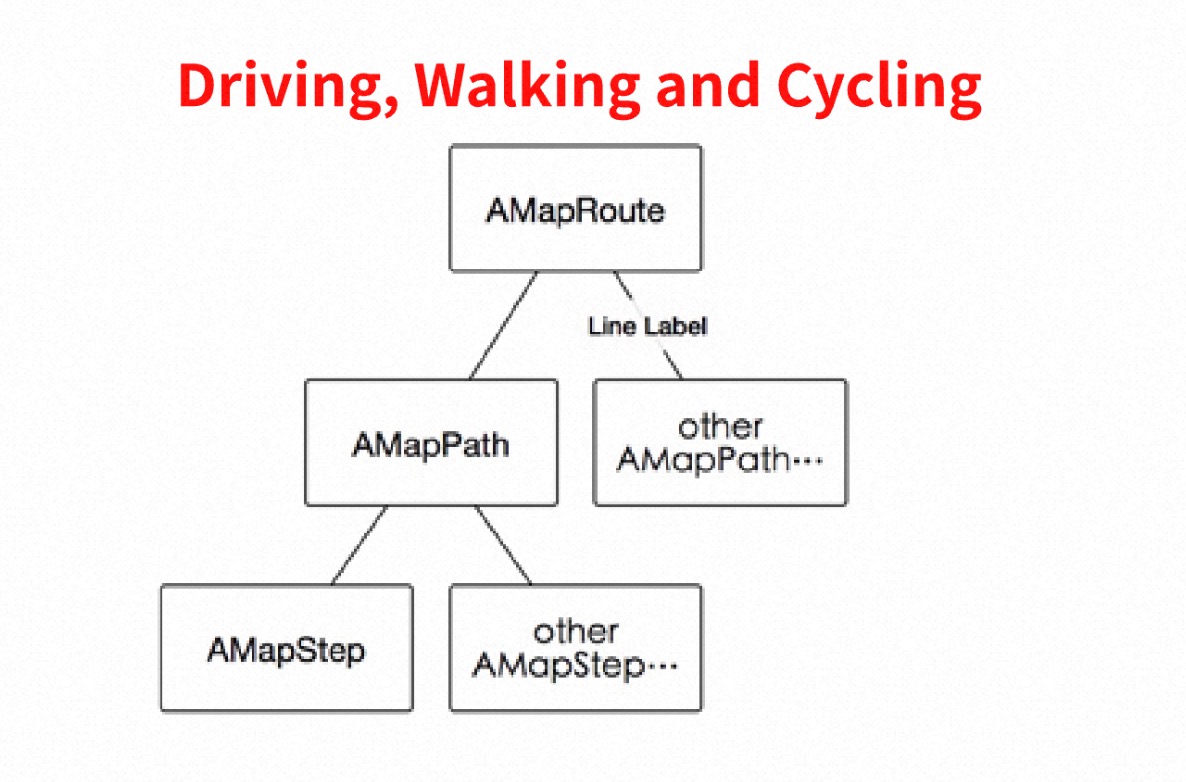
2. The response.route.paths property returns a list of AMapPath objects. For detailed information about a driving route, refer to the AMapPath class.
3. The structure of the route planning result is shown in the following diagram. Use this structure to parse the result and display the route accurately.
- (void)onRouteSearchDone:(AMapRouteSearchBaseRequest *)request response:(AMapRouteSearchResponse *)response
{
    if (response.route == nil)
    {
        return;
    }

    // Parse the response to get the route.
    // response.route.paths contains a list of AMapPath objects.
}
Error Handling
If the search fails, the didFailWithError callback is triggered. Use this callback to get the reason for the failure.
- (void)AMapSearchRequest:(id)request didFailWithError:(NSError *)error
{
    NSLog(@"Error: %@", error);
}
Driving Strategy Reference
The following table lists the available driving strategies. Use the strategy parameter in AMapDrivingRouteSearchRequest to specify one.