

Set Up Manually
Before you begin, create a Single View Application project. Then follow the steps below to manually configure your project.
Step 1: Add Required Libraries
The map SDK requires the following libraries:
* Base SDK: AMapFoundationKit.framework
> Important: Using a version of the Base SDK higher than V1.2.0 is critical for successful App Store submission. See the Base SDK introduction for details.
* 3D Map SDK: MAMapKit.framework
After extracting the MAMapKit.framework file, copy or drag it into your project folder. In the left panel, select your project name. Navigate to TARGETS > Build Phases > Link Binary With Libraries, click the + button, then click Add Other in the pop-up window. Select the MAMapKit.framework file from your project directory and add it to the project.
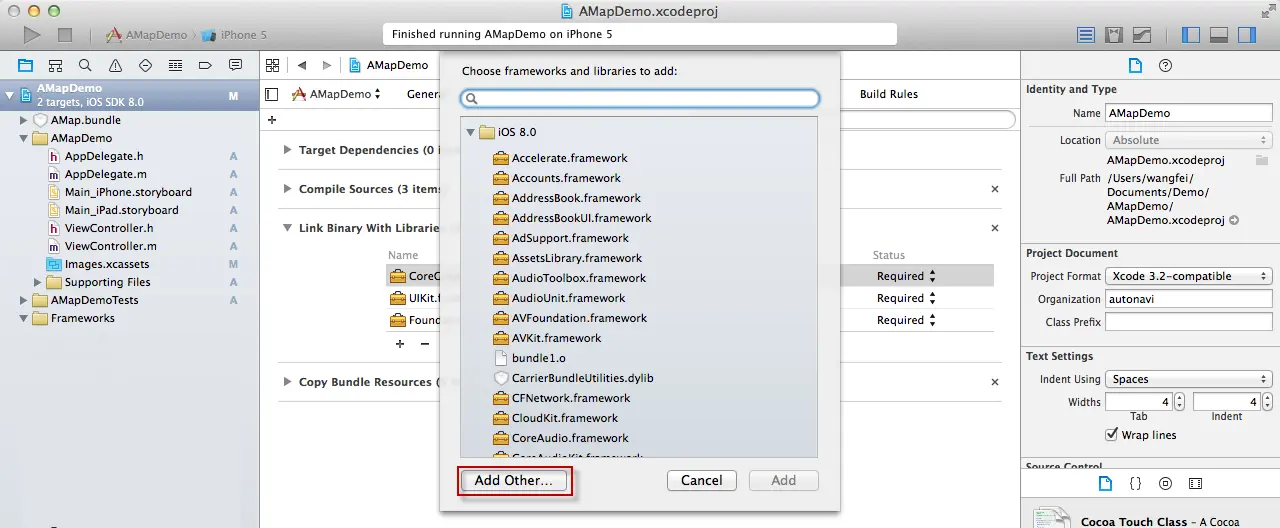
Make sure to also add AMapFoundationKit to your project.
The correct configuration for the 3D map should look like this:
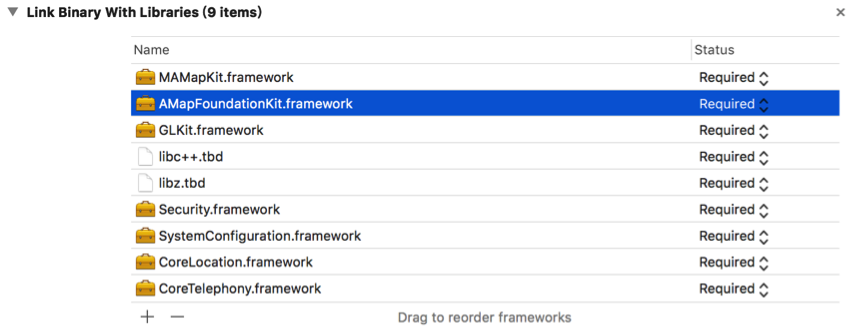
The correct configuration for the 2D map should look like this:

Notes:
1. The SystemConfiguration.framework, CoreTelephony.framework, and Security.framework libraries are used for app statistics.
2. To add system libraries: In the left panel, select your project name. Navigate to TARGETS > Build Phases > Link Binary With Libraries, click the + button, find and select the required library from the table below, then click Add.
3. Xcode 10 removed libstdc++.6.0.9.tbd. If you are upgrading an existing project to Xcode 10, manually remove this dependency.
Step 2: Add Required Resource Files
The required resource file is AMap.bundle, which is located inside the MAMapKit.framework package. This bundle contains images for location services and default pin markers, which you can use for development.
In the left panel, select your project name. Right-click and choose Add Files to "Project Name"... from the context menu. Navigate to the MAMapKit.framework directory, select the AMap.bundle file, check the Copy items if needed checkbox, and click Add.
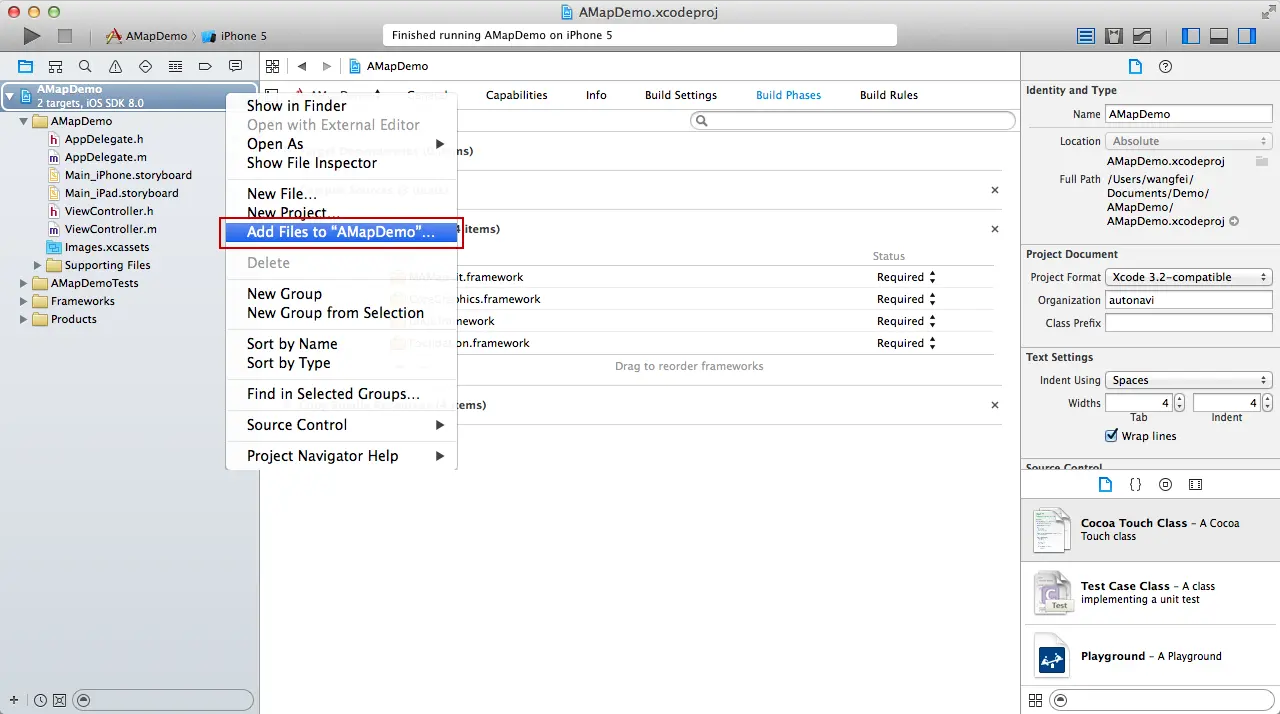
> Note: The resource files for the 2D map and 3D map are different. When switching between SDKs, you must also replace the corresponding resource files.
Important Configuration
In TARGETS > Build Settings > Other Linker Flags, add -ObjC (with uppercase O and C).