

Current Location
The user location blue dot shows the user's current position on the map.
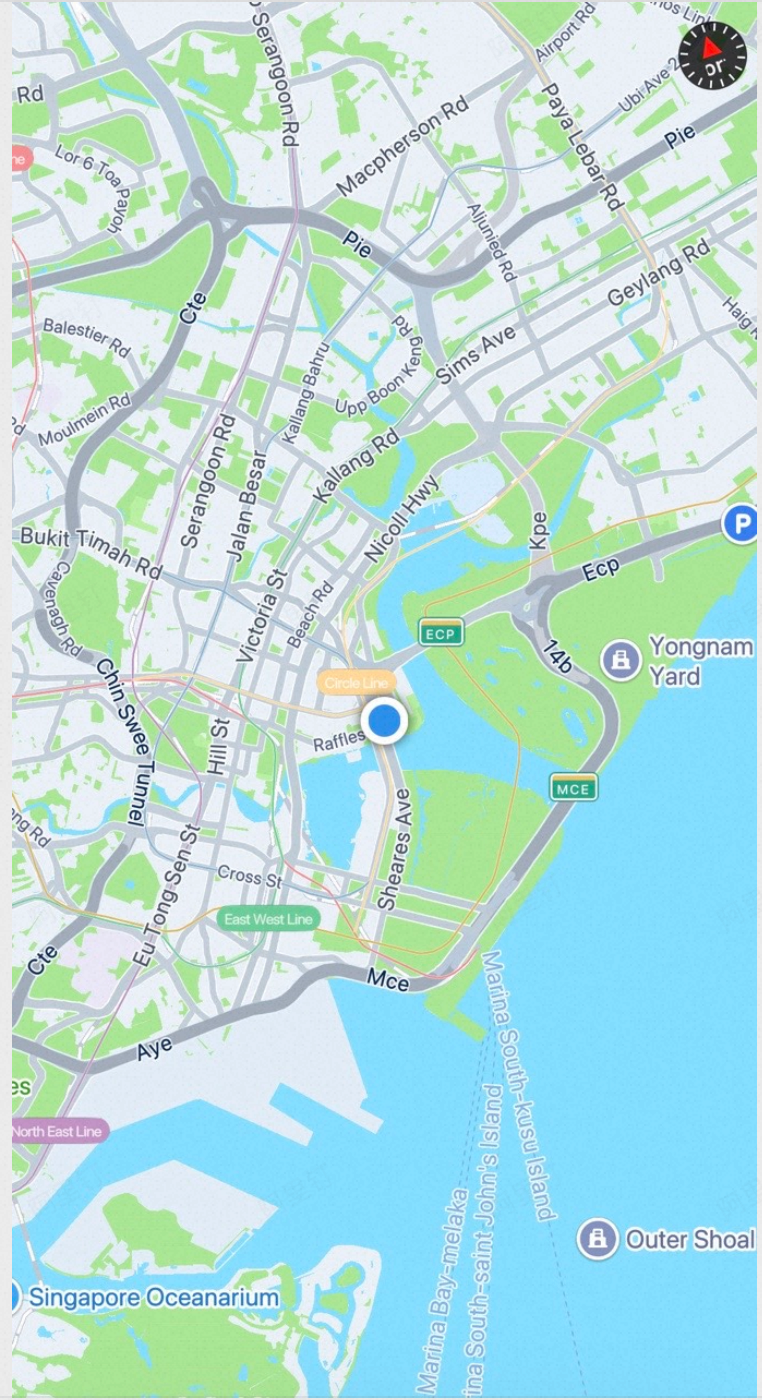
Before You Begin
Step 1: Add Header Files
Add the following header files to your ViewController.h:
#import <MAMapKit/MAMapKit.h>
#import <AMapFoundationKit/AMapFoundationKit.h>
Step 2: Display the User Location Blue Dot
Create a Map Object
Instantiate a MAMapView object in your MapTypeViewController.m file:
- (void)viewDidLoad
{
    [super viewDidLoad];
    // Do any additional setup after loading the view, typically from a nib.

    /// Required for SDK v4.5.0 and above. For earlier versions, configure info.plist manually.
    [AMapServices sharedServices].enableHTTPS = YES;

    /// Initialize the map
    MAMapView *_mapView = [[MAMapView alloc] initWithFrame:self.view.bounds];

    /// Add the map to the view
    [self.view addSubview:_mapView];

    /// To show the user location blue dot when entering the map, add the following two lines
    _mapView.showsUserLocation = YES;
    _mapView.userTrackingMode = MAUserTrackingModeFollow;

}
> Note: Starting from version 5.1.0, the user location blue dot includes smooth movement. If you add annotations while location is enabled, you must check whether the annotation is of type MAUserLocation in the callback method, and return the correct view accordingly.
/**
 * @brief Generates the corresponding view for the given annotation.
 *
 * Note: Starting from v5.1.0, the user location blue dot supports smooth movement.
 * If you add annotations while location is enabled, check whether the annotation
 * is of type MAUserLocation in this callback method and return the correct view.
 *
 * if ([annotation isKindOfClass:[MAUserLocation class]]) {
 *     return nil;
 * }
 *
 * @param mapView The map view.
 * @param annotation The specified annotation.
 * @return The generated annotation view.
 */
- (MAAnnotationView *)mapView:(MAMapView *)mapView viewForAnnotation:(id <MAAnnotation>)annotation;
Configure Location Permissions
Add location permission settings to your Info.plist file, as shown below:

There are three types of location permissions. Choose the one that best fits your needs:
Customize the User Location Blue Dot
The following features are supported from iOS Map SDK v5.0.0 onward.
Initialize the MAUserLocationRepresentation Object
MAUserLocationRepresentation *r = [[MAUserLocationRepresentation alloc] init];Show or Hide the Accuracy Circle
r.showsAccuracyRing = NO; /// Whether to show the accuracy circle. Default is YES.Show or Hide the Heading Indicator
r.showsHeadingIndicator = NO; /// Whether to show the heading indicator (enabled in MAUserTrackingModeFollowWithHeading mode). Default is YES.Adjust the Accuracy Circle Fill Color
r.fillColor = [UIColor redColor]; /// The fill color of the accuracy circle. Defaults to kAccuracyCircleDefaultColor.Adjust the Accuracy Circle Stroke Color
r.strokeColor = [UIColor blueColor]; /// The stroke color of the accuracy circle. Defaults to kAccuracyCircleDefaultColor.Adjust the Accuracy Circle Stroke Width
r.lineWidth = 2; /// The stroke width of the accuracy circle. Defaults to 0.Enable or Disable the Accuracy Circle Pulse Effect
r.enablePulseAnnimation = NO; /// Whether to enable the pulse animation effect on the inner blue dot. Defaults to YES.Adjust the User Location Blue Dot Background Color
r.locationDotBgColor = [UIColor greenColor]; /// The background color of the user location dot. Defaults to white if not set.Adjust the User Location Blue Dot Color
r.locationDotFillColor = [UIColor grayColor]; /// The color of the user location blue dot. Defaults to blue if not set.Set a Custom Image for the User Location Blue Dot
r.image = [UIImage imageNamed:@"your_image"]; /// Location icon; mutually exclusive with the blue dot.Apply the Customization
[self.mapView updateUserLocationRepresentation:r];