Add a Map
Before You Begin
1. If you haven't already integrated the 3D Map SDK into your project, refer to theManual Deployment or CocoaPods Deployment guide.
2. If your app requires the SDK to use HTTPS for network requests, see the HTTPS Configuration section.
Configure the Header Files
Add the following header imports to your ViewController.h file. For Swift projects, import these headers in your bridging header file instead:
#import <MAMapKit/MAMapKit.h>
#import <AMapFoundationKit/AMapFoundationKit.h>
Initialize the Map Object
Add the following code to your MapTypeViewController.m file to create and display a MAMapView instance:
- (void)viewDidLoad
{
    [super viewDidLoad];
    // Additional setup after loading the view from a nib.

    /// Required for SDK v4.5.0 and above. For earlier versions, configure info.plist manually.
    [AMapServices sharedServices].enableHTTPS = YES;

    /// Initialize the map view
    MAMapView *_mapView = [[MAMapView alloc] initWithFrame:self.view.bounds];

    /// Add the map view to the current view
    [self.view addSubview:_mapView];
}
Enable the World Map
The World Map is supported starting from iOS 3D Map V10.1.200. To enable it, use the following property:
@property (nonatomic, assign, class) BOOL loadWorldVectorMapSwitch to English Map
To switch the map display language to English, set the regionLanguageType property:
MAMapView.regionLanguageType = 2;Language Code Reference
The following table lists the available language codes:
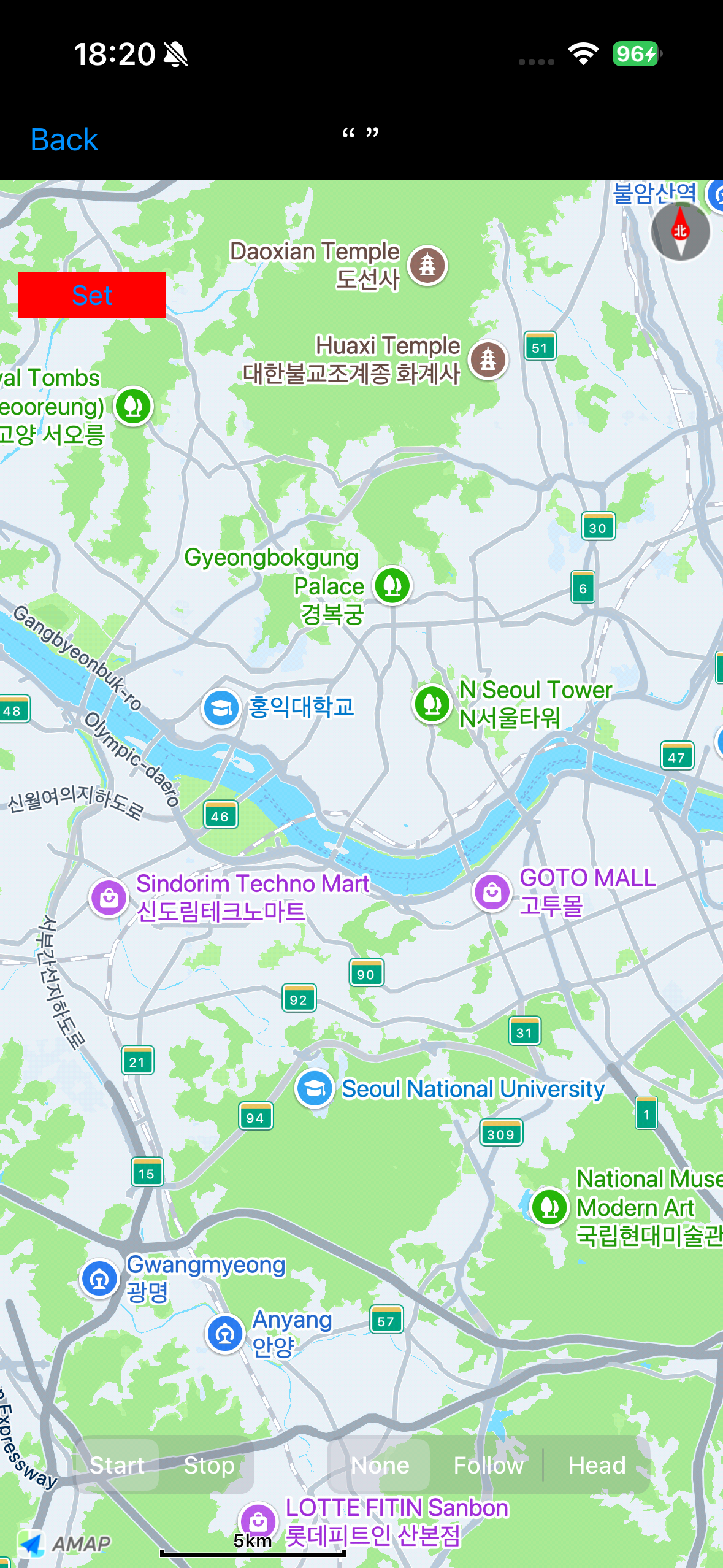
Build and run the project. The result should look like this: