
Custom Overlays
The AMapNaviView interface supports customization of both map elements and UI controls, allowing you to create a navigation interface that matches your business requirements and app style.
AMapNaviView consists of two layers:
- Map element layer (bottom): Contains elements rendered on the map, such as the vehicle icon, start and end points, traffic routes, turn arrows, cameras, leader lines, and traffic lights. The SDK draws these elements based on route information.
- UI control layer (top): Contains UI control elements, such as junction views, light bars, overview buttons, and settings buttons.
This guide covers customization of map elements. For other customization options, see:
Turn Arrows
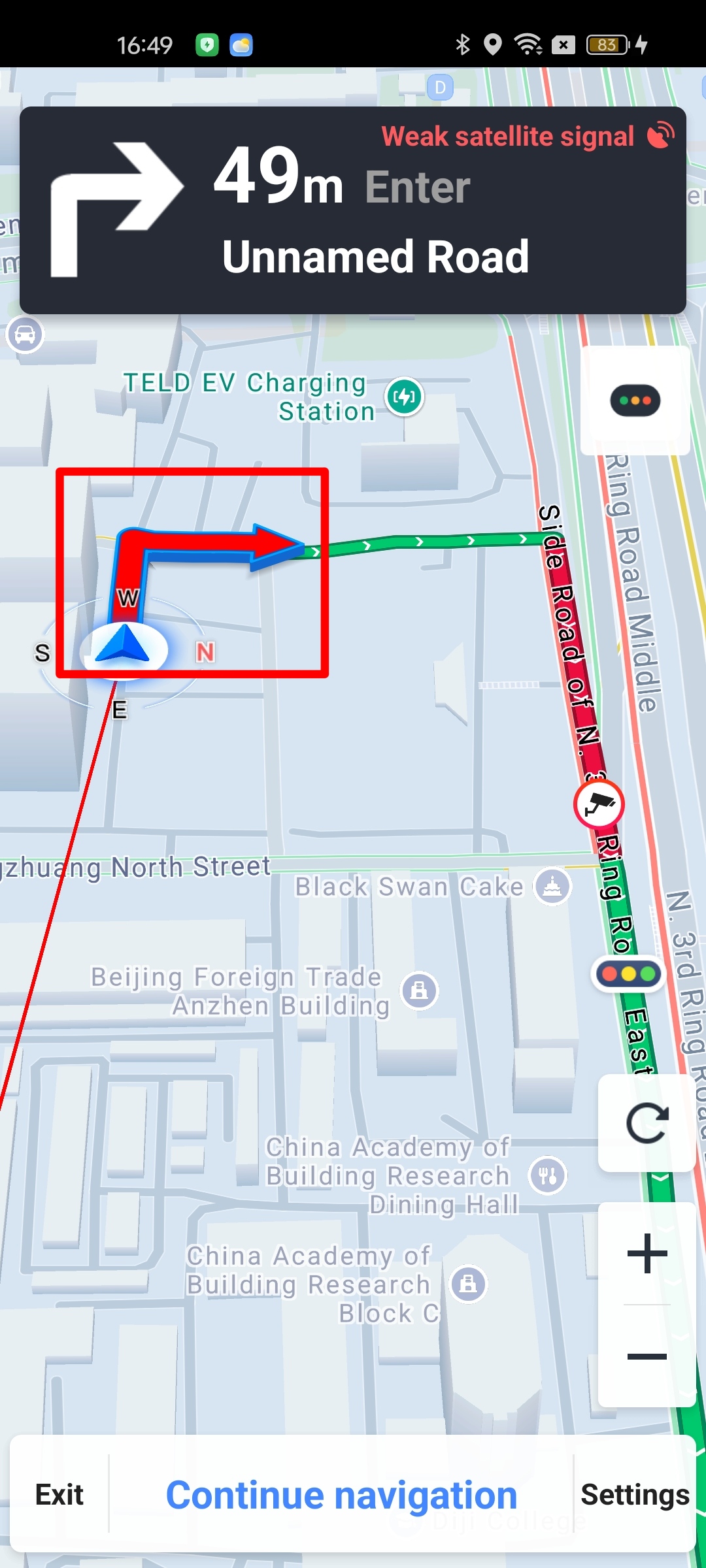
The SDK provides powerful customization interfaces for turn arrows on the route. You can control visibility, color, width, and 3D effects. Use the following methods in the RouteOverlayOptions class:
/**
 * Sets the color of turn arrows on the route.
 * @param arrowColor The color value.
 */
public void setArrowColor(int arrowColor)

/**
 * Sets whether to display 3D arrows. Default is true.
 * @param turnArrowIs3 true to display, false to hide.
 * @since 6.6.0
 */
public void setTurnArrowIs3D(boolean turnArrowIs3)

/**
 * Sets the side color of 3D arrows. Only effective when 3D arrows are displayed.
 * @param arrowSideColor The side color value.
 * @since 6.6.0
 */
public void setArrowSideColor(int arrowSideColor)
To control turn arrow visibility, use the following method in the AMapNaviViewOptions class:
/**
 * Sets whether to show or hide turn arrows on the route.
 * @param isArrow true to show, false to hide.
 * @since 6.3.0
 */
public void setNaviArrowVisible(boolean isArrow)
Cameras
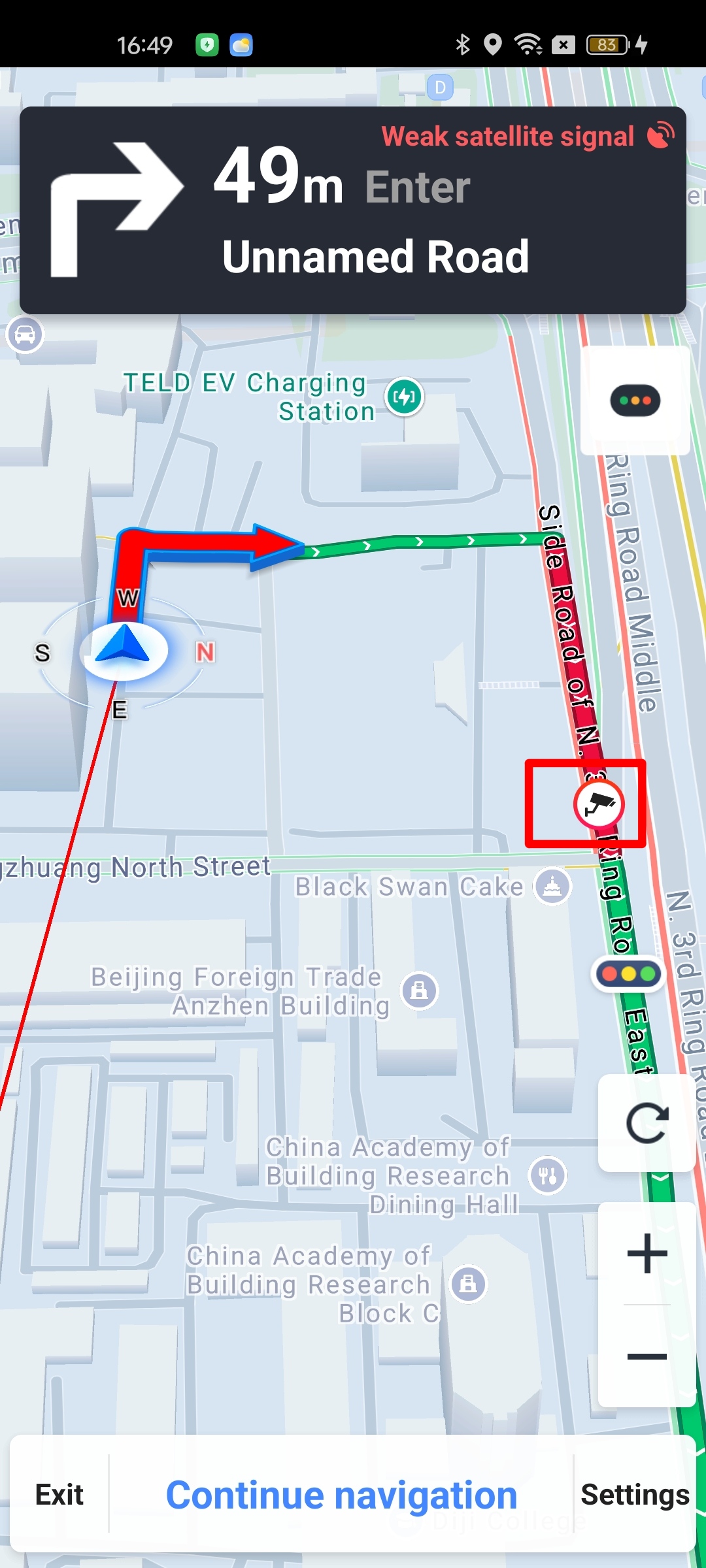
To control the visibility of camera bubbles on the route, use the following method in the AMapNaviViewOptions class:
/**
 * Sets whether to display camera bubbles on the route.
 * @param cameraBubbleShow true to show, false to hide.
 */
public void setCameraBubbleShow(boolean cameraBubbleShow)
Leader Line
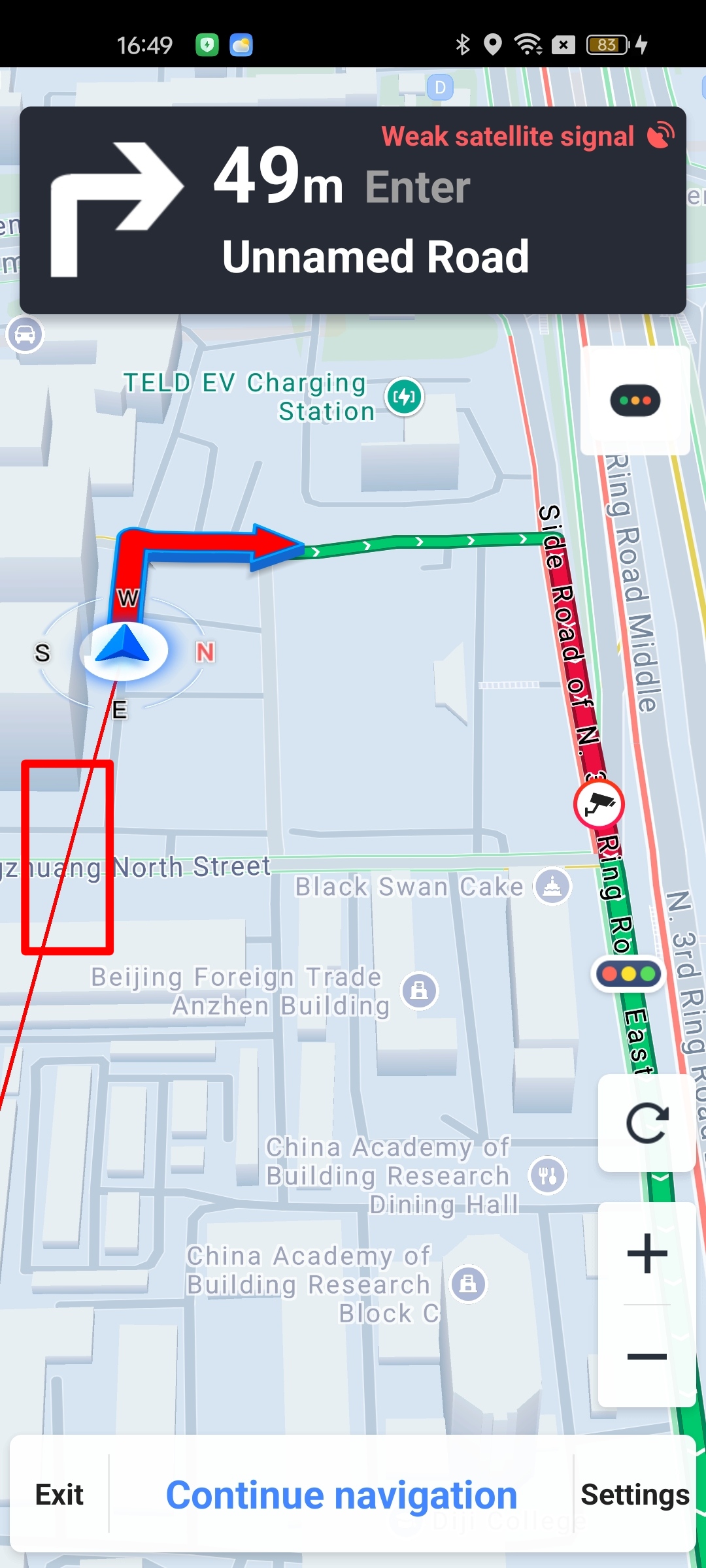
The leader line is a flying line that connects the start point to the end point. To control its visibility, use the following method in the AMapNaviViewOptions class:
/**
 * Sets whether to draw the leader line (guidance line from the current location to the destination).
 * The leader line is not drawn by default.
 *
 * @param color The leader line color in ARGB format. Set to -1 to hide the leader line.
 */
public void setLeaderLineEnabled(int color)
Traffic Lights
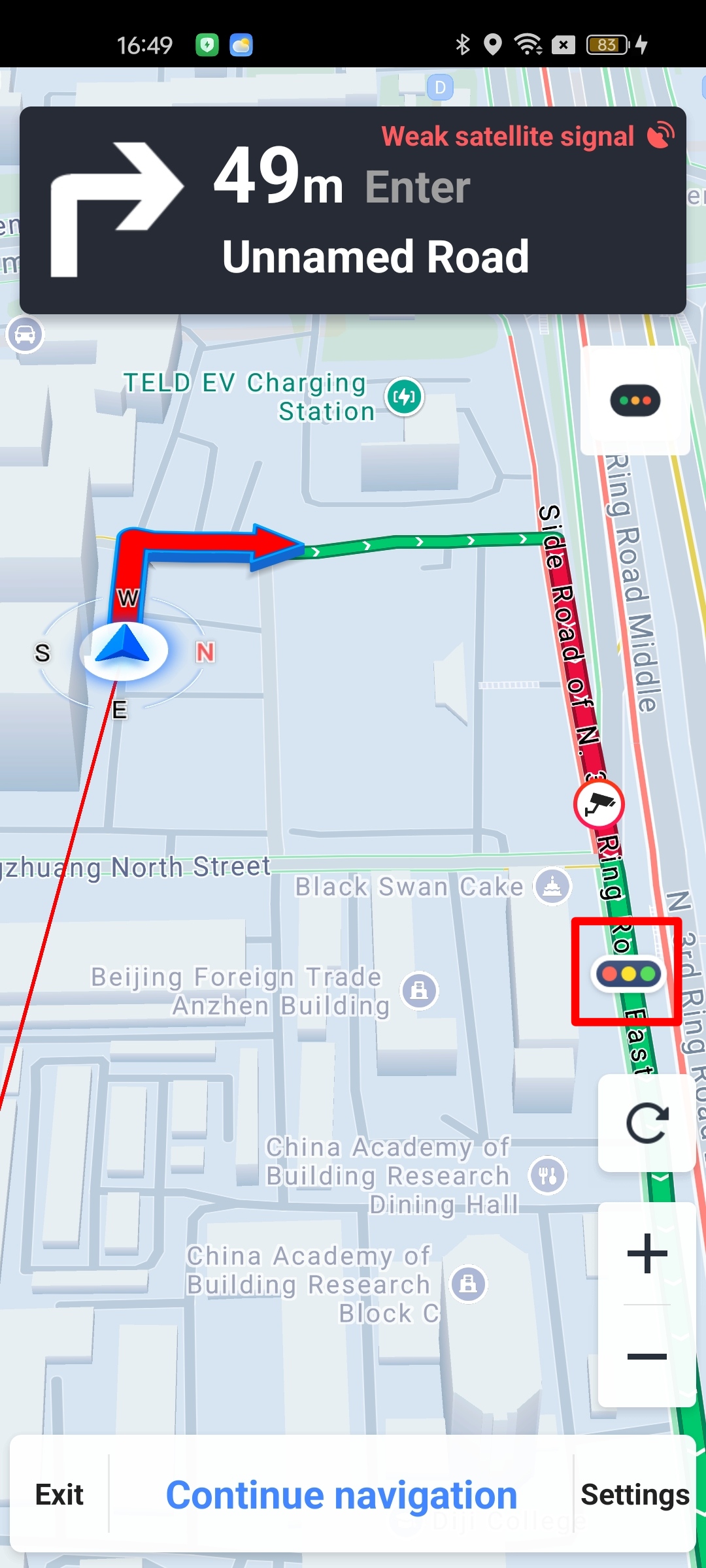
To control the visibility of traffic lights on the route, use the following method in the AMapNaviView class:
/**
 * Sets whether to display traffic lights on the route.
 * @param isVisible true to show, false to hide. Default is true.
 * @since 6.2.0
 */
public void setTrafficLightsVisible(boolean isVisible)