
Camera and Tracking Modes
Display Mode
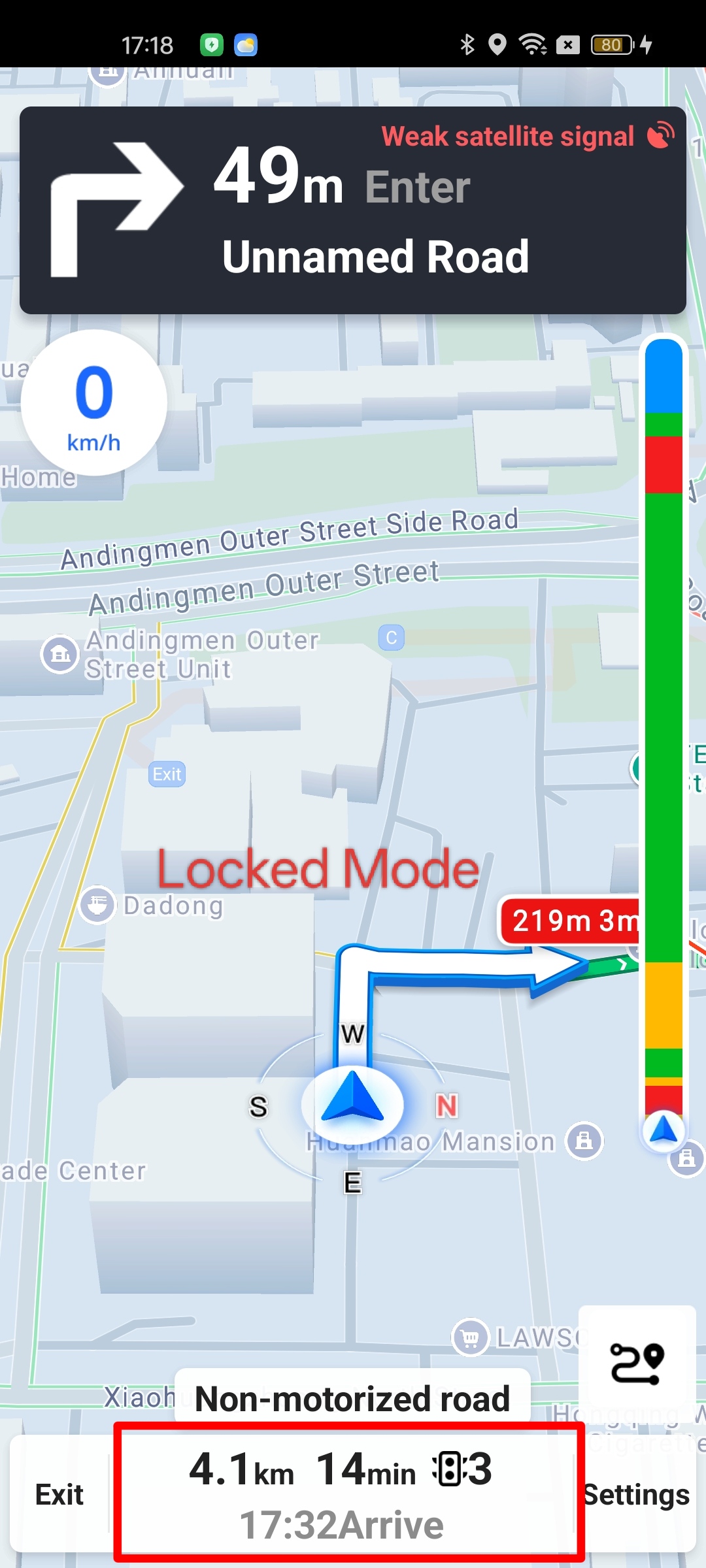
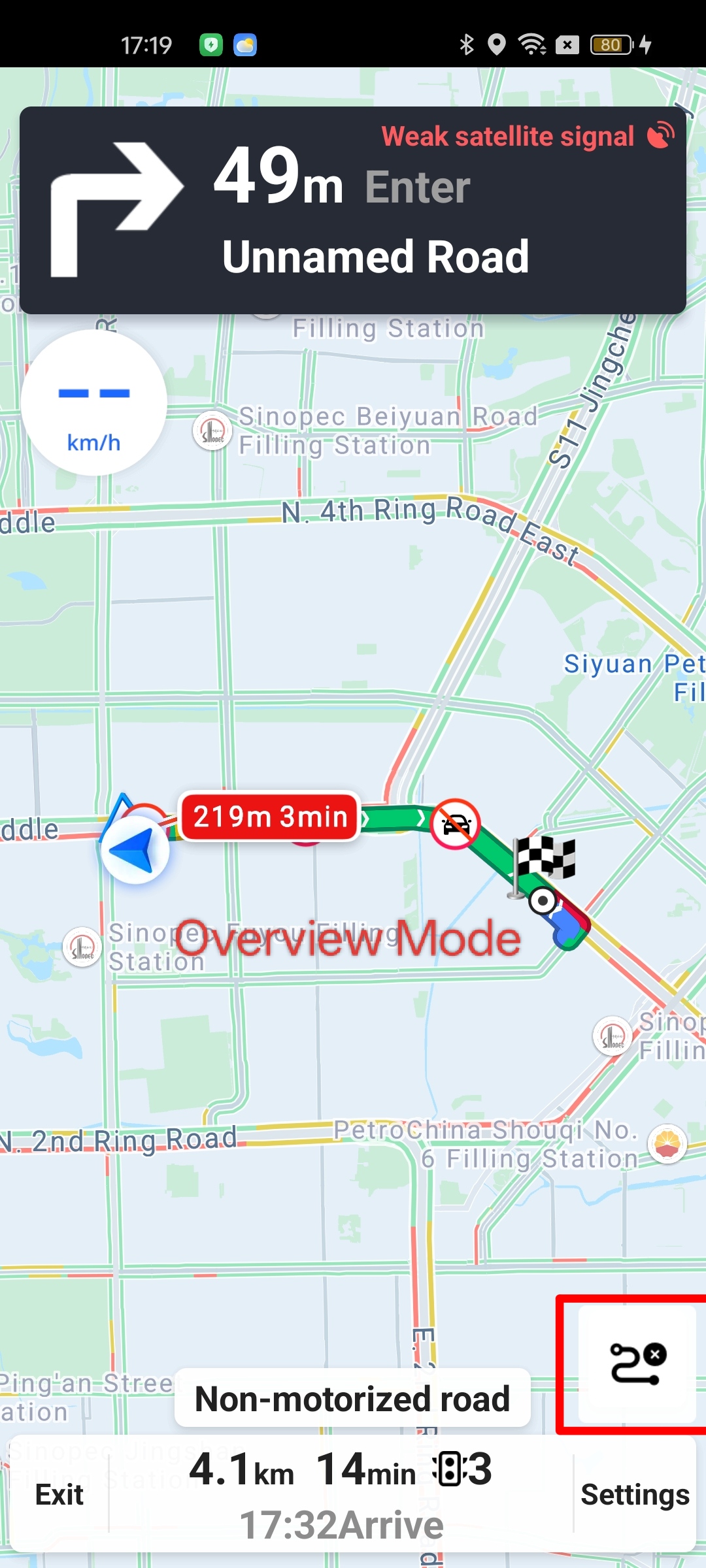
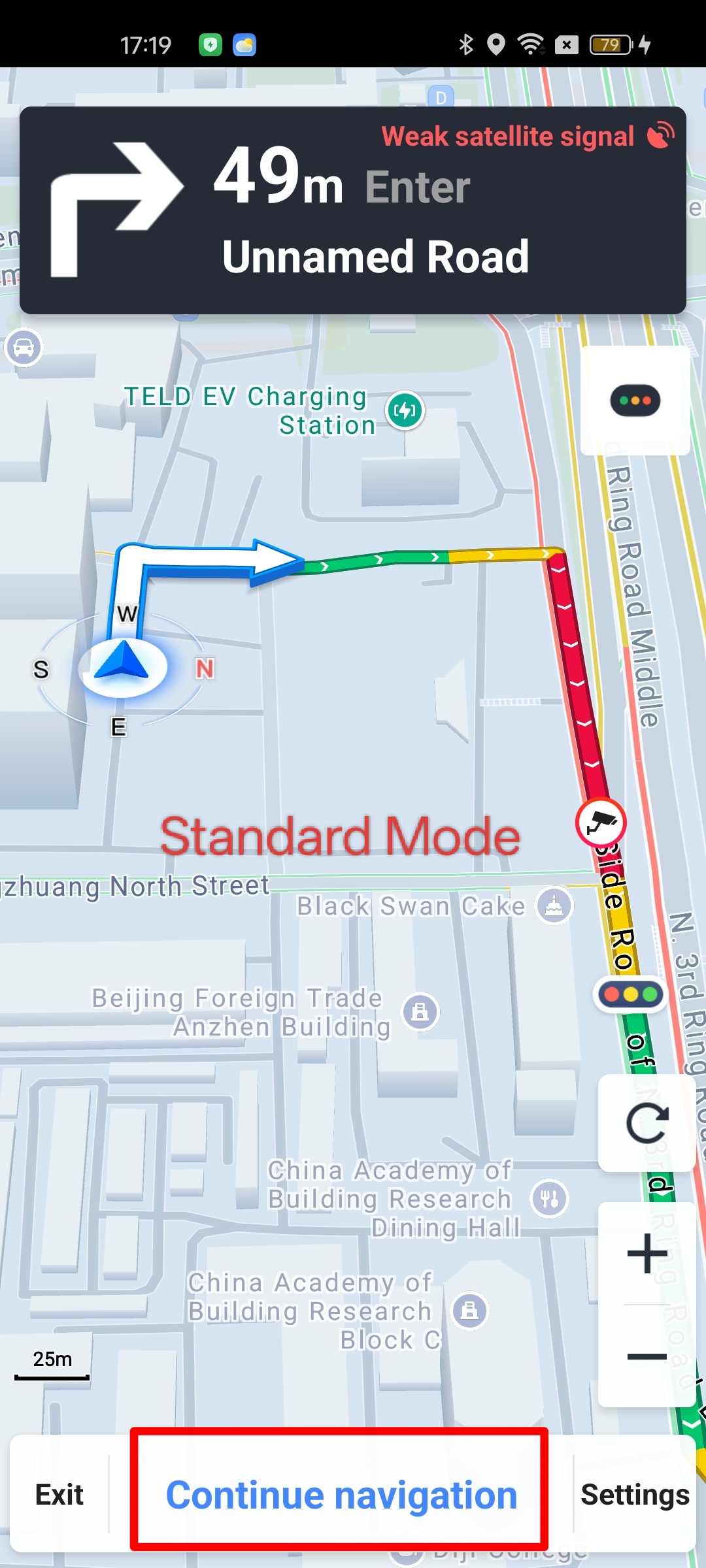
The navigation interface supports the following display modes:
- Locked Mode: The map view follows the user's location as it changes. Since the vehicle icon moves along with the map, the two movements cancel each other out, making the vehicle icon appear locked at a fixed point on the screen.
- Overview Mode: The map center and zoom level are adjusted to display the entire route within the visible area.
- Normal Mode: The map view remains stationary while only the vehicle icon moves.
Configure Lock Mode via AMapNaviViewOptions
Use the following methods in AMapNaviViewOptions to configure lock mode settings:
/**
* Sets whether to automatically lock the car.
* @param autoLockCar true to automatically lock the car, false otherwise.
*/
public void setAutoLockCar(boolean autoLockCar)

/**
* Sets whether to automatically enter overview mode after a route is calculated.
* @param isAutoDisplay true to enable auto overview mode, false otherwise.
* @since 6.2.0
*/
public void setAutoDisplayOverview(boolean isAutoDisplay)

/**
* Sets the delay (in milliseconds) before automatically locking the map.
* @param lockMapDelayed The delay in milliseconds.
*/
public void setLockMapDelayed(long lockMapDelayed)
> Note: The AMapNaviViewOptions.setAutoDisplayOverview() method is deprecated in newer versions. Use AMapNaviView.setShowMode() to dynamically set the display mode instead.
Control Display Mode via AMapNaviView
Use the following method in AMapNaviView to control the display mode:
/**
* Sets the navigation view display mode.
*
* @param showMode The display mode: 1 for locked mode, 2 for overview mode, 3 for normal mode.
* @since 7.4.0
*/
public void setShowMode(int showMode)
> Note: Custom View components use the engine to process junction images by default. To receive external callbacks, call setEyrieCrossDisplay(false). Otherwise, the engine handles them internally.
AMapNaviViewOptions opts = mAMapNaviView.getViewOptions();
opts.setEyrieCrossDisplay(false);
mAMapNaviView.setViewOptions(opts);
Listen for Display Mode Changes via AMapNaviViewListener
Use the following callback in AMapNaviViewListener to monitor display mode changes:
/**
* Callback when the navigation view display mode changes.
* @param showMode The display mode. Refer to {@link com.amap.api.navi.enums.AMapNaviViewShowMode} for details.
* @since 6.2.0
*/
void onNaviViewShowMode(int showMode)
Vehicle Orientation
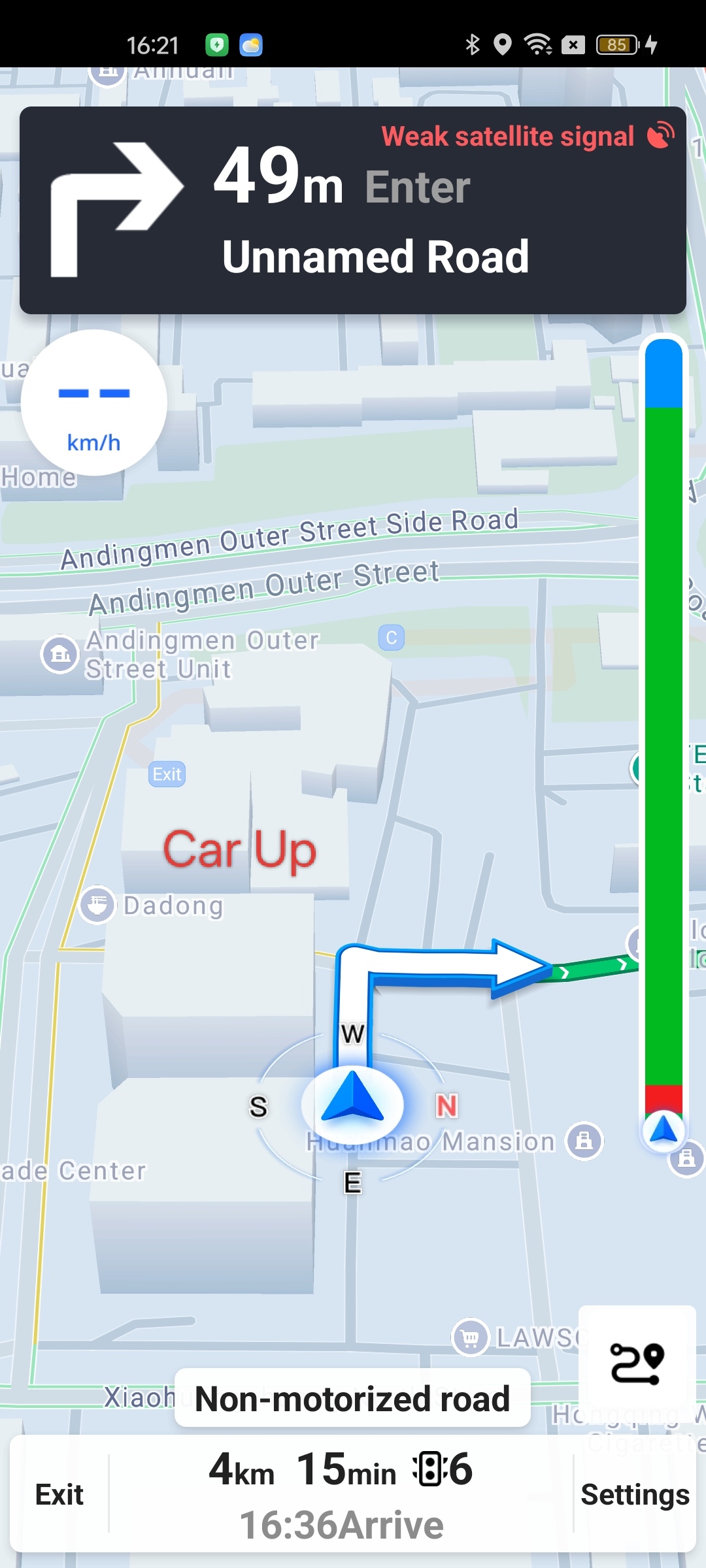
The navigation interface supports two orientation modes: Car Up and North Up.
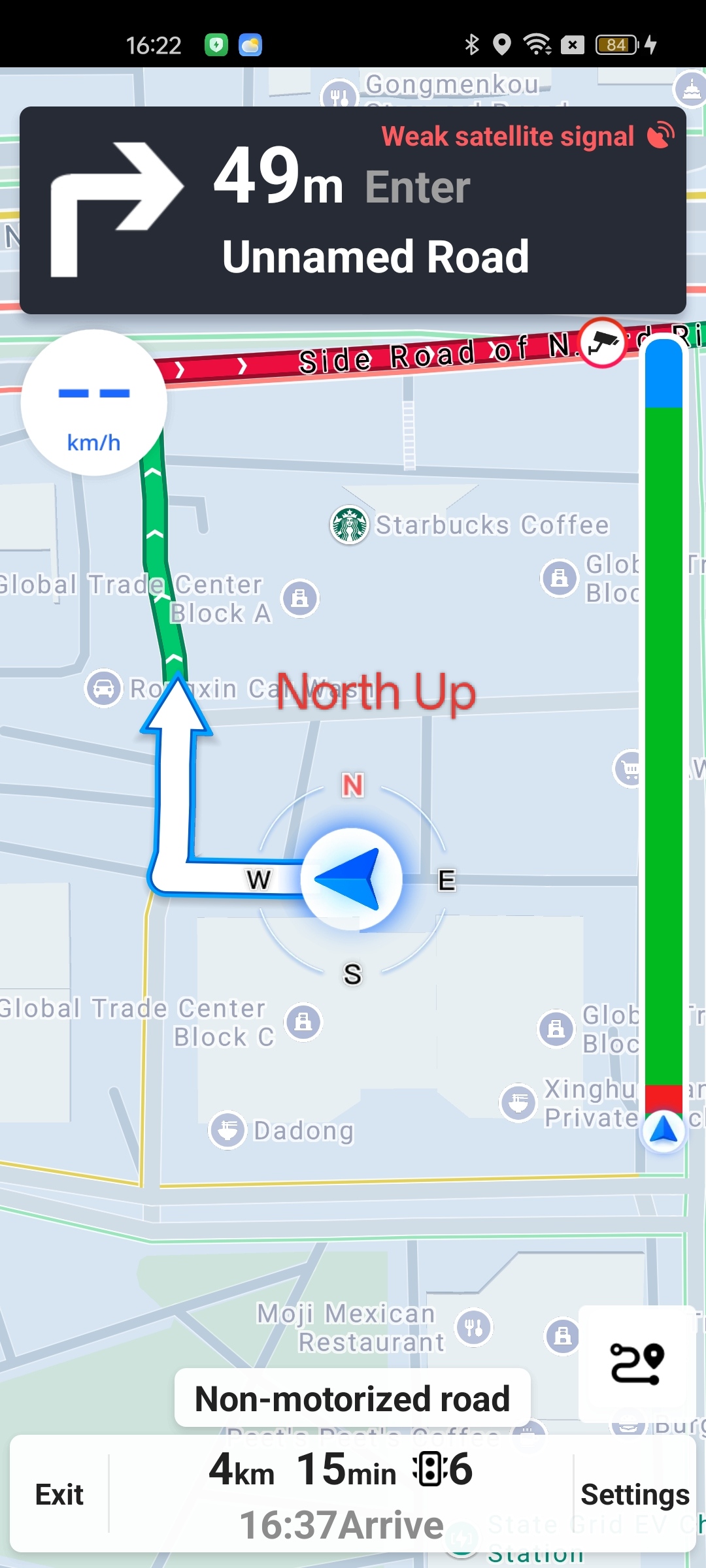
Set Vehicle Orientation via AMapNaviView
Use the following method in AMapNaviView to adjust the vehicle orientation:
/**
* Sets the vehicle orientation mode.
* @param mode The orientation mode:
*             0 - CAR_UP_MODE: Car up mode.
*             1 - NORTH_UP_MODE: North up mode.
* @since 1.7.0
*/
public void setNaviMode(int mode)
Listen for Orientation Changes via AMapNaviViewListener
Use the following callback in AMapNaviViewListener to monitor orientation changes:
/**
* Callback when the navigation view orientation changes.
* @param naviMode The navigation orientation: 0 for car up mode, 1 for north up mode.
*/
void onNaviMapMode(int naviMode);
> Tip: AMapNaviView does not support pixel-based scrolling via scrollBy.