
Custom UI Controls
This guide describes how to customize the user interface of the navigation view.
Customize Individual UI Elements
Use the following methods in AMapNaviViewOptions to show or hide individual UI elements. The list below covers only a subset of available options; for the full set, see the AMapNaviViewOptions class.
/**
 * Sets whether the menu button is displayed on the navigation screen.
 *
 * @param enabled true to show the menu button, false to hide it.
 */
public void setSettingMenuEnabled(Boolean enabled)

/**
 * Sets whether to display the junction view (real-scene image).
 *
 * @param isCrossDisplayEnabled true to enable, false to disable.
 * @since 5.0.0
 */
public void setRealCrossDisplayShow(boolean isCrossDisplayEnabled)

/**
 * Sets whether to display the junction view (model-based image).
 *
 * @param isCrossDisplayShow true to show, false to hide.
 * @since 1.5.0
 */
@Deprecated
public void setCrossDisplayShow(boolean isCrossDisplayShow)

/**
 * Sets the bitmaps for the traffic button's enabled and disabled states.
 * Both bitmaps must be set for the change to take effect.
 *
 * @param defaultBitmap The bitmap for the enabled state.
 * @param pressedBitmap The bitmap for the disabled state.
 */
public void setTrafficBitmap(Bitmap defaultBitmap, Bitmap pressedBitmap)

/**
 * Sets the bitmaps for the overview button's default and pressed states.
 * Both bitmaps must be set for the change to take effect.
 *
 * @param defaultBitmap The bitmap for the default state.
 * @param pressedBitmap The bitmap for the pressed state.
 */
public void setOverBitmap(Bitmap defaultBitmap, Bitmap pressedBitmap)

/**
 * Sets whether the route overview button is displayed on the navigation screen.
 *
 * @param isShow true to show the button (default), false to hide it.
 */
public void setRouteListButtonShow(boolean isShow)
Customize the Entire UI
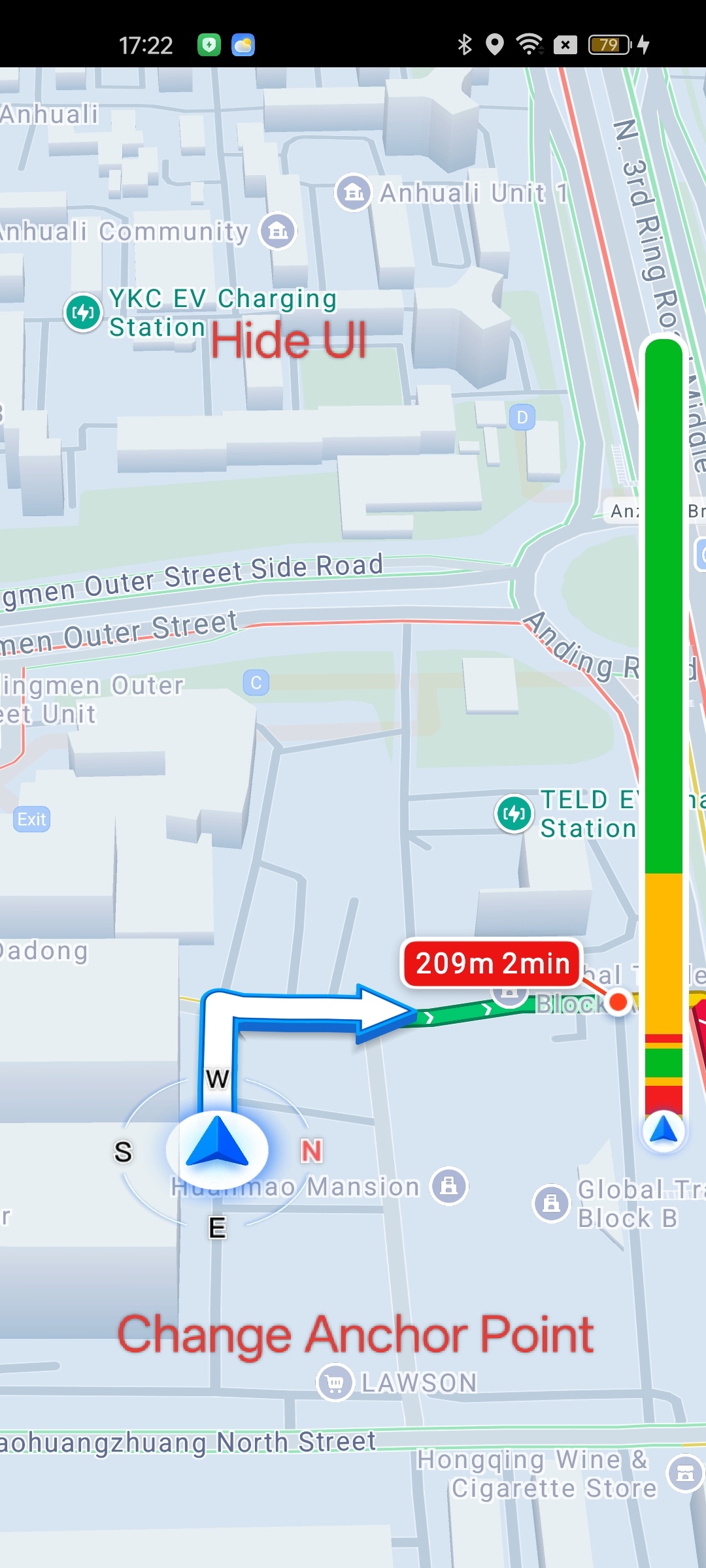
As shown in the image above, use the following method in AMapNaviViewOptions to show or hide all UI controls at once.
/**
 * Sets whether the navigation UI is visible.
 *
 * @param isLayoutVisible true to show the navigation UI, false to hide it.
 */
public void setLayoutVisible(boolean isLayoutVisible)
When the UI is hidden, you can also customize the map anchor point through AMapNaviViewOptions. This allows you to adjust the position of the scale bar and the default position of the vehicle icon when the map is locked to the vehicle's location. Use the following method:
/**
 * Sets the position of the vehicle icon on the screen.
 * (0, 0) represents the top-left corner of the map, and (1, 1) represents the bottom-right corner.
 *
 * @param x The horizontal position as a percentage of the map width. Range: 0-1.
 * @param y The vertical position as a percentage of the map height. Range: 0-1.
 * @since 1.5.0
 */
public void setPointToCenter(double x, double y)
Assemble a Custom Navigation Interface
The navigation SDK provides several views that you can use to build your own navigation interface:
- DriveWayView
- ZoomInIntersectionView
- TrafficProgressBar
- TrafficButtonView
- OverviewButtonView
After creating these views and positioning them in your layout, use the following methods in AMapNaviView to delegate their business logic to the SDK. You do not need to manage the views' internal logic.
/**
 * Sets a custom lane guidance view.
 *
 * @param lazyDriveWayView The custom DriveWayView.
 * @since 1.9.0
 */
public void setLazyDriveWayView(DriveWayView lazyDriveWayView)

/**
 * Sets a custom junction view.
 *
 * @param zoomInIntersectionView The custom ZoomInIntersectionView.
 * @since 1.9.0
 */
public void setLazyZoomInIntersectionView(ZoomInIntersectionView zoomInIntersectionView)

/**
 * Sets a custom traffic button view.
 *
 * @param lazyTrafficButtonView The custom TrafficButtonView.
 * @since 1.9.0
 */
public void setLazyTrafficButtonView(TrafficButtonView lazyTrafficButtonView)

/**
 * Sets a custom overview button view.
 *
 * @param lazyOverviewButtonView The custom OverviewButtonView.
 */
public void setLazyOverviewButtonView(OverviewButtonView lazyOverviewButtonView)

/**
 * Sets a custom traffic progress bar view.
 * You only need to set the position, width, and height of the view.
 * The SDK handles all other elements, such as colors and vehicle icons.
 *
 * @param lazyTrafficProgressBarView The custom TrafficProgressBar.
 * @since 7.4.0
 */
public void setLazyTrafficProgressBarView(TrafficProgressBar lazyTrafficProgressBarView)