
Get an API Key
How to Apply for a Key
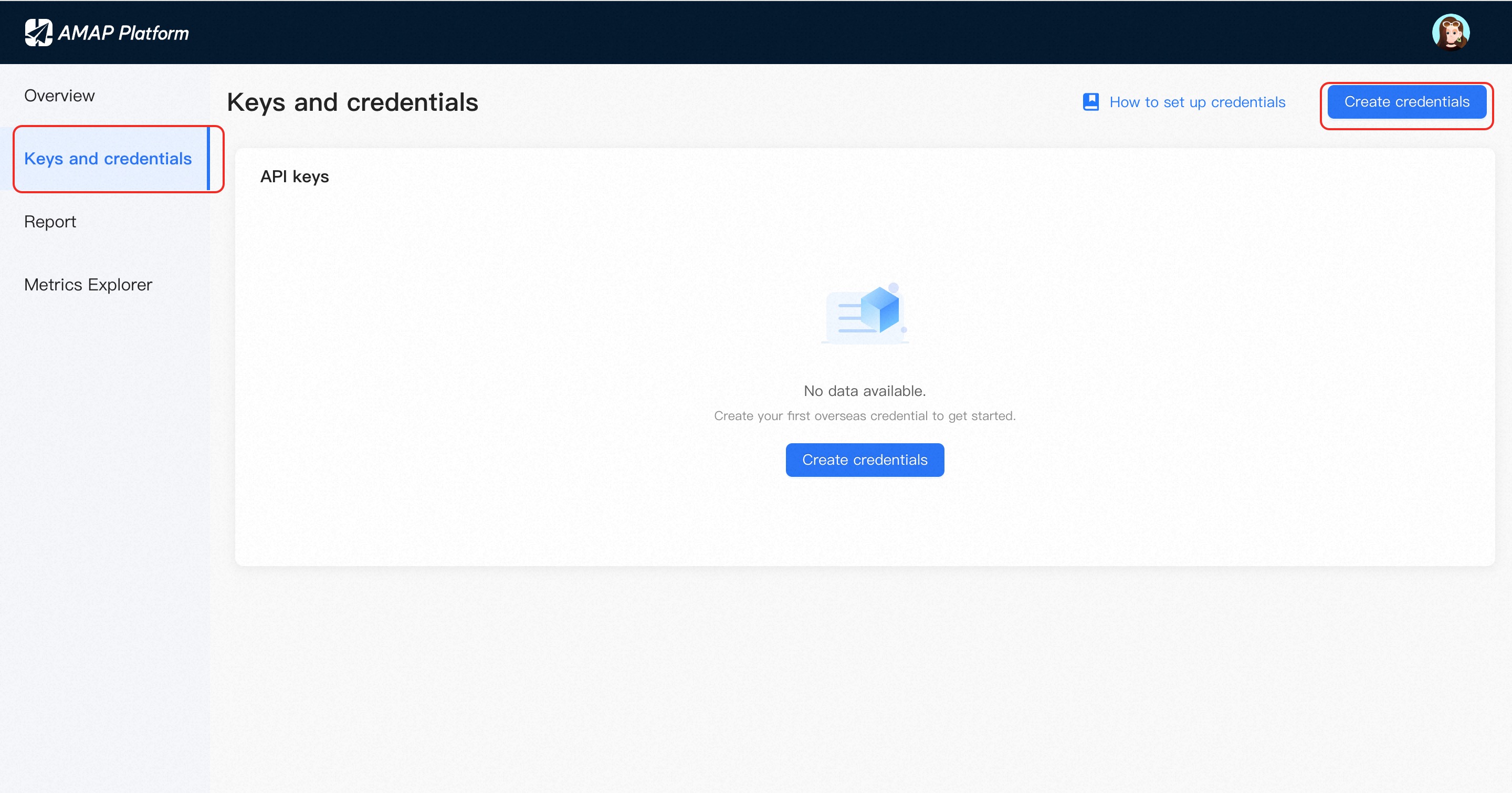
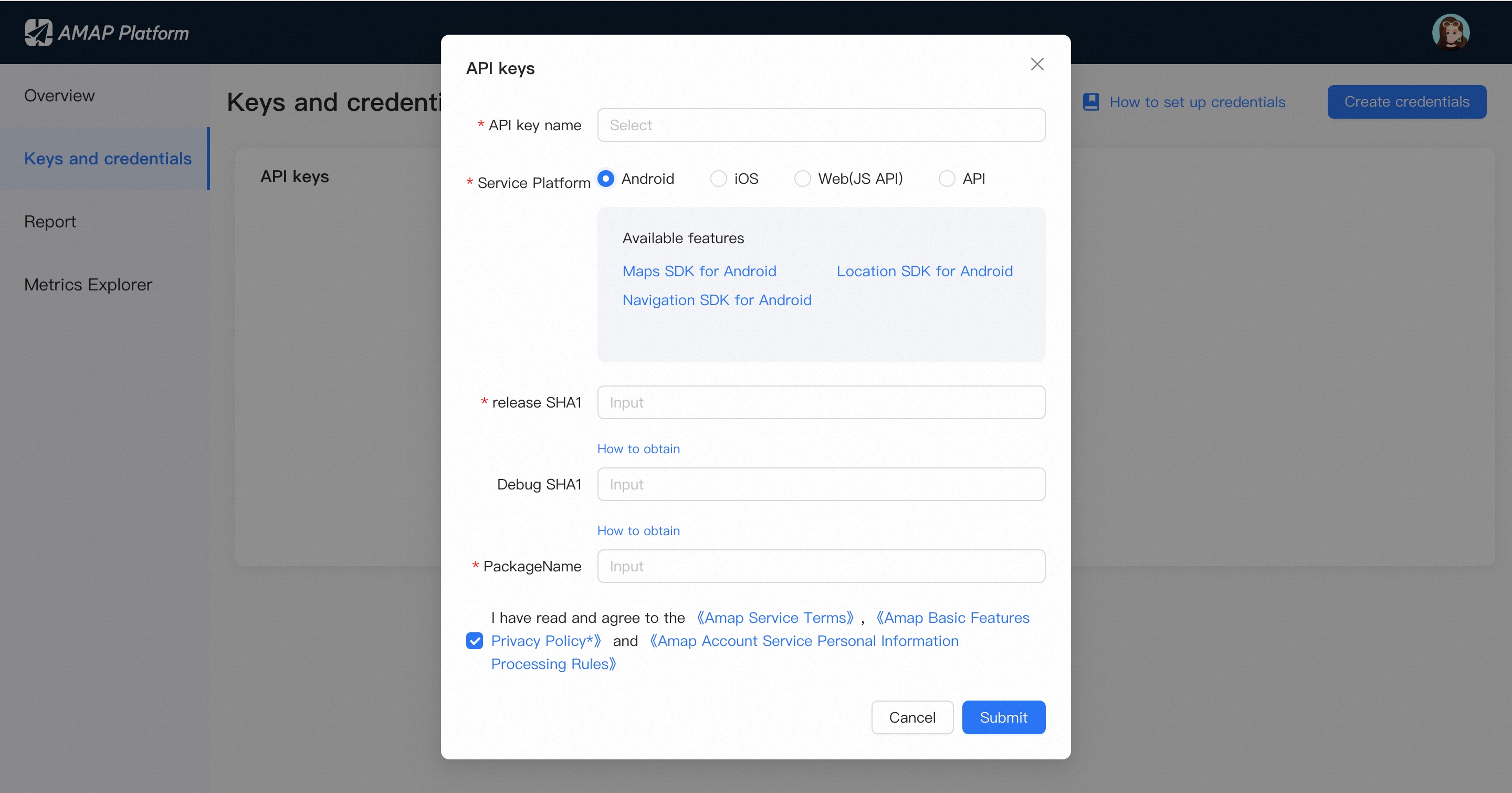
Log in to the console and click the "Create credentials" button. In the pop-up dialog box, complete the following fields in order: enter the API Key Name, select "Android" as the bound service, enter the Release Version SHA1, Debug Version SHA1, and Package Name, as shown in the figure below:
How to Obtain SHA1
The SHA1 values for the debug and release versions are different. When publishing an APK, you need to reconfigure the Key based on the keystore corresponding to the released APK.
- To obtain the Debug Version SHA1, refer to the appropriate guide based on your development tool: Getting SHA1 via Eclipse or Getting SHA1 via Android Studio.
- To obtain the Release Version SHA1, please refer to Getting SHA1 via keytool (Built-in JDK Tool).
Getting SHA1 via Eclipse
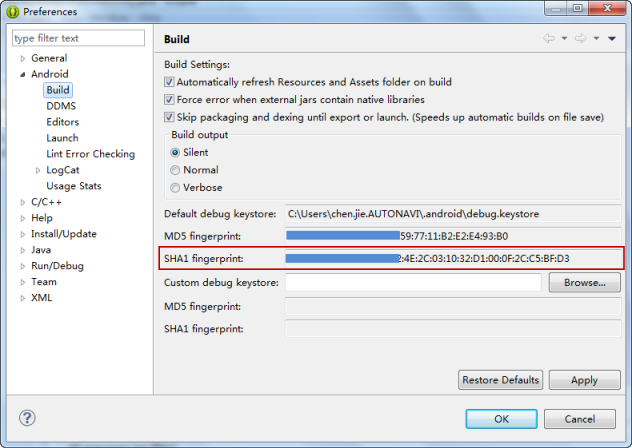
For ADT version 22 and above, the SHA1 value can be viewed directly within Eclipse.
Windows: Navigate to the following path in Eclipse: Window -> Preferences -> Android -> Build.
Mac: Navigate to the following path in Eclipse: Eclipse/ADT -> Preferences -> Android -> Build.
In the Build dialog box, the value displayed in the "SHA1 fingerprint" field is the SHA1 value of your Android signature certificate, as shown in the figure below:
Getting SHA1 via Android Studio
Step 1: Open the Terminal tool in Android Studio.
Step 2: Enter the following command: keytool -v -list -keystore <your_keystore_path>.
Step 3: Enter your Keystore password when prompted.
Getting SHA1 via keytool (Built-in JDK Tool)
- Open Command Prompt.
- Press Win + R to open the Run dialog
- a. Type cmd in the input field
- b. Click OK to launch the command prompt
- In the command prompt window, type cd .android to navigate to the .android folder.
- Continue by entering the appropriate command in the command prompt.
- For the debug version, use debug.keystore with the command: keytool -list -v -keystore debug.keystore.
- For the release version, use the APK's corresponding keystore with the command: keytool -list -v -keystore <your_apk_keystore>.
When prompted to enter the keystore password, the default password for debug mode is android, while for release mode, use the password set for your APK keystore. Press Enter after typing the password (or just press Enter if no password has been set). The SHA1 value will then be displayed in the command prompt output.
Note: A keystore file is an Android signature certificate file.
How to Obtain the Package Name
Open the AndroidManifest.xml configuration file in your Android project. The value of the package attribute is your application's package name, as shown in the figure below:
Please also verify that the applicationId attribute in your build.gradle file matches the package attribute mentioned above. Any inconsistency between the two will result in an INVALID_USER_SCODE error. Please ensure they are identical.
