
Permission Configuration
This document describes the location permission configuration requirements for iOS apps across different system versions, including the required Info.plist settings and API usage.
iOS 8.x
Foreground Location
- Add the NSLocationWhenInUseUsageDescription key to your Info.plist file.
- Note: If you enable Capabilities > UIBackgroundModes > Location updates in Xcode, the app can continue to receive location data when running in the background. However, a blue location indicator bar appears at the top of the screen.
Background Location
- Add the NSLocationAlwaysUsageDescription key to your Info.plist file.
- Enable Capabilities > UIBackgroundModes > Location updates in Xcode.
iOS 9.x and iOS 10.x
Foreground Location
- Add the NSLocationWhenInUseUsageDescription key to your Info.plist file.
- Note: If you enable Capabilities > UIBackgroundModes > Location updates and set allowsBackgroundLocationUpdates to YES, the app can continue to receive location data when running in the background. A blue location indicator bar appears at the top of the screen.
Background Location
- Add the NSLocationAlwaysUsageDescription key to your Info.plist file.
- Enable Capabilities > UIBackgroundModes > Location updates in Xcode.
- Set allowsBackgroundLocationUpdates to YES.
Differences from iOS 8.x
- iOS 9.x introduces the allowsBackgroundLocationUpdates property for background location. In iOS 8.x, this property is implicitly YES.
iOS 11.x and iOS 12.x
Foreground Location
- Add the NSLocationWhenInUseUsageDescription key to your Info.plist file.
- Note: If you enable Capabilities > UIBackgroundModes > Location updates and set allowsBackgroundLocationUpdates to YES, the app can continue to receive location data when running in the background. The blue location indicator bar is always visible and cannot be hidden.
Background Location
- Add both NSLocationWhenInUseUsageDescription and NSLocationAlwaysAndWhenInUseUsageDescription keys to your Info.plist file.
- Enable Capabilities > UIBackgroundModes > Location updates in Xcode.
- Set allowsBackgroundLocationUpdates to YES.
- Note: When the app is in the background, the system does not display the blue location indicator bar by default. Use the showsBackgroundLocationIndicator property to control its visibility.
Differences from iOS 10.x
- iOS 11.x changes the configuration key for background location permissions.
- Starting from iOS 11.x, to request background location, you must configure both NSLocationWhenInUseUsageDescription and NSLocationAlwaysAndWhenInUseUsageDescription in Info.plist.
- iOS 11.x introduces the showsBackgroundLocationIndicator property. When the app has background location permission, this property controls whether the blue location indicator bar is displayed. In iOS 10.x and earlier, this property is implicitly NO.
iOS 13.x
Foreground Location
- Add the NSLocationWhenInUseUsageDescription key to your Info.plist file.
- Note: The permission request dialog differs from previous versions. It now includes an Allow Once option. If the user selects Allow Once, the app can request location permission again the next time it is used by calling the relevant API.
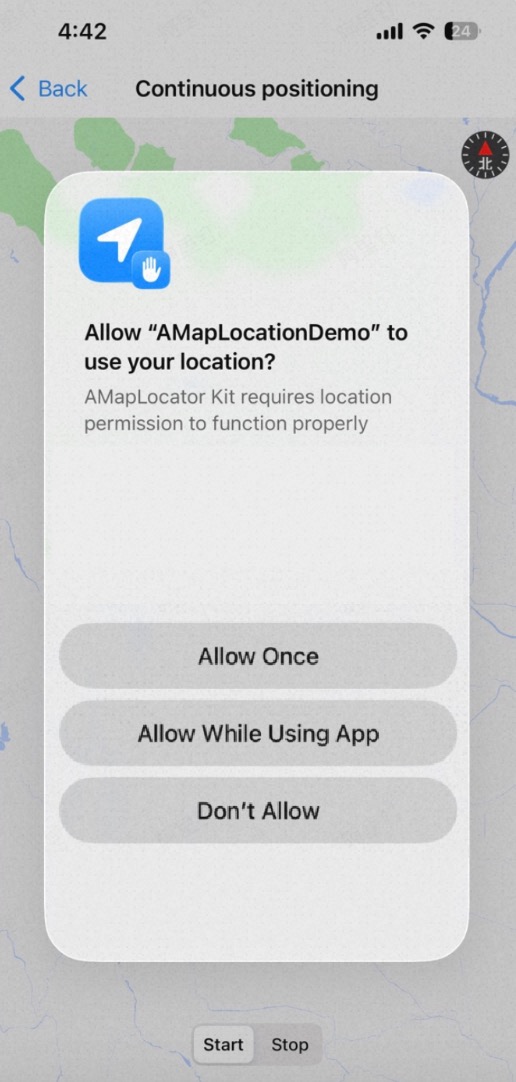
Background Location
- Add both NSLocationWhenInUseUsageDescription and NSLocationAlwaysAndWhenInUseUsageDescription keys to your Info.plist file.
- Enable Capabilities > UIBackgroundModes > Location updates in Xcode.
- Set allowsBackgroundLocationUpdates to YES.
Differences from iOS 12.x
- The While Using the App location permission now includes an Allow Once option.
- You cannot directly request background location permission. The user must first grant While Using the App permission before you can request an upgrade to background location.
iOS 14.x
Foreground Location
- Add the NSLocationWhenInUseUsageDescription key to your Info.plist file.
- Note: The permission request dialog differs from previous versions. It now includes a Precise Location toggle and a mini-map showing the user's current location. The mini-map display can be controlled in the device's Location Services settings. If disabled, the mini-map is hidden for all apps.
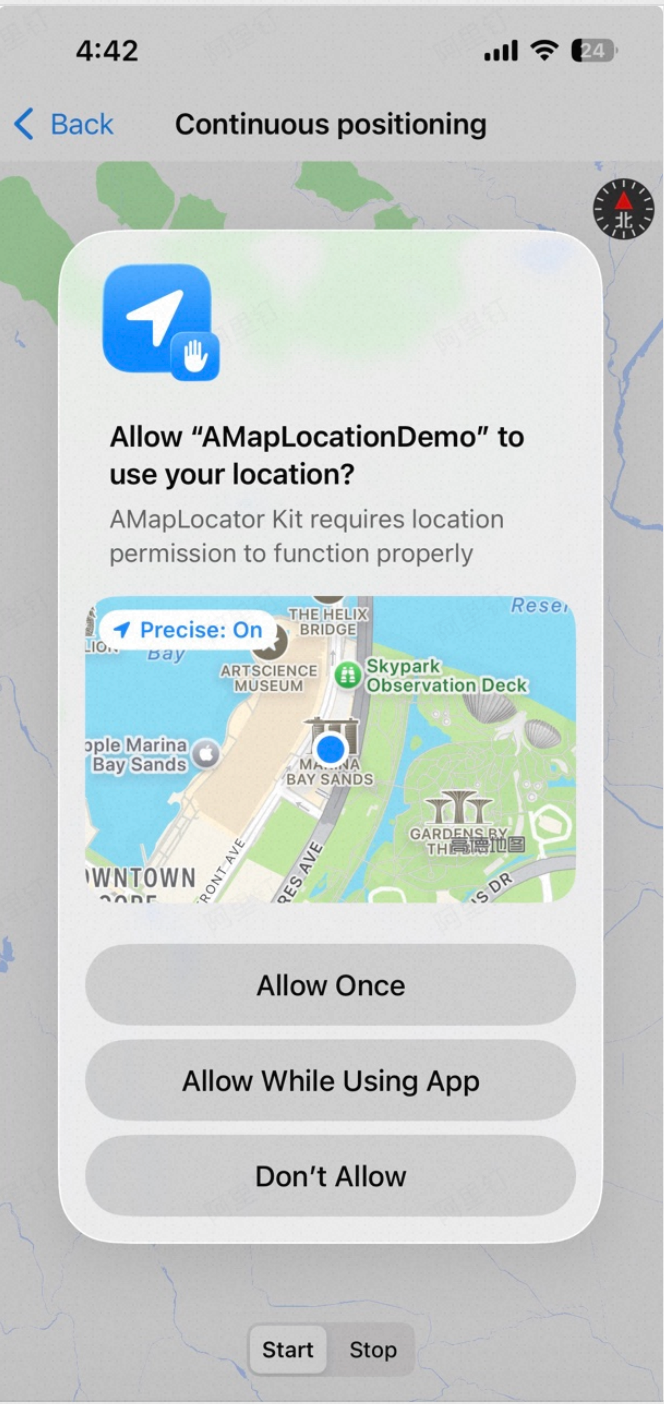
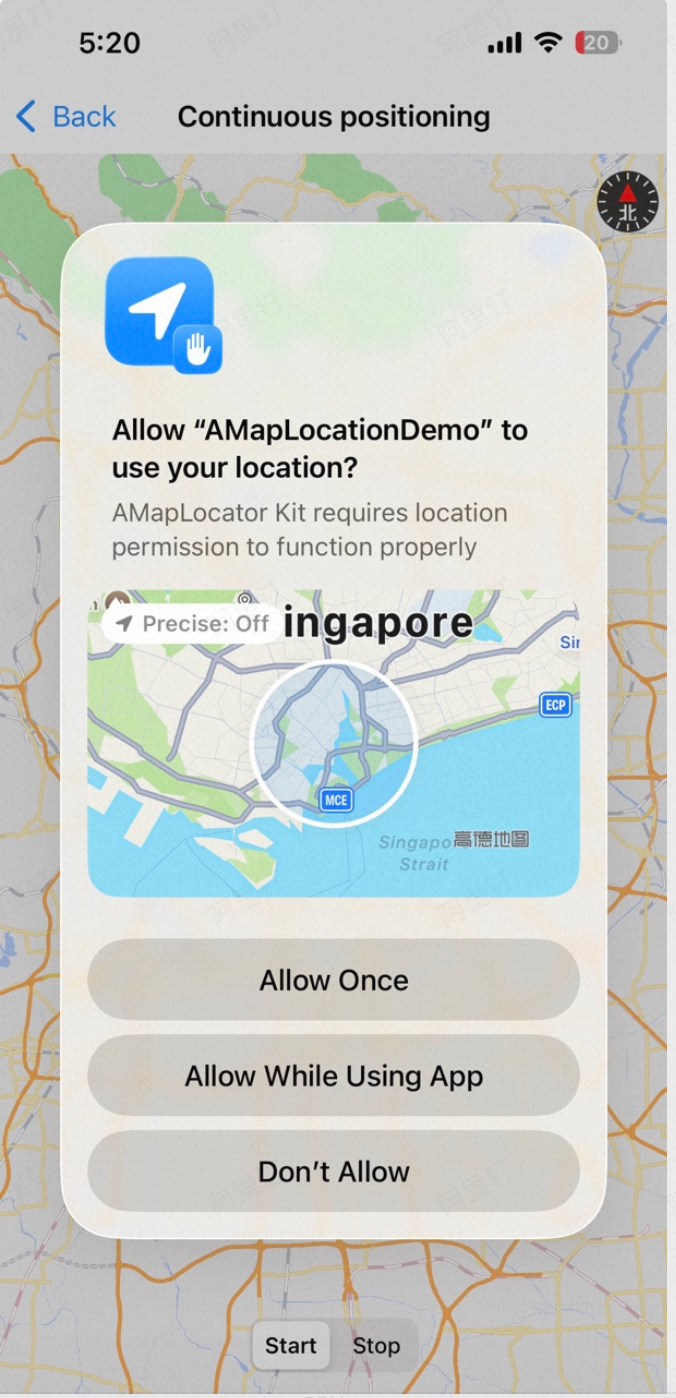
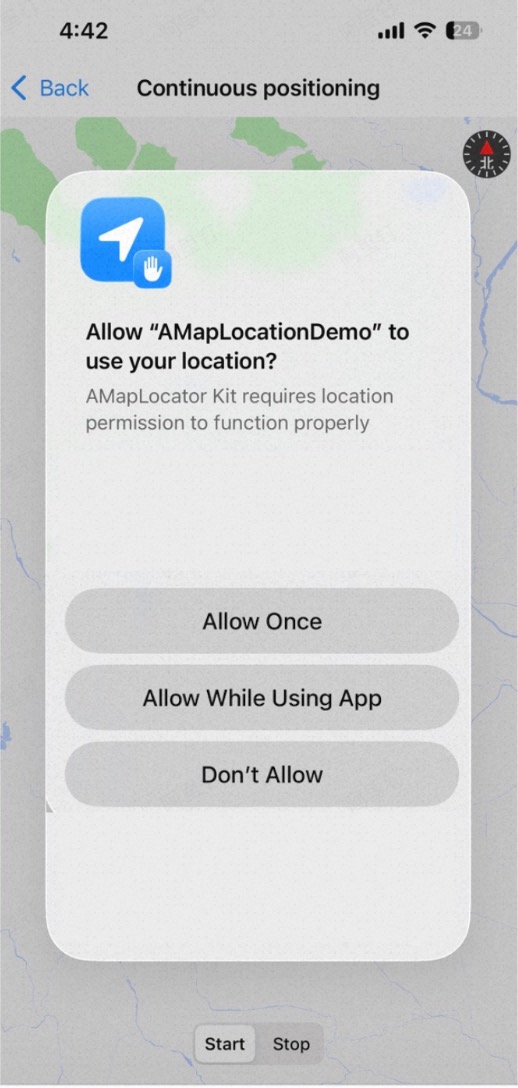
Background Location
- Add both NSLocationWhenInUseUsageDescription and NSLocationAlwaysAndWhenInUseUsageDescription keys to your Info.plist file.
- Enable Capabilities > UIBackgroundModes > Location updates in Xcode.
- Set allowsBackgroundLocationUpdates to YES.
Precision Location Permission
- Add the NSLocationTemporaryUsageDescriptionDictionary key to your Info.plist file. The following example shows the configuration:
<key>NSLocationTemporaryUsageDescriptionDictionary</key>
<dict>
  <key>ExampleUsageDescription</key>
  <string>This app needs accurate location so it can verify that you are in a supported region.</string>
  <key>AnotherUsageDescription</key>
  <string>This app needs accurate location so it can show you relevant results.</string>
</dict>
- A new property, @property (nonatomic, readonly) CLAccuracyAuthorization accuracyAuthorization API_AVAILABLE(ios(14.0), macos(11.0), watchos(7.0), tvos(14.0)), is available to read the current precision location authorization status.
- After the app has obtained location permission and the user has selected reduced accuracy, you can request a one-time upgrade to precise location using the following API:
- (void)requestTemporaryFullAccuracyAuthorizationWithPurposeKey:(NSString *)purposeKey
                                                    completion:(void(^)(NSError *))completion;
The purposeKey parameter corresponds to a key in the NSLocationTemporaryUsageDescriptionDictionary dictionary in Info.plist. You can define multiple keys for different location use cases in your app.
Important: This API is used only to upgrade from reduced accuracy to precise accuracy. It cannot be used to request location permission. To request location permission, use requestWhenInUseAuthorization or requestAlwaysAuthorization. Calling this API without first obtaining location permission has no effect.
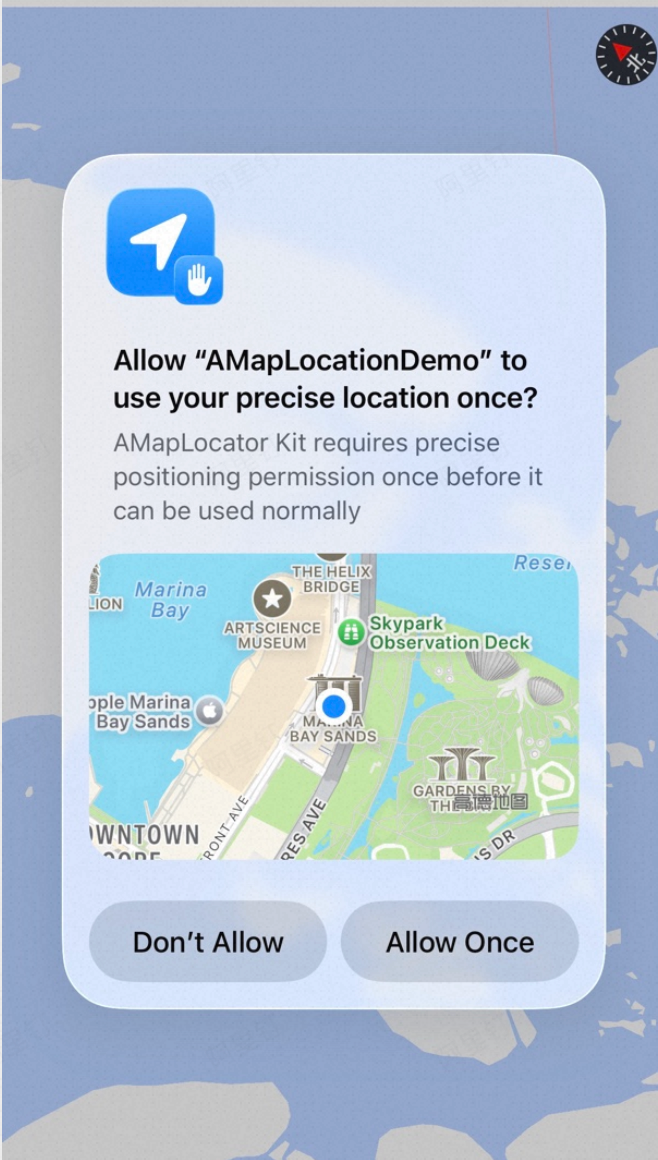
- If your app does not require precise location by default, you can configure the NSLocationDefaultAccuracyReduced key in Info.plist. When this key is set, the mini-map in the location permission dialog no longer shows the Precise Location toggle, and precise location is disabled by default.
Note: The NSLocationDefaultAccuracyReduced key must be of type Boolean. Other types are ignored.
If NSLocationTemporaryUsageDescriptionDictionary is also configured, the app can still request temporary precise location permission.
<key>NSLocationDefaultAccuracyReduced</key> <true/>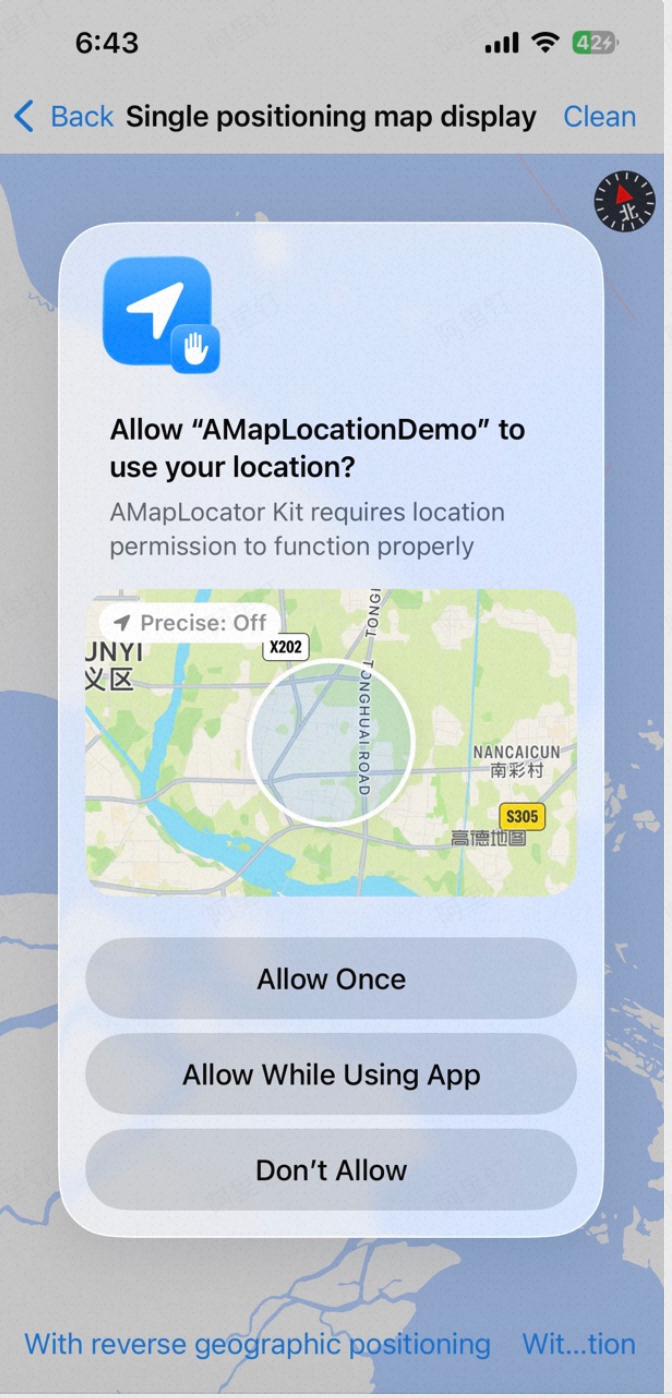
Differences from iOS 13.x
- The permission request dialog differs from previous versions.
- New precision location permission settings, authorization, and reading capabilities are introduced.
- A new API for one-time upgrade from reduced accuracy to precise accuracy is added.
- A new callback for location permission changes is added.
Summary
Location Permission Considerations
- Starting from iOS 11, to request background location, you must configure both NSLocationWhenInUseUsageDescription and NSLocationAlwaysAndWhenInUseUsageDescription in Info.plist.
- Since the second half of 2019, Apple's App Store has imposed restrictions on background location permissions. If your Info.plist does not contain NSLocationAlwaysUsageDescription or NSLocationAlwaysAndWhenInUseUsageDescription, your app code must not contain the requestAlwaysAuthorization symbol. Otherwise, the app will be rejected during review.
Info.plist Key Summary
API Behavior by iOS Version
iOS 8.0
iOS 9.0 - iOS 12.0
Privacy Compliance
For more information on privacy compliance, see Privacy Compliance.