Set Up Manually
Before you begin, create a Single View Application project, then follow the steps below to manually configure your project.
Step 1: Add Required Libraries
The following libraries are required:
* Base SDK: AMapFoundationKit.framework
Important: Using Base SDK version 1.2.0 or higher is required for successful App Store submission. For more information, see the Base SDK overview.
* Location SDK: AMapLocationKit.framework
To add the Location SDK:
1. Copy or drag the extracted AMapLocationKit.framework file into your project folder.
2. In the left panel, select your project name.
3. Go to TARGETS > Build Phases > Link Binary With Libraries.
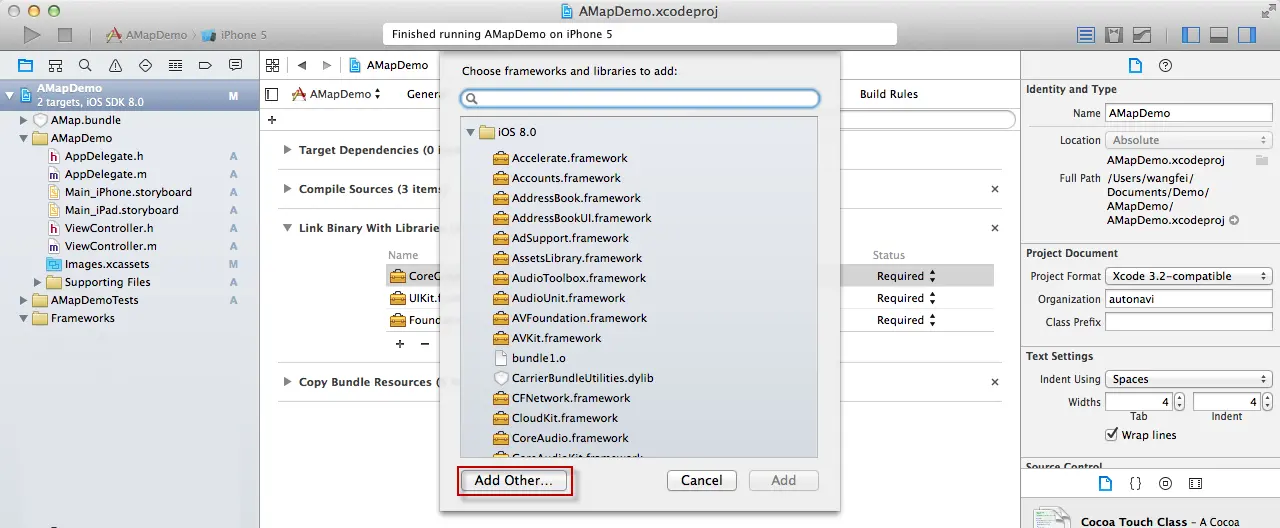
4. Click the + button, then click Add Other in the pop-up window.
5. Select the AMapLocationKit.framework file from your project directory and add it to the project.
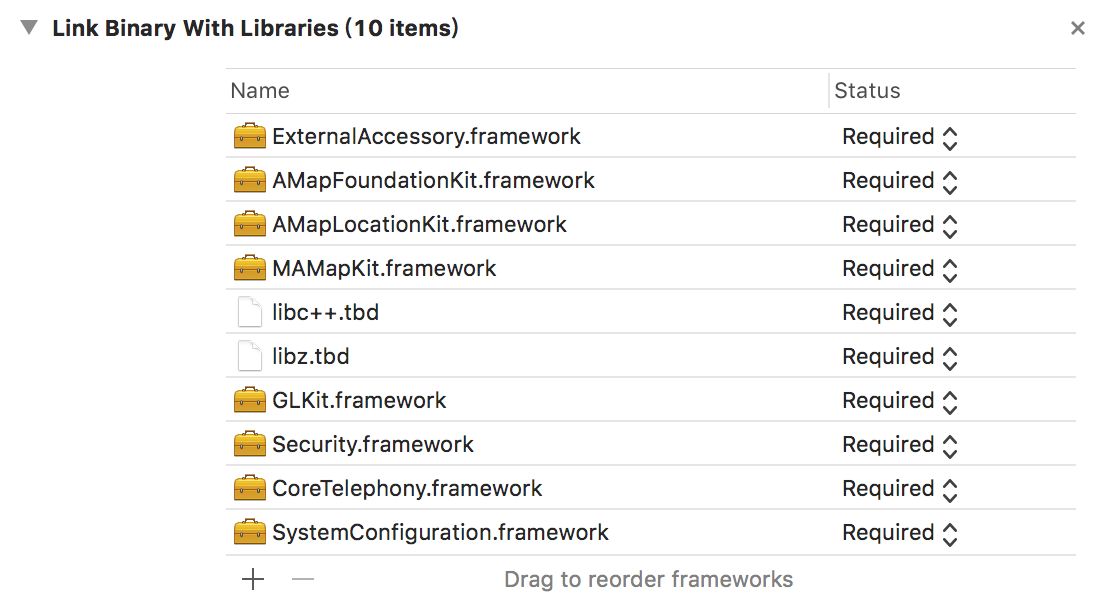
The correct configuration should appear as shown below:
Note:
1. The SystemConfiguration.framework, CoreTelephony.framework, and Security.framework system libraries are used for app statistics.
2. To add system libraries:
- In the left panel, select your project name.
- Go to TARGETS > Build Phases > Link Binary With Libraries.
- Click the + button, search for and select the required library, then click Add.
Step 2: Request Required Permissions
Location Permissions
Add location permission requests to your project's Info.plist file. Choose the appropriate configuration based on your business requirements.
Note: iOS 11 introduced changes to location permissions. See the details below.
iOS 8 – iOS 10:
- NSLocationWhenInUseUsageDescription: Allows the app to receive location updates while it is in the foreground.
- NSLocationAlwaysUsageDescription: Requests Always authorization, allowing the app to receive location updates in both foreground and background (including suspend or terminated states).

iOS 11:
- NSLocationAlwaysAndWhenInUseUsageDescription: Requests Always authorization, allowing the app to receive location updates in both foreground and background (including suspend or terminated states). Note that NSLocationWhenInUseUsageDescription must also be present.
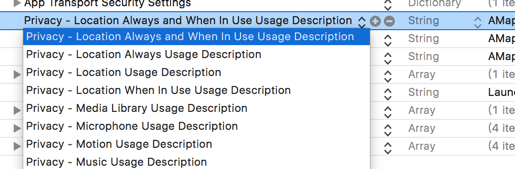
Important: To support background location on both iOS 8–10 and iOS 11 systems, add all three permission keys (NSLocationWhenInUseUsageDescription, NSLocationAlwaysUsageDescription, and NSLocationAlwaysAndWhenInUseUsageDescription) to your Info.plist file.
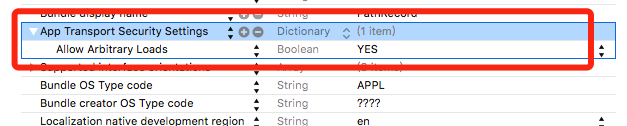
ATS Settings