
Core SDK Overview
The Base SDK provides the core foundation and shared resources required by the AMAP iOS Map, Location, and Navigation SDKs. You must integrate this SDK before using any other AMAP iOS SDK. You can download it from the download page.
Before You Begin
1. All AMAP iOS SDKs starting from the following versions require the Base SDK:
- iOS Map SDK V4.0.0
- iOS Location SDK V2.0.0
- iOS Navigation SDK V2.0.0
2. Starting from V1.2.0, the Base SDK includes IDFA services. If your app does not use these services, see Submitting to the App Store.
3. Set your AMAP API key using the following code before initializing any SDK classes or calling any methods:
[AMapServices sharedServices].apiKey = @"Your API Key";4. Ensure the API key is set before any SDK class initialization or method call.
Configure Permissions
Network Permissions — HTTPS Support (Required)
App Transport Security (ATS) is a security feature introduced by Apple in iOS 9. When ATS is enabled, apps are forced to connect to network services over HTTPS instead of HTTP, ensuring data security through encryption. While ATS is enabled by default, developers can disable it. However, starting January 1, 2017, Apple requires all apps submitted to the App Store to have ATS enabled.
Follow these steps to ensure your app supports ATS when using the AMAP iOS SDK.
Step 1: Update Your SDK
Update your SDK to the minimum version listed in the table below.
Step 2: Enable HTTPS
Add the following code before configuring your AMAP API key to enable HTTPS:
[[AMapServices sharedServices] setEnableHTTPS:YES];IDFA Permissions (Optional)
Starting from V1.2.0, the Base SDK includes IDFA (Identifier for Advertisers). This may cause your app to be rejected during App Store review. Read the following information carefully.
Purpose of IDFA
IDFA helps identify users more accurately, allowing us to track issues you encounter while using the SDK and ensure SDK stability. If your app integrates advertising services, we recommend using the online version of the SDK.
If your app does not integrate any advertising services but needs to track ad-driven installations, you can still use the online version of the SDK. See the instructions below.
Selecting IDFA Options During App Store Review
When submitting your app to the App Store, you will see the following IDFA options:
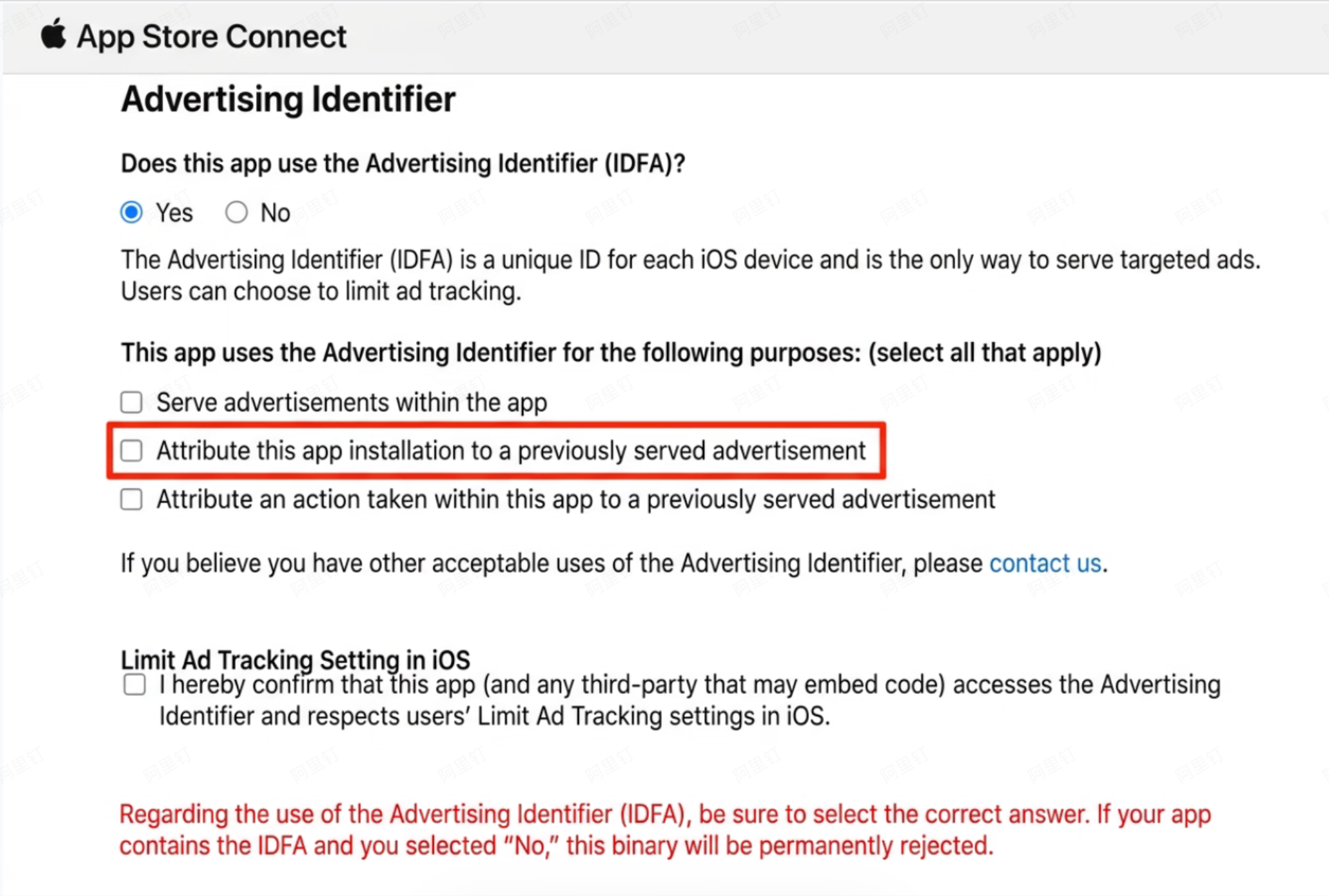
Option Descriptions:
1. Serve advertisements within the app — Select this if your app displays advertisements.
2. Attribute this app installation to a previously served advertisement — Select this if you use third-party tools to track ad-driven installations or events, even if your app does not display ads.
3. Attribute an action taken within this app to a previously served advertisement — Select this if you use third-party tools to track ad-driven user actions or events.
4. The "Limit Ad Tracking" setting in iOS — Select this if your app accesses IDFA. This option is required whenever you use IDFA.
Resolving App Store Rejection
- If your app only displays ads and does not track ad-driven installations: Select options 1 and 4.
- If your app does not display ads but accesses IDFA: We recommend selecting options 2 and 4.
Using the Base SDK Without IDFA
If you prefer not to use the IDFA version of the Base SDK, you can download the version without IDFA.
Alternatively, use CocoaPods:
1. Edit your Podfile:
platform :ios, '9.0'
target 'YourProjectTarget' do
  pod 'AMapLocation-NO-IDFA' # Location SDK without IDFA
end
2. Run the following command:
$ pod installIf the SDK cannot be updated, run pod repo update to update the local CocoaPods repository.
Wi-Fi Information Permissions (Optional)
On iOS 12 and later, you must enable the Access Wi-Fi Information capability in Xcode to retrieve Wi-Fi information. This automatically adds the required permission to your App ID and app's entitlements.
Steps:
1. In Xcode, go to your project settings.
2. Select your target.
3. Go to the Capabilities tab.
4. Turn on Access Wi-Fi Information.

After completing these steps, your app's .entitlements file will contain a new key-value pair:

You can now retrieve the Wi-Fi SSID on iOS 12 and later.
Region & Language Settings
/// Country code property
@property (nonatomic, copy) NSString *countryCode;
[AMapServices sharedServices].countryCode = @"SG";

// Language type
typedef NS_ENUM(int, AMapRegionLanguageType)
{
    /// Simplified Chinese
    AMapRegionLanguageTypeZhHans = 0,

    /// Traditional Chinese (Hong Kong)
    AMapRegionLanguageTypeZhHantHk,

    /// English
    AMapRegionLanguageTypeEn,

    /// Spanish
    AMapRegionLanguageTypeEs,

    /// Portuguese
    AMapRegionLanguageTypePt,

    /// French
    AMapRegionLanguageTypeFr,

    /// German
    AMapRegionLanguageTypeDe,

    /// Thai
    AMapRegionLanguageTypeTh,

    /// Japanese
    AMapRegionLanguageTypeJa,

    /// Korean
    AMapRegionLanguageTypeKo,

    /// Arabic
    AMapRegionLanguageTypeAr,

    /// Turkish
    AMapRegionLanguageTypeTr,

    /// Hebrew
    AMapRegionLanguageTypeHe,

    /// Italian
    AMapRegionLanguageTypeIt,

    /// Russian
    AMapRegionLanguageTypeRu,

    /// Malay
    AMapRegionLanguageTypeMs,

    /// Indonesian
    AMapRegionLanguageTypeId,

    /// Vietnamese
    AMapRegionLanguageTypeVi,

    /// Polish
    AMapRegionLanguageTypePl,

    /// Czech
    AMapRegionLanguageTypeCs,

    /// Ukrainian
    AMapRegionLanguageTypeUk,

    /// Azerbaijani
    AMapRegionLanguageTypeAz,

    /// Max Value Marker
    AMapRegionLanguageTypeMax
};

[AMapServices sharedServices].regionLanguageType = AMapRegionLanguageTypeEn;

// RTL Status:
// 0: Not set, follows the global setting
// 1: Disabled
// 2: Force enabled
typedef NS_ENUM(NSInteger, AMapAttributeRTLState)
{
    AMapAttributeRTLStateDefault = 0,   // Not set, follows the global setting
    AMapAttributeRTLStateDisabled,      // Disabled
    AMapAttributeRTLStateEnabled        // Force enabled
};
[AMapServices sharedServices].enableRTLLayout = AMapAttributeRTLStateEnabled;