Get an API Key
How to Apply for a Key
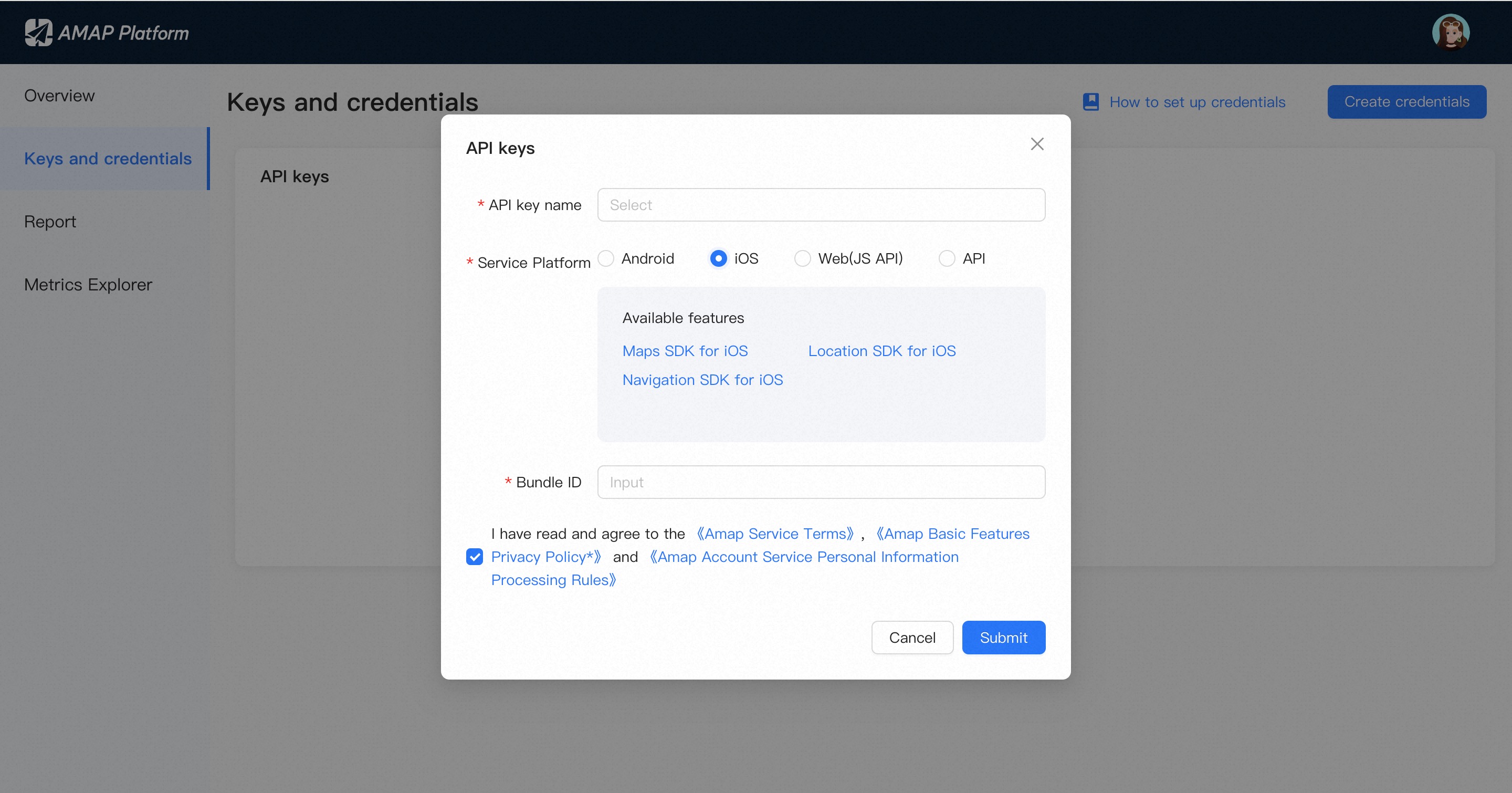
Log in to the console, click the "Create credentials" button, and in the pop-up dialog box, proceed as follows: enter the API key name, select "iOS" as the associated service, and enter the security code Bundle ID.

How to Obtain the Bundle Identifier
Below are two methods for obtaining the Bundle Identifier.
Method 1
Retrieve it programmatically using the following code:
NSString *bundleIdentifier = [[NSBundle mainBundle] bundleIdentifier];
Method 2
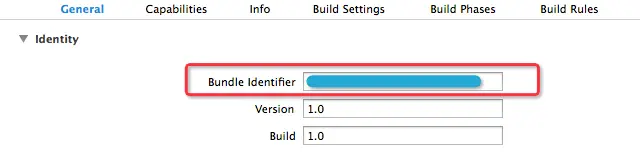
In Xcode, navigate to the General tab and locate the Bundle Identifier, as shown in the figure below: